
Step 11 of 45Registration & Account Creation
Access the official Pepperstone website
Visit the official Pepperstone website and select the option to create an account. Check the website address before entering your personal details.
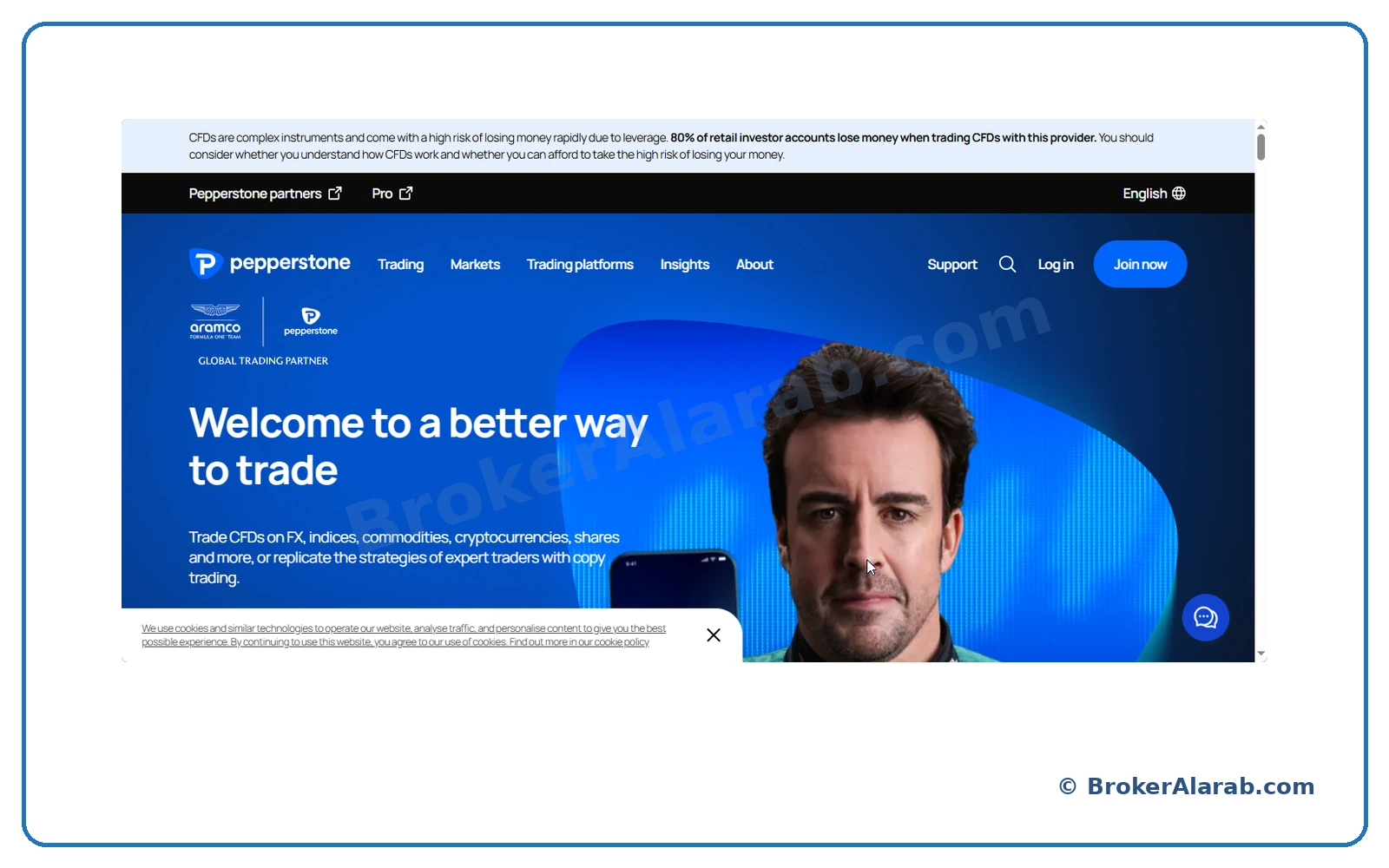
This illustrated Pepperstone guide explains 45 account-opening steps, including registration, personal information, residential address, trading experience assessments, financial knowledge questions, identity verification, and account setup. Requirements may vary by country and legal entity.
Follow the screenshots in sequence and always use accurate personal information during registration and verification.

Pepperstone
English Illustrated Guide
Prepare your contact details and identification documents. Always provide accurate information.
Select a stage or follow the illustrated steps in order.
Steps 1–16
Steps 17–30
Steps 31–42
Steps 43–45
ACCOUNT OPENING STAGE
Visit the official Pepperstone website and select the option to create an account. Check the website address before entering your personal details.
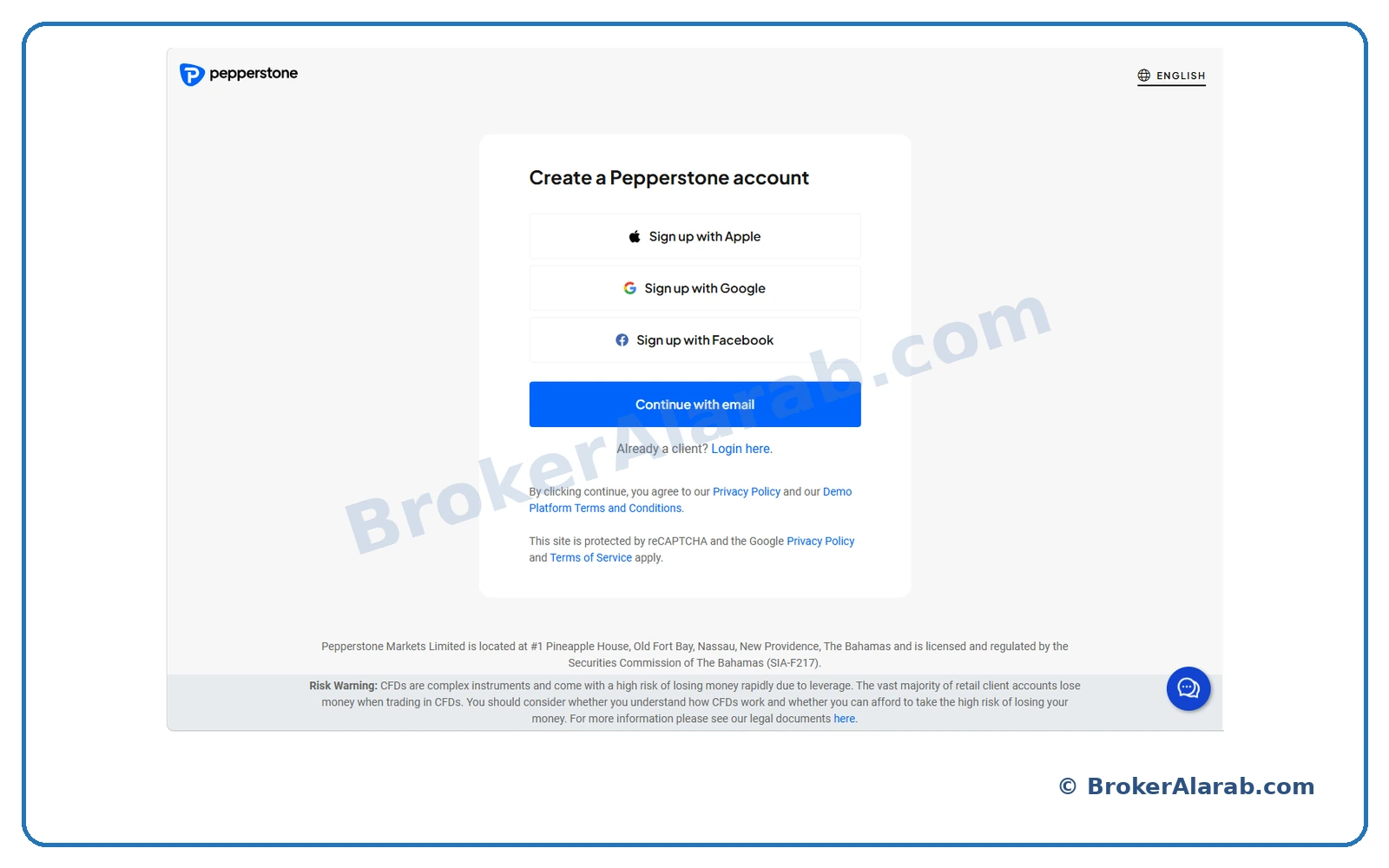
Review the available sign-up methods and select the option you prefer. The displayed methods may depend on the registration interface.
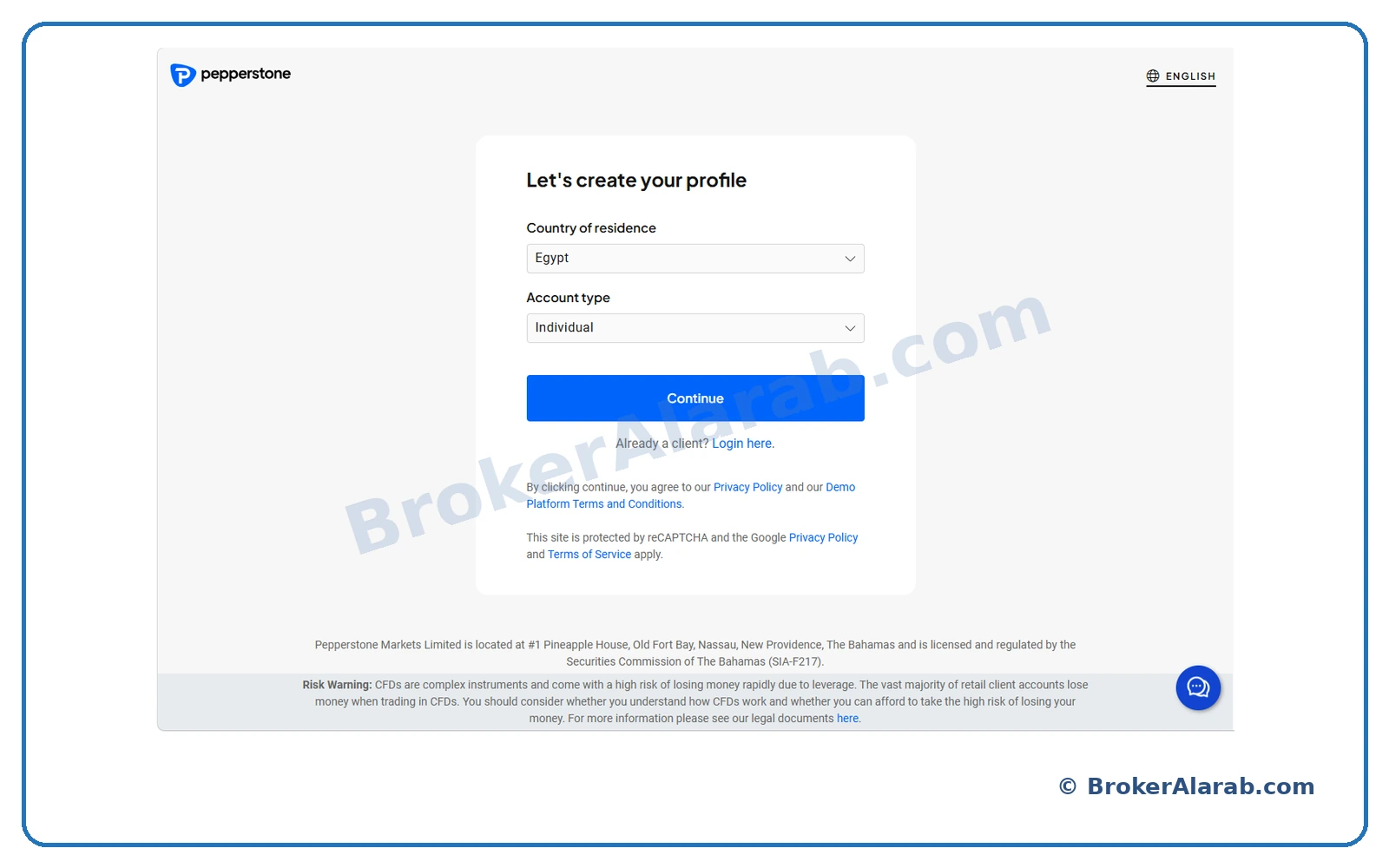
Choose your actual country of residence and the account structure offered to you. Available services and legal entities can vary by jurisdiction.
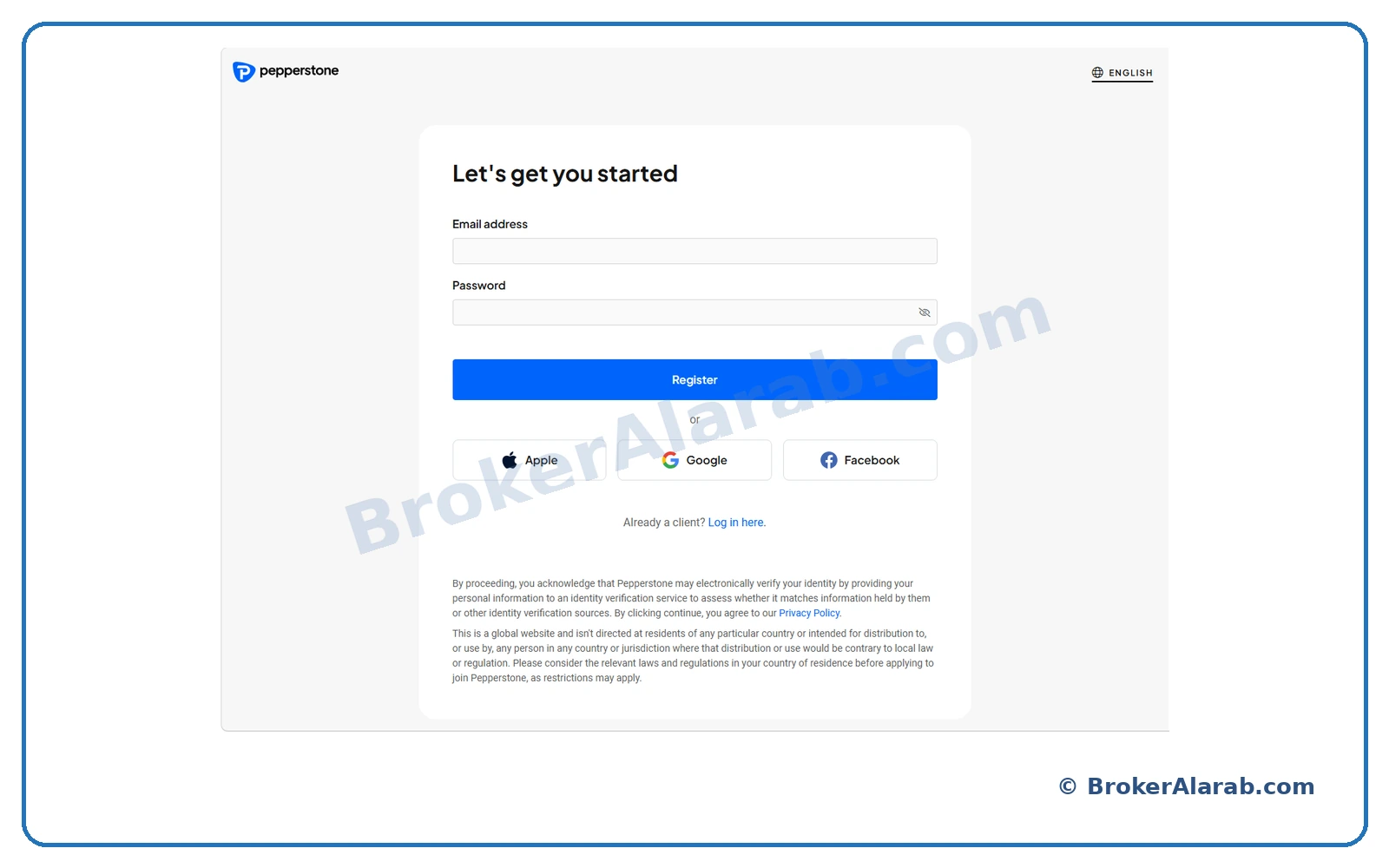
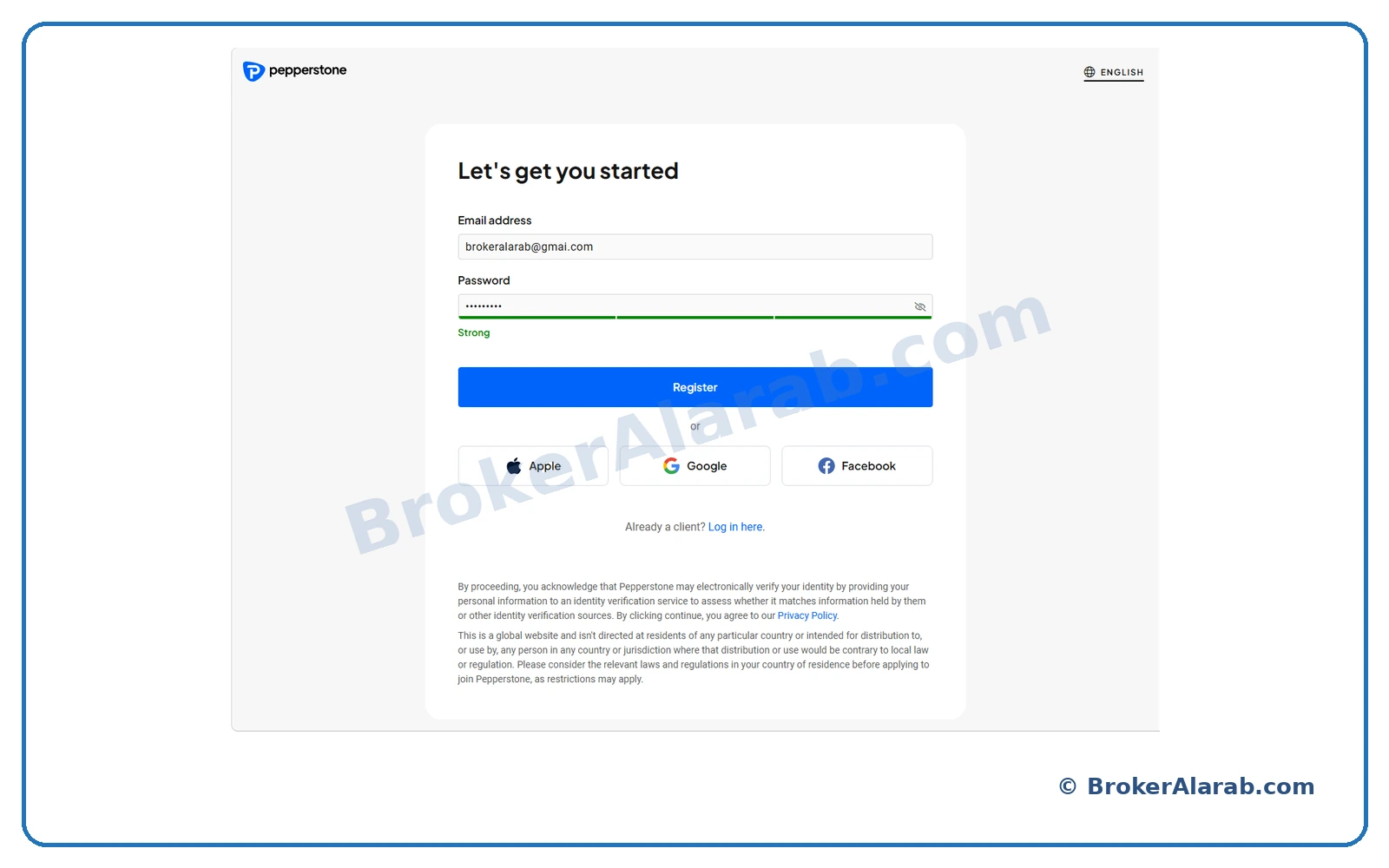
Provide an active email address and create a strong password that meets the displayed requirements. Keep your login credentials secure.
Review your registration information and select the sign-up button. Make sure your email address is correct before continuing.
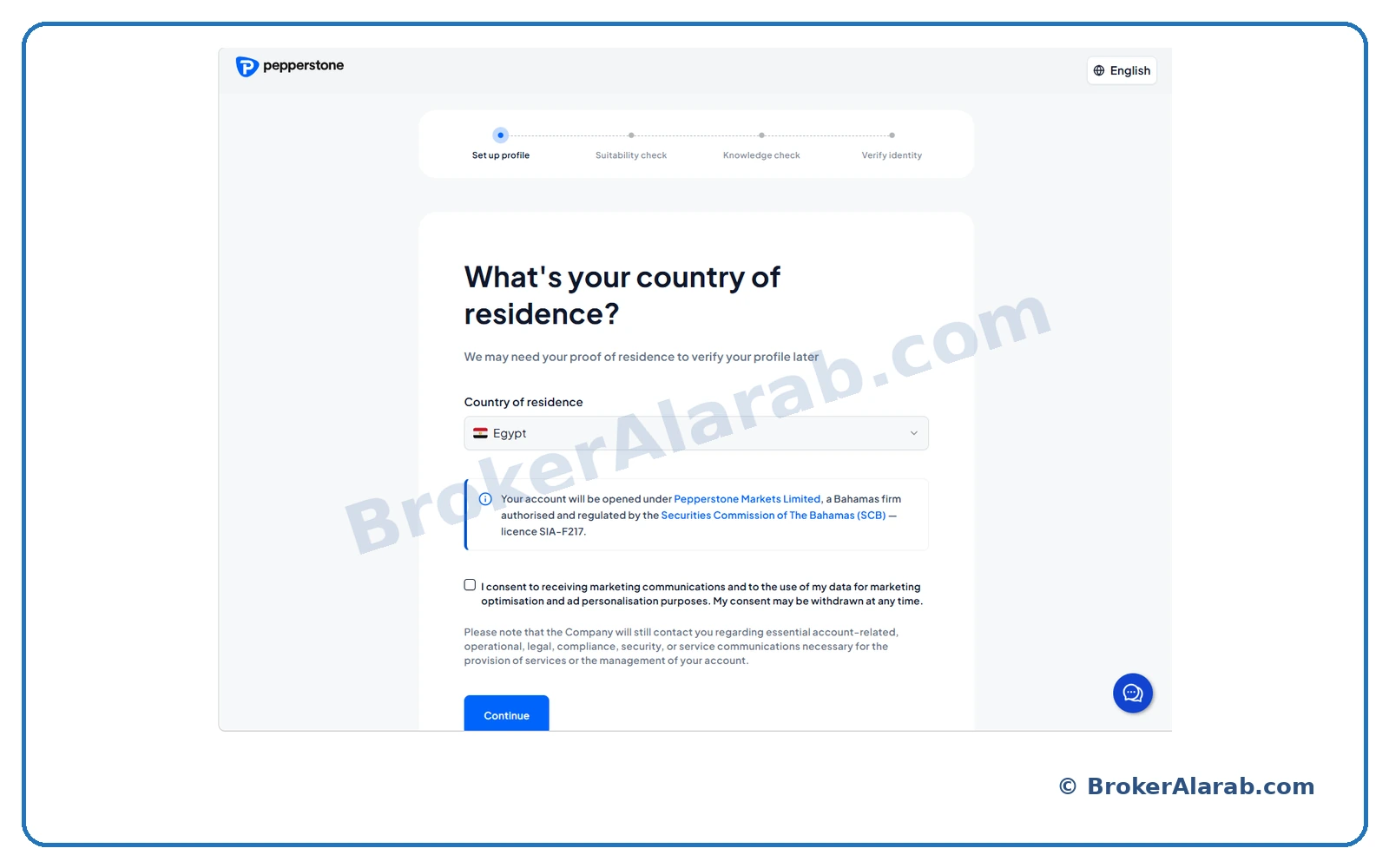
Confirm the country where you actually reside. This information helps determine the regulatory and onboarding requirements applicable to your account.
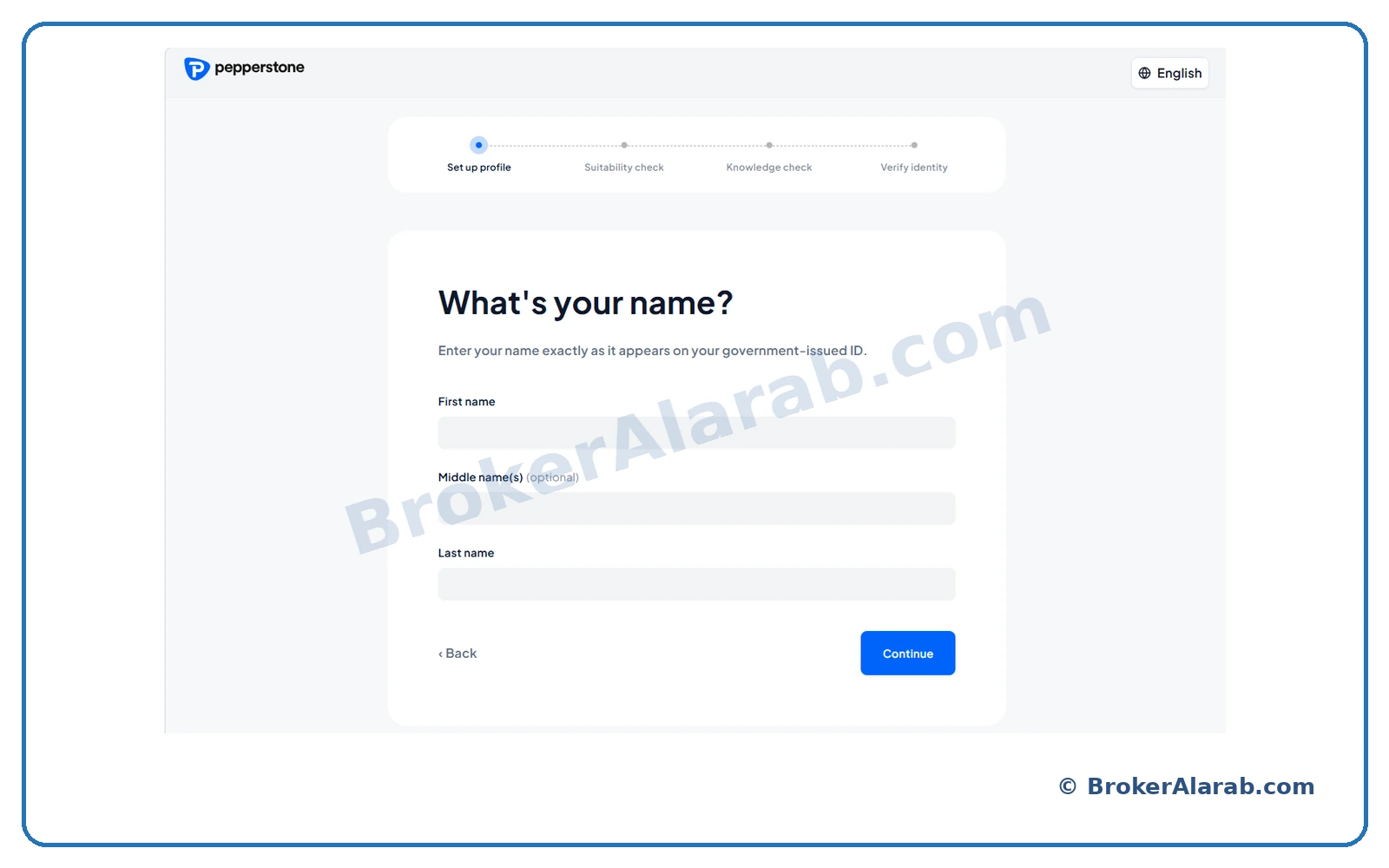
Enter the personal-information stage and prepare to provide your full legal name exactly as it appears on your official identification.
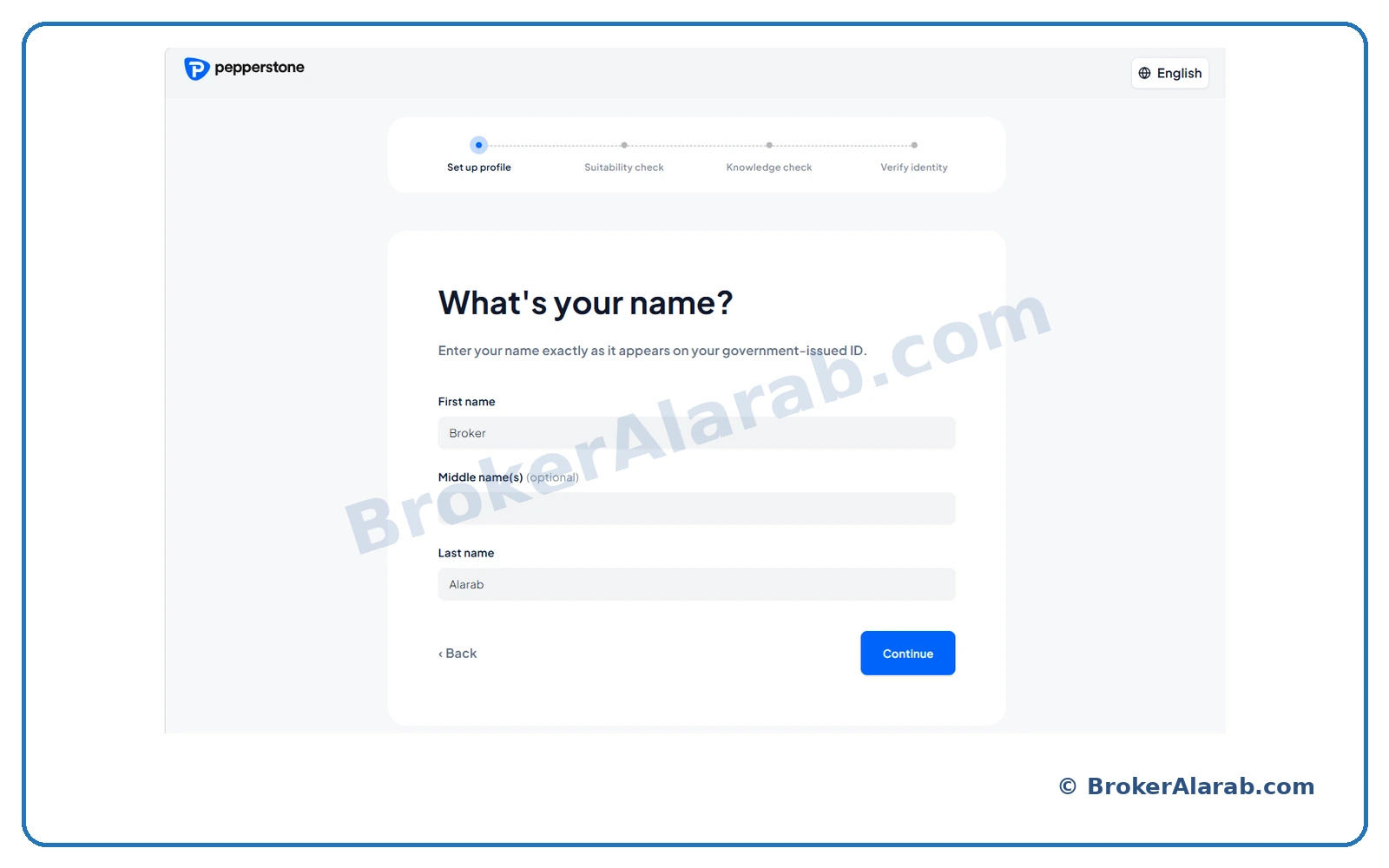
Complete the first-name and surname fields using the spelling shown on your identity documents, then review and submit the information.
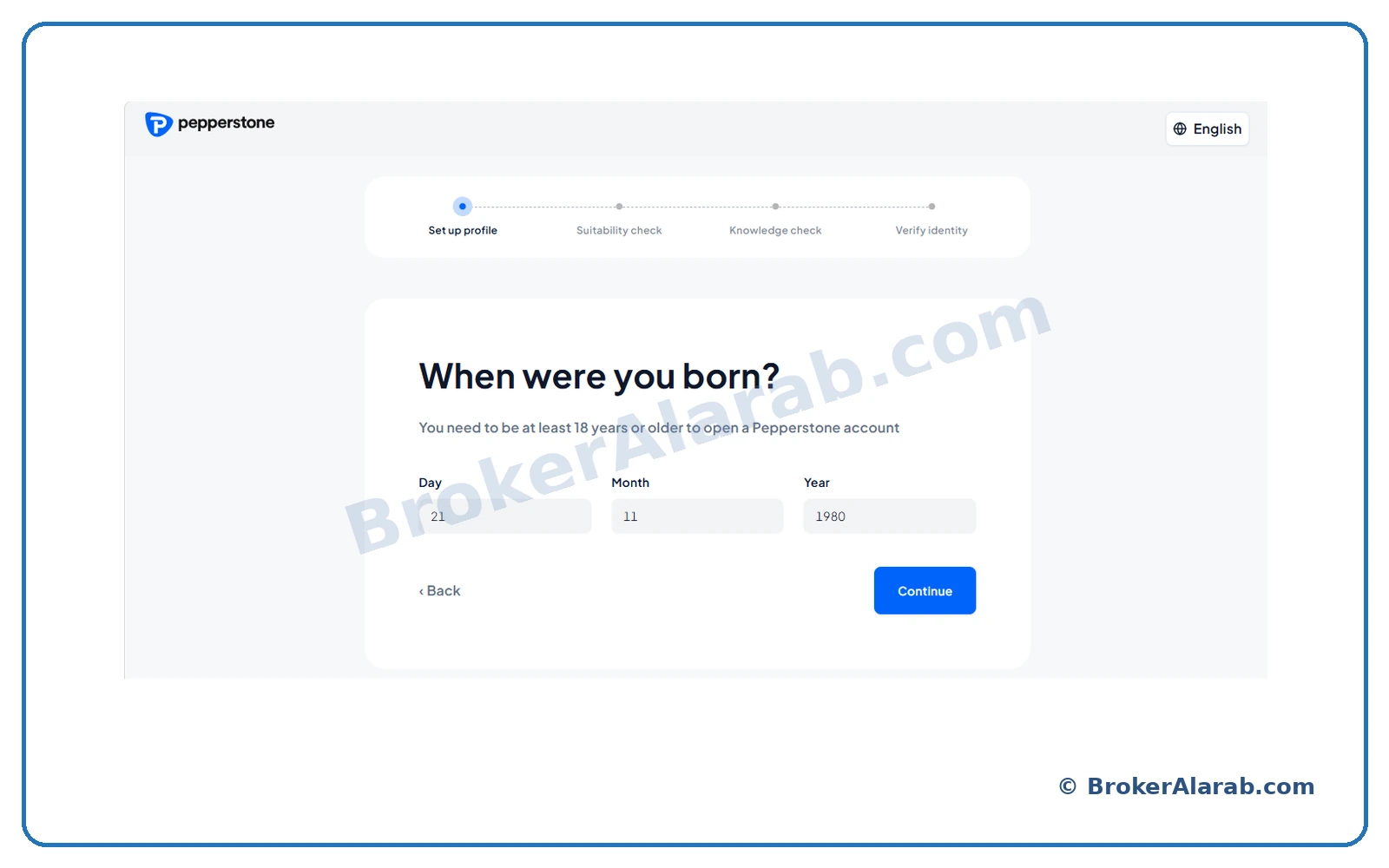
The application requests your date of birth as part of the account eligibility process. Check the required date format before entering it.
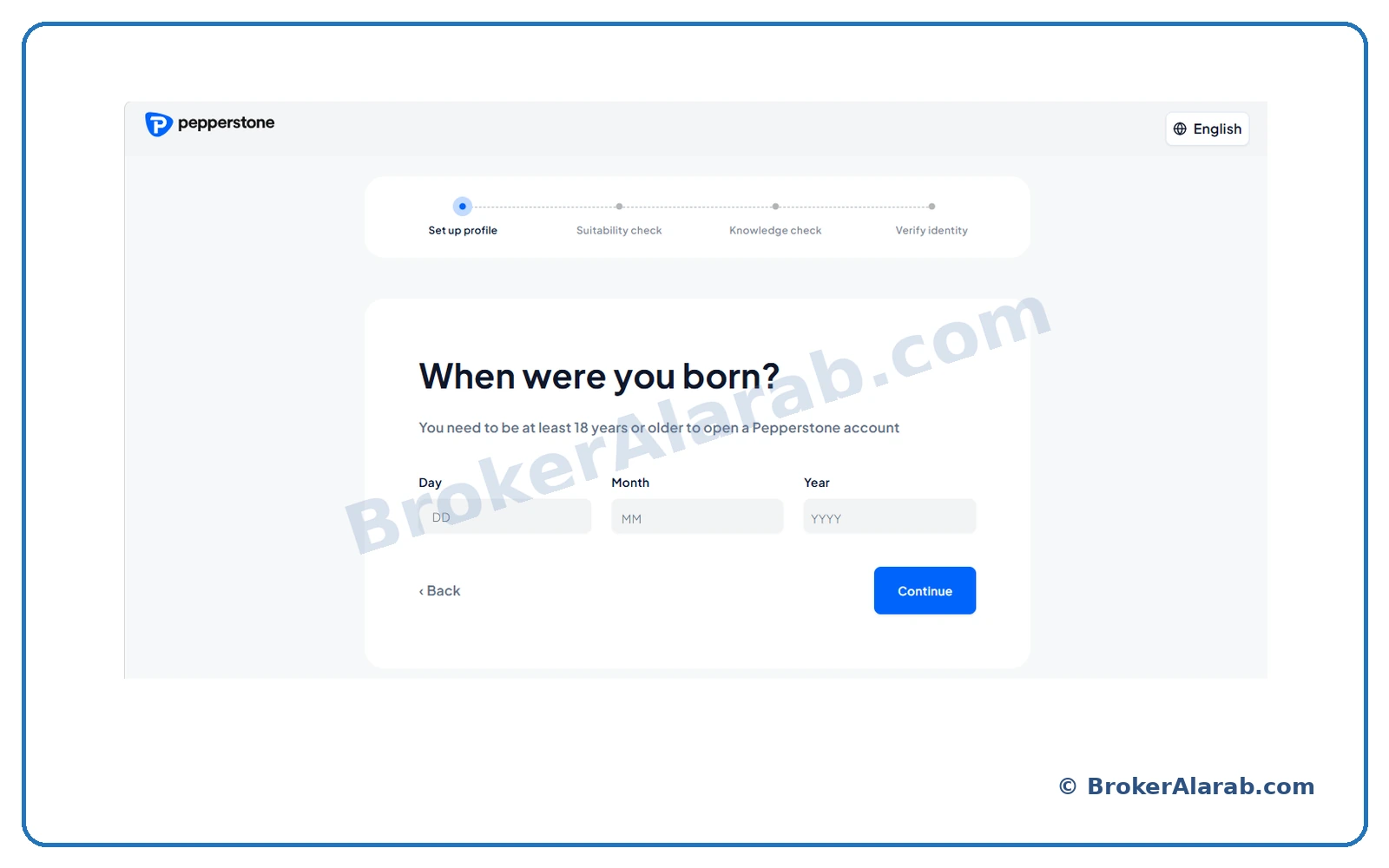
Enter your actual date of birth using the required format. Review it carefully against your official identification before proceeding.
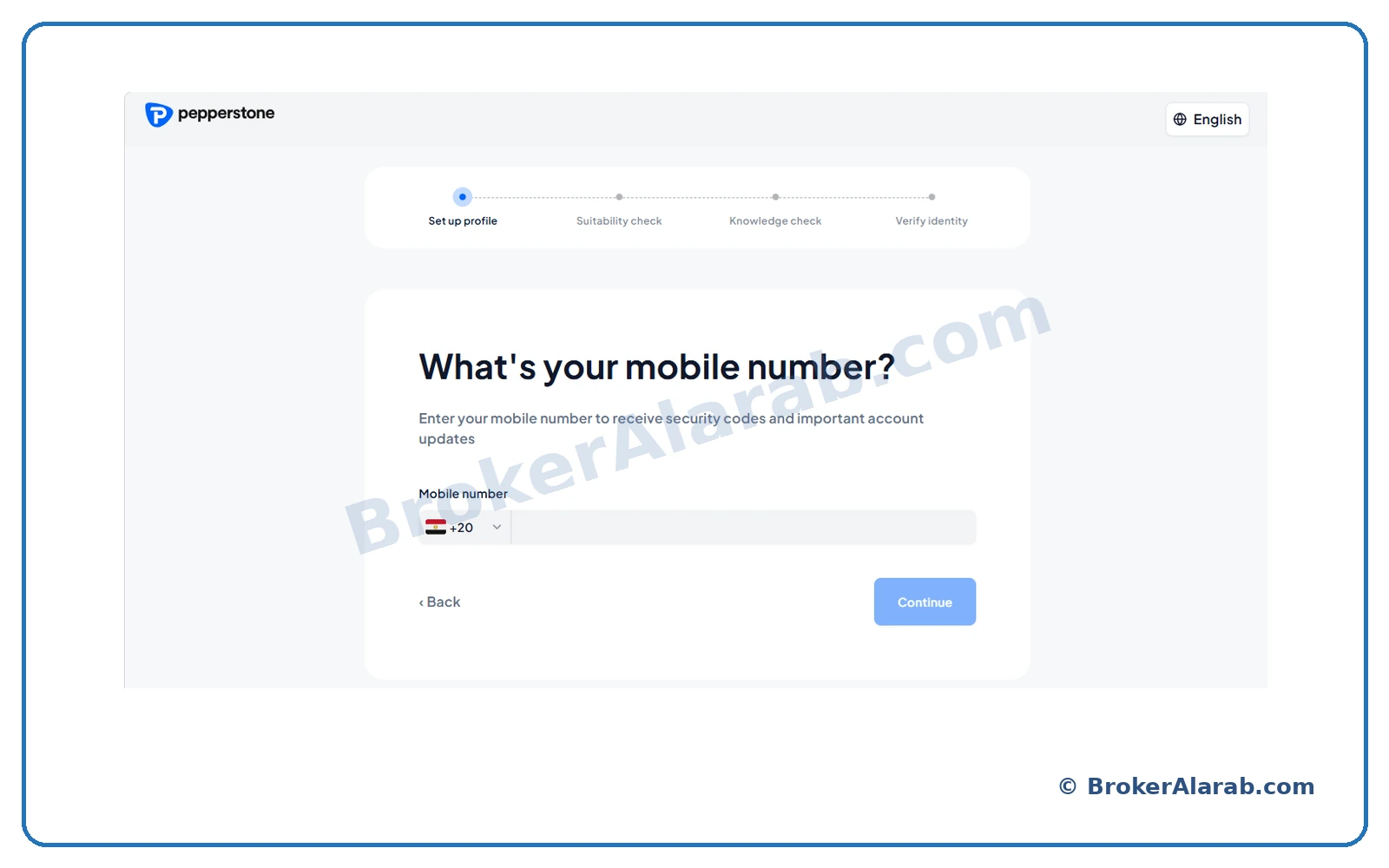
Review the phone-number field and international dialing code. Select the appropriate country code before entering your number.
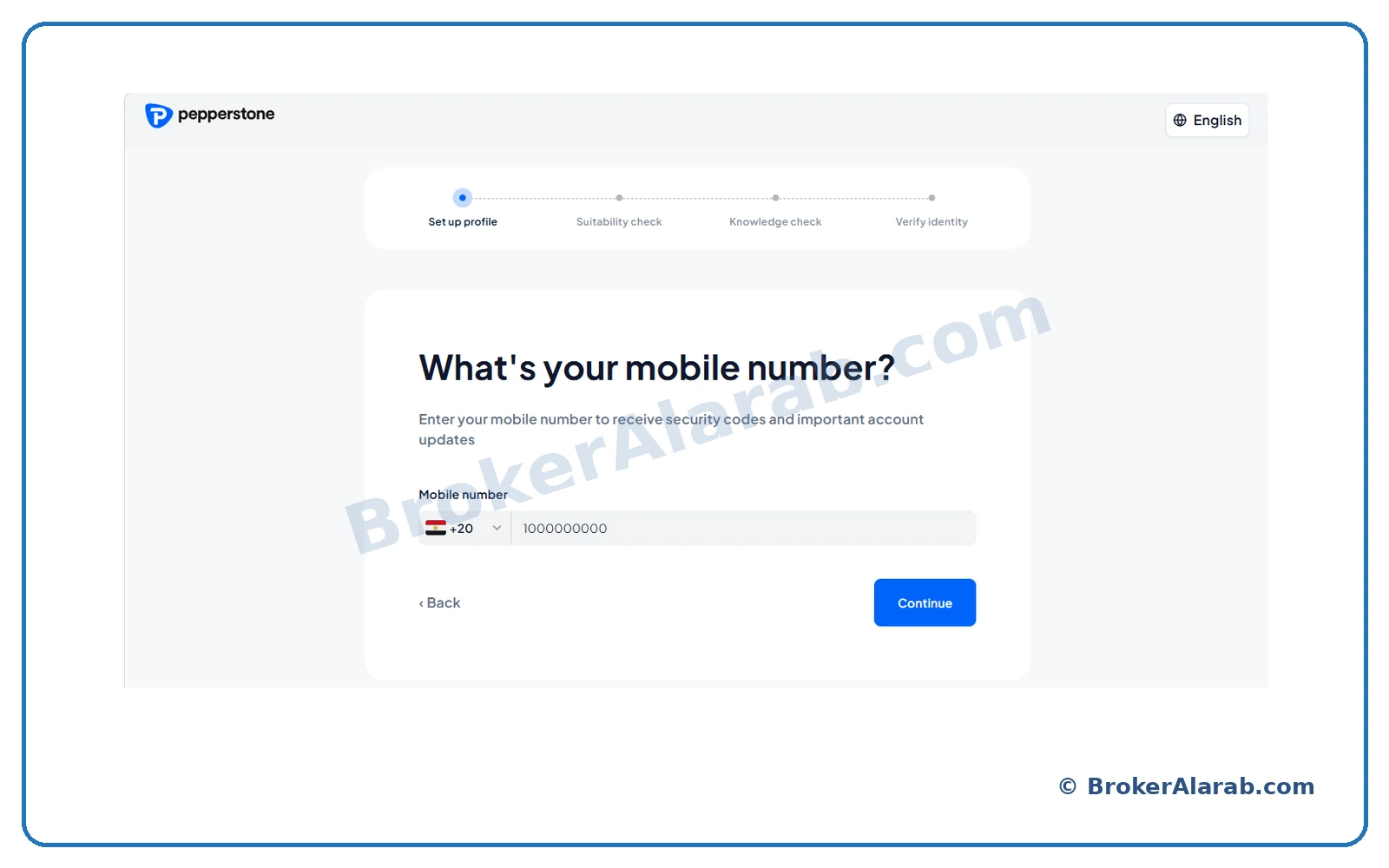
Provide your active mobile number in the requested format and check the international dialing code before continuing.
The registration process requests your residential address. Review the street, city, postal code, and any additional fields shown for your country.
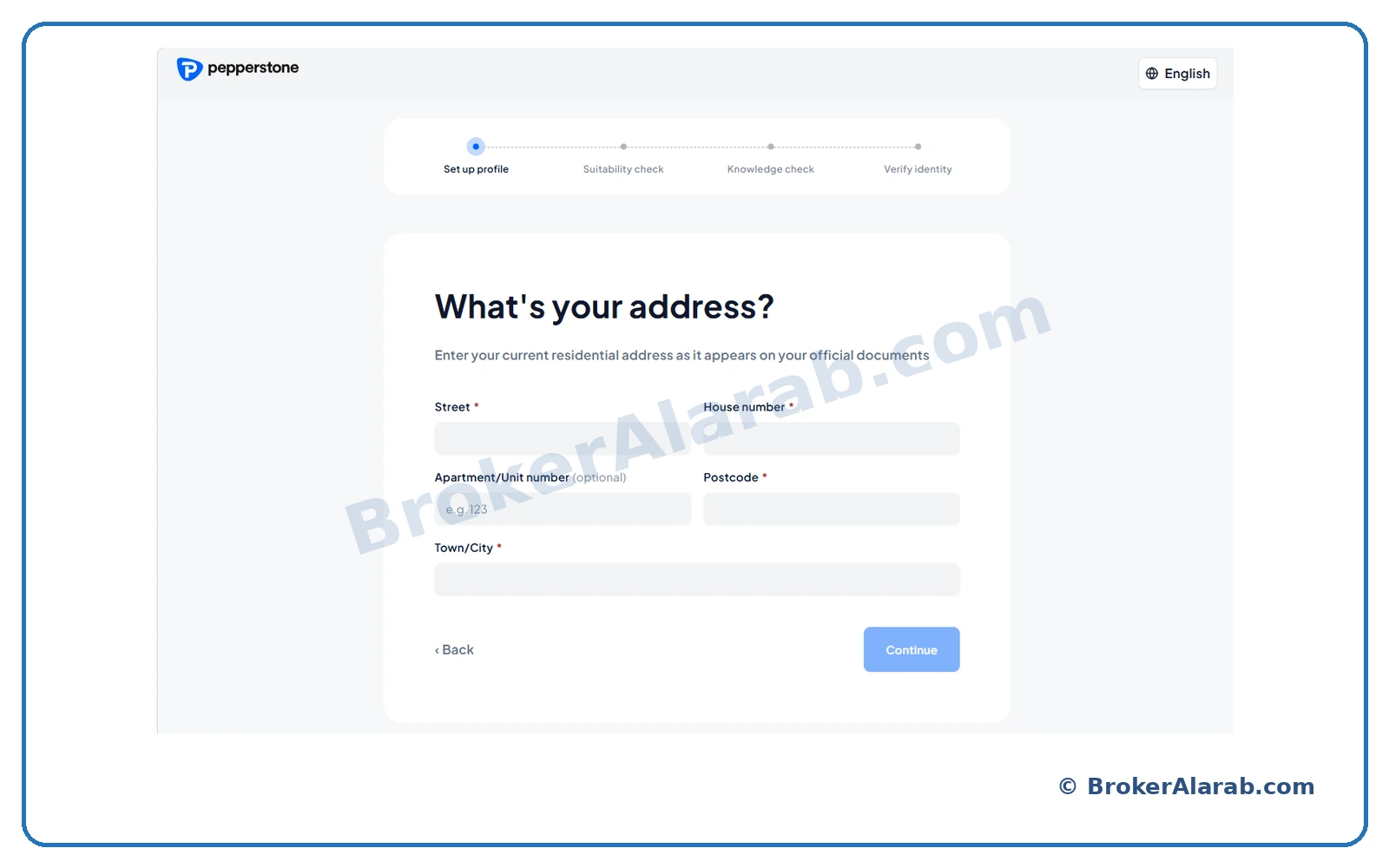
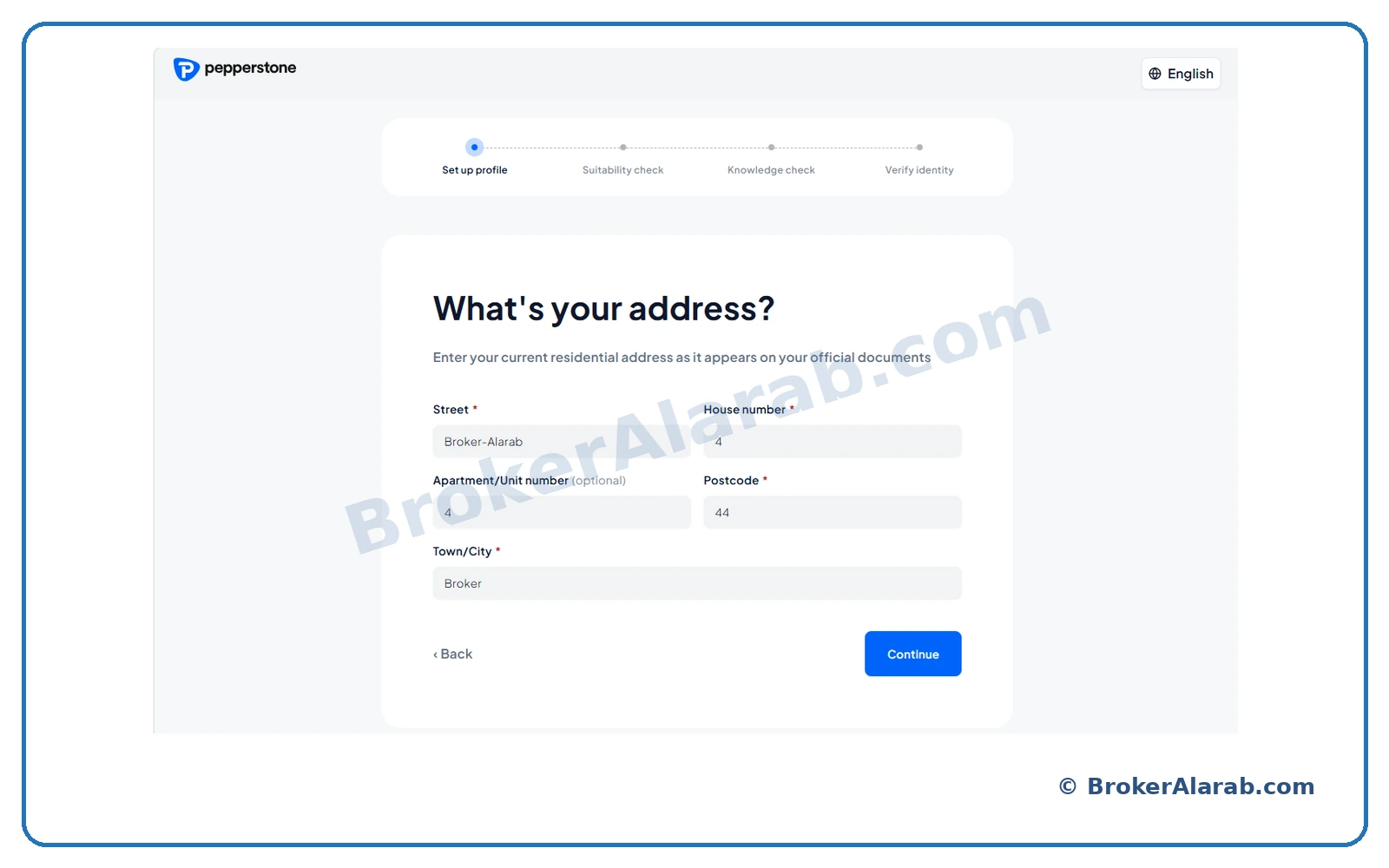
Fill in your genuine residential address, including the required street, building, city, and postal-code details. Check the entries before continuing.
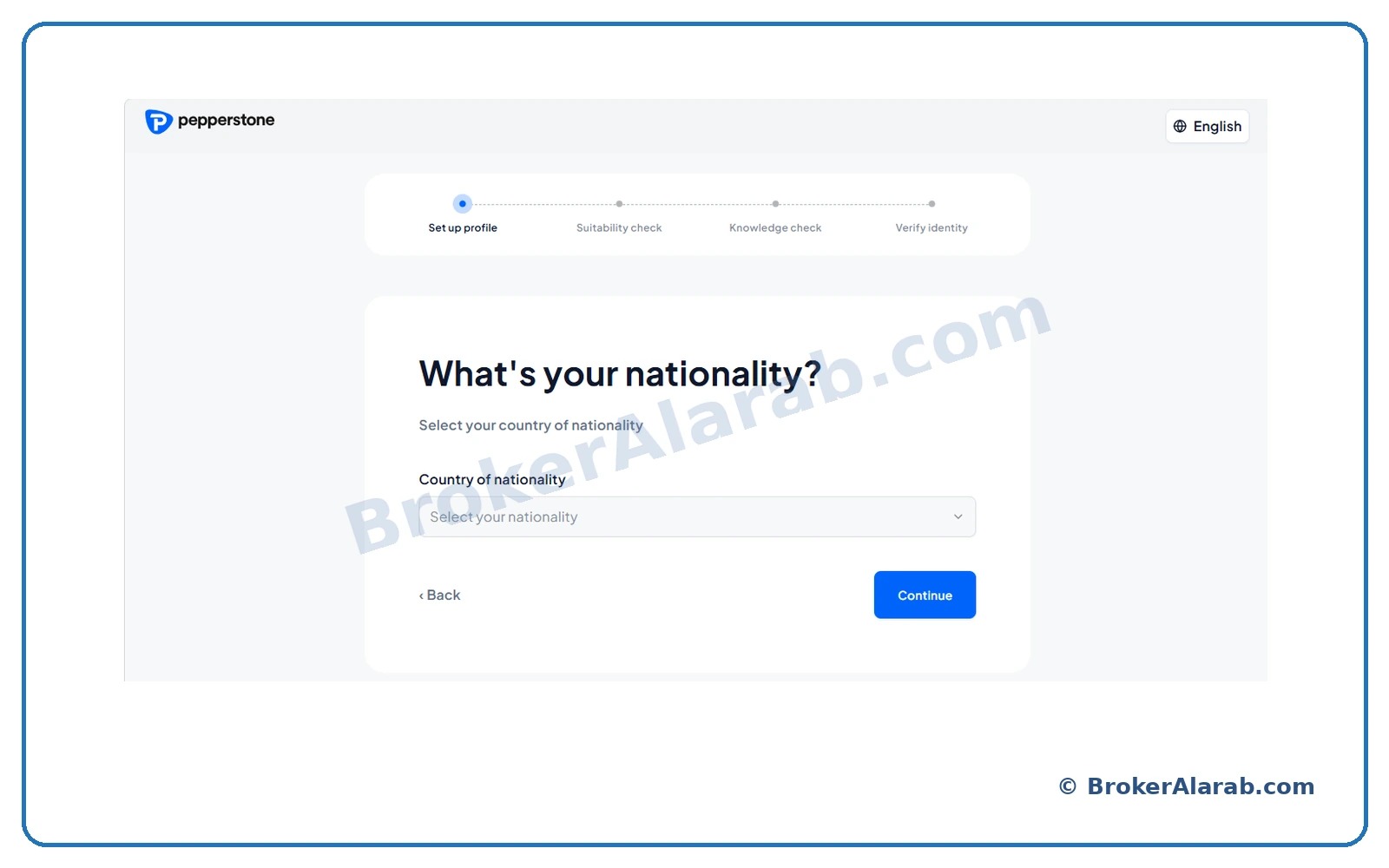
Choose your legal nationality from the available options. Your nationality and country of residence may differ and should be declared accurately.
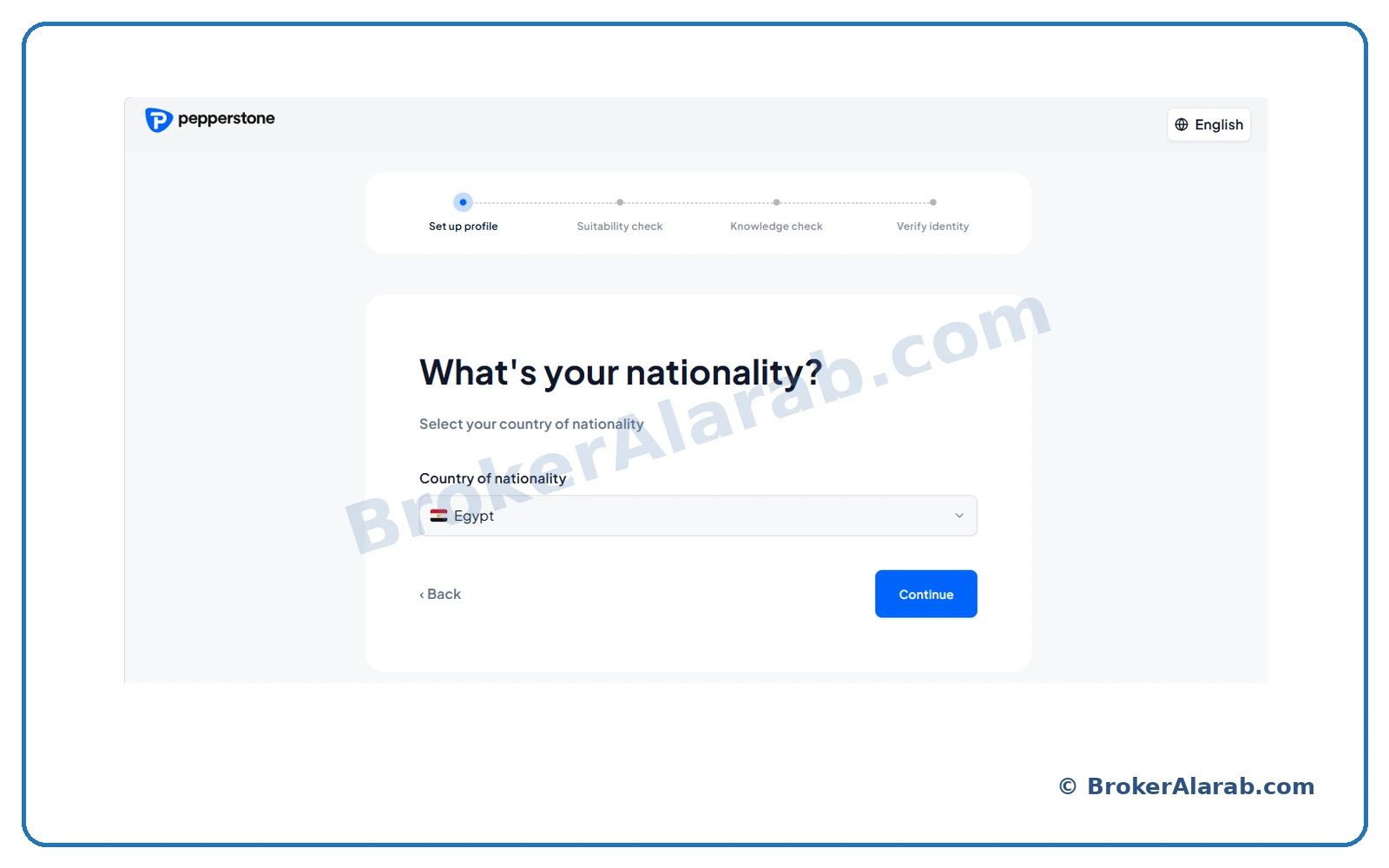
Check the selected nationality and continue to the next stage of the onboarding process, which covers trading suitability.
ACCOUNT OPENING STAGE
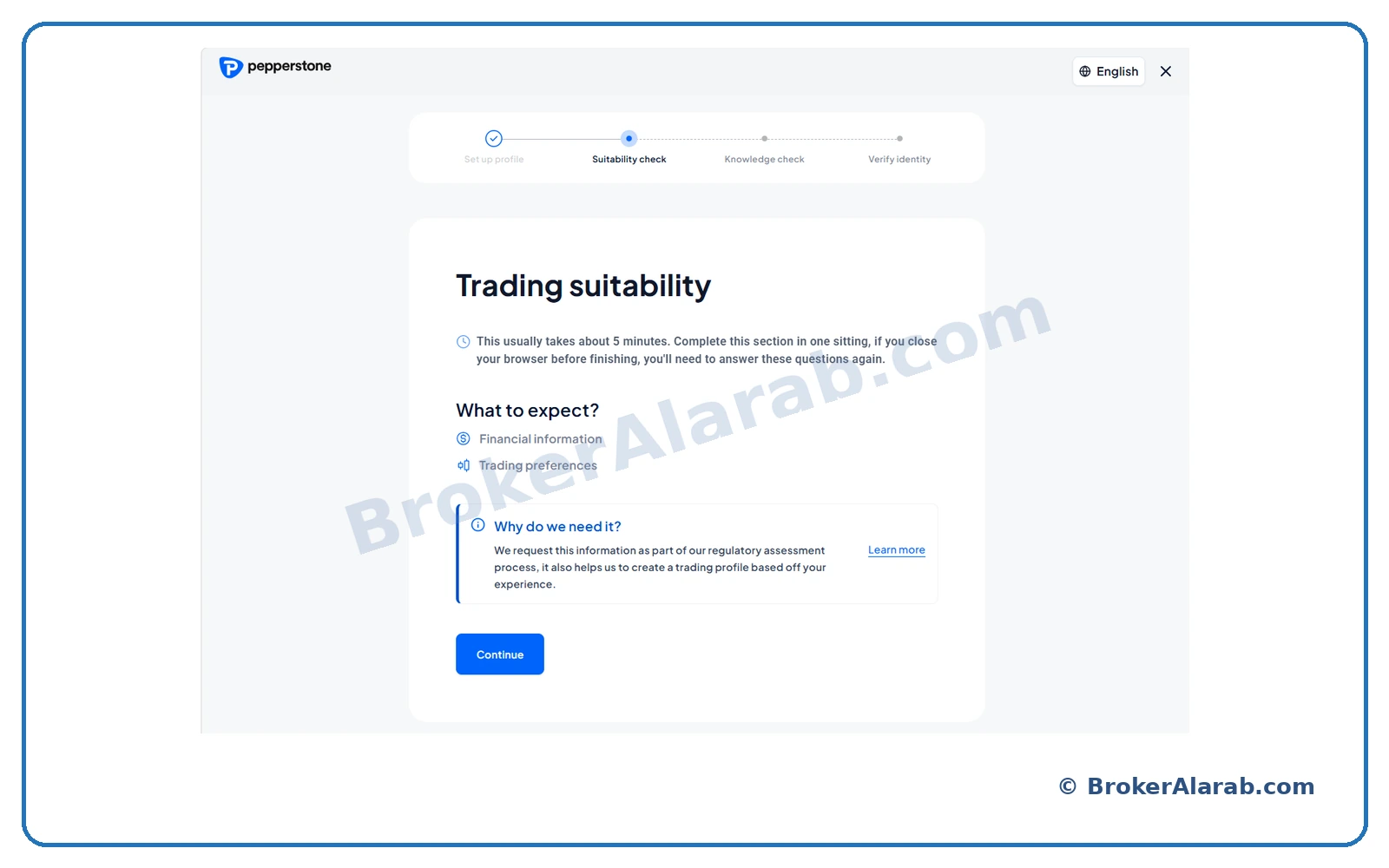
Review the introduction to the trading suitability assessment. Answer all questions accurately based on your circumstances and experience.
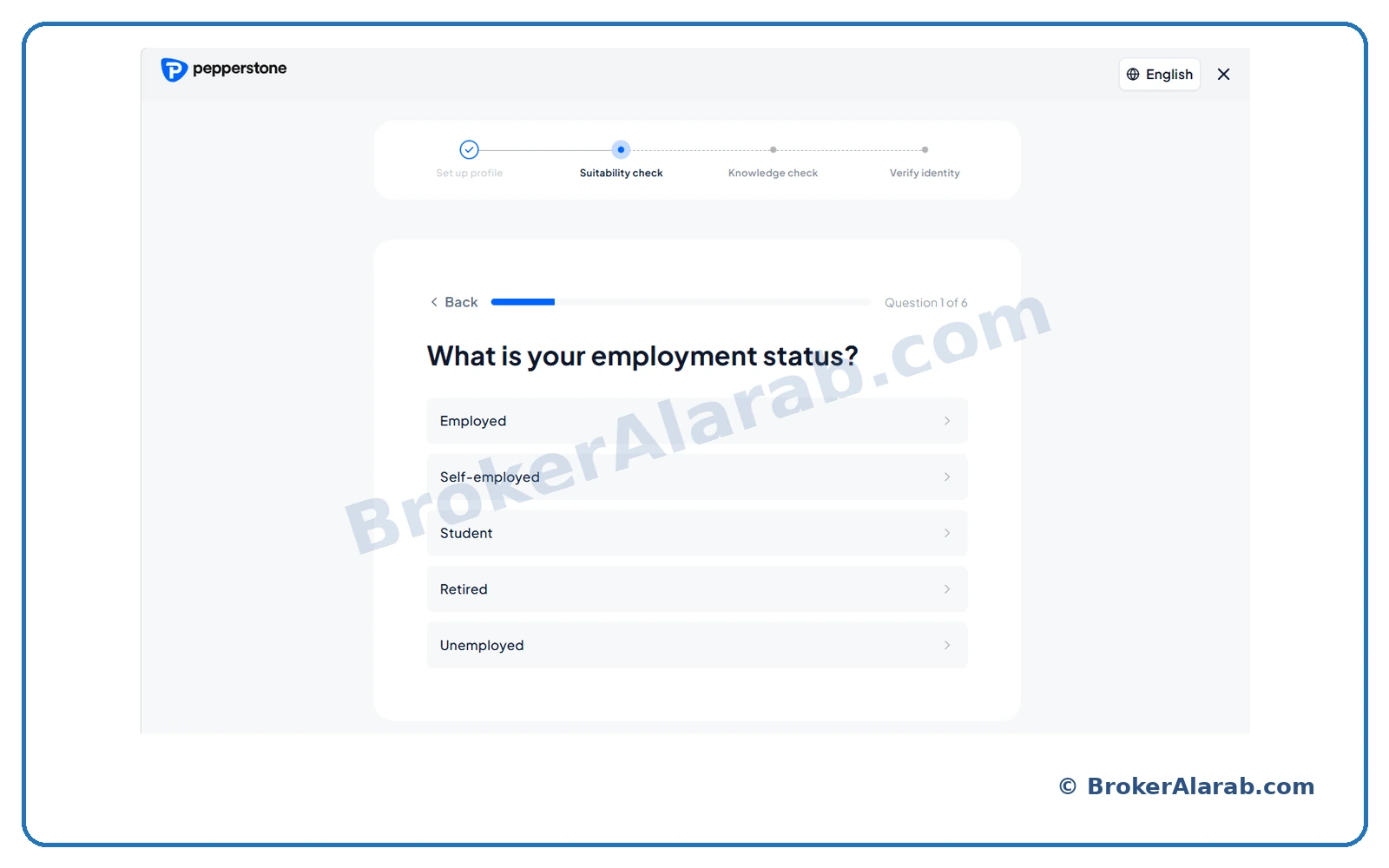
Select the employment status that accurately reflects your present circumstances from the options provided.
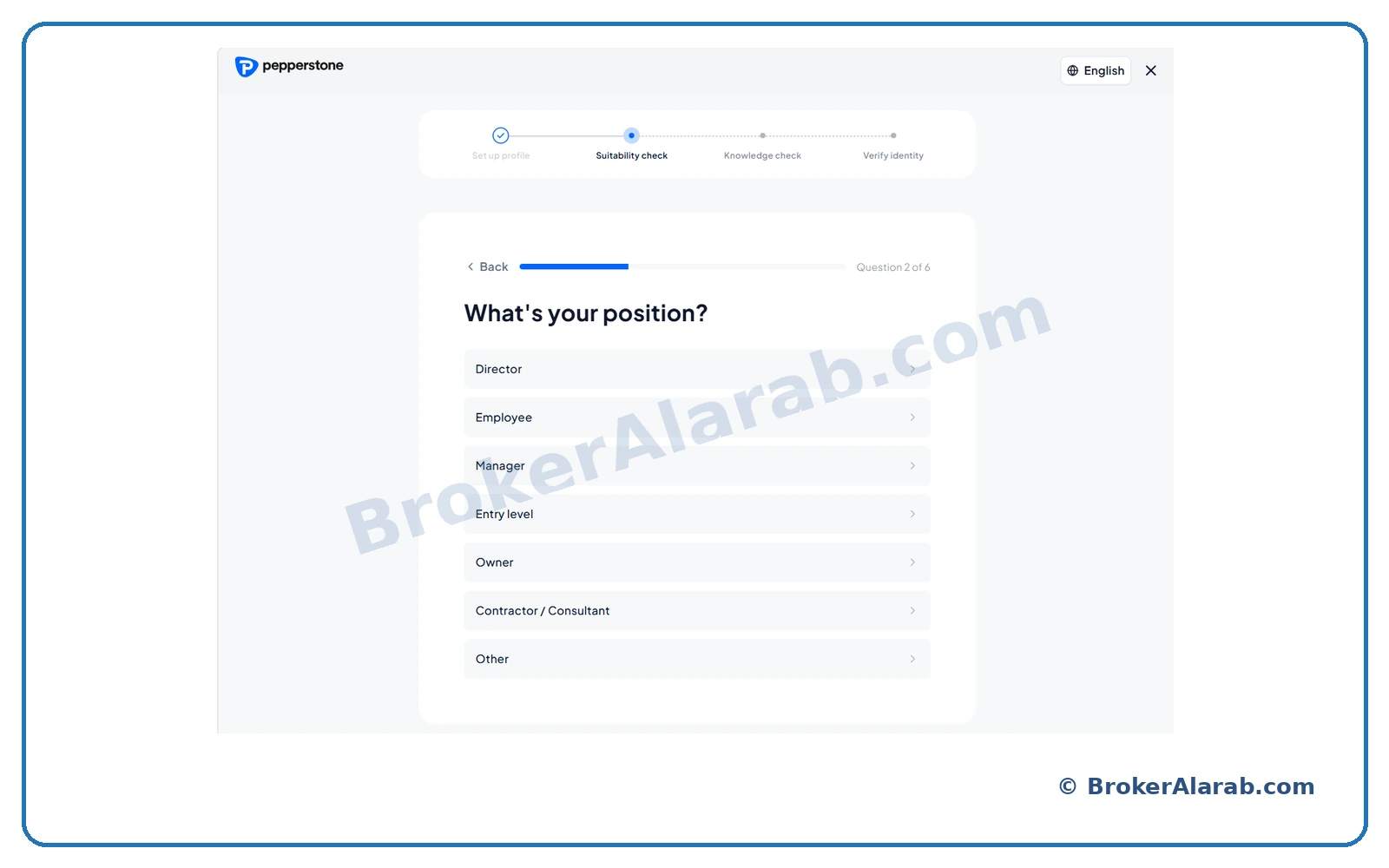
Choose your genuine occupation or job position. Do not provide inaccurate employment information to influence the suitability assessment.
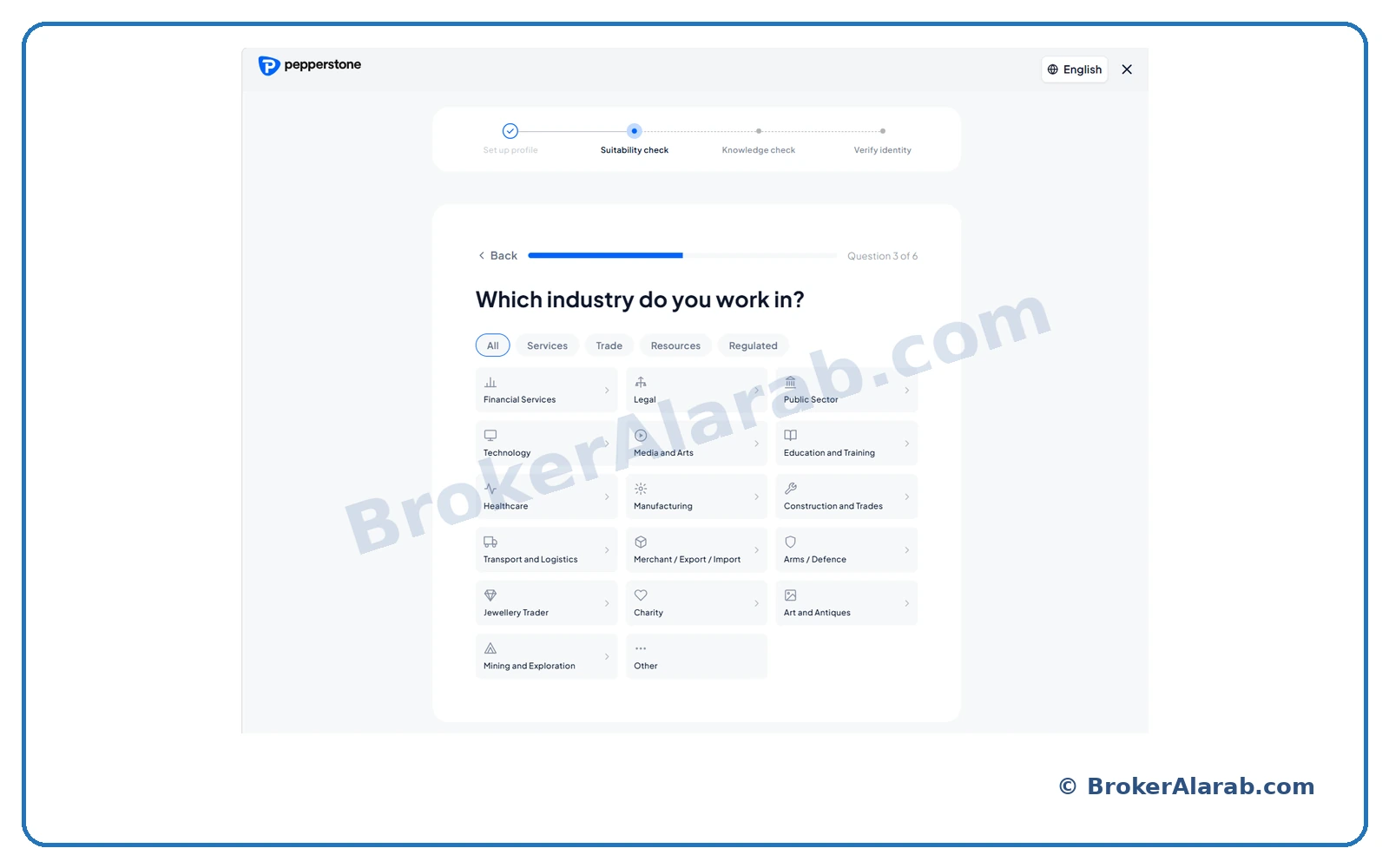
Select the industry or employment sector that corresponds to your actual occupation.
Identify the genuine primary source of the money you intend to use for trading, such as employment income, savings, business income, or investments.
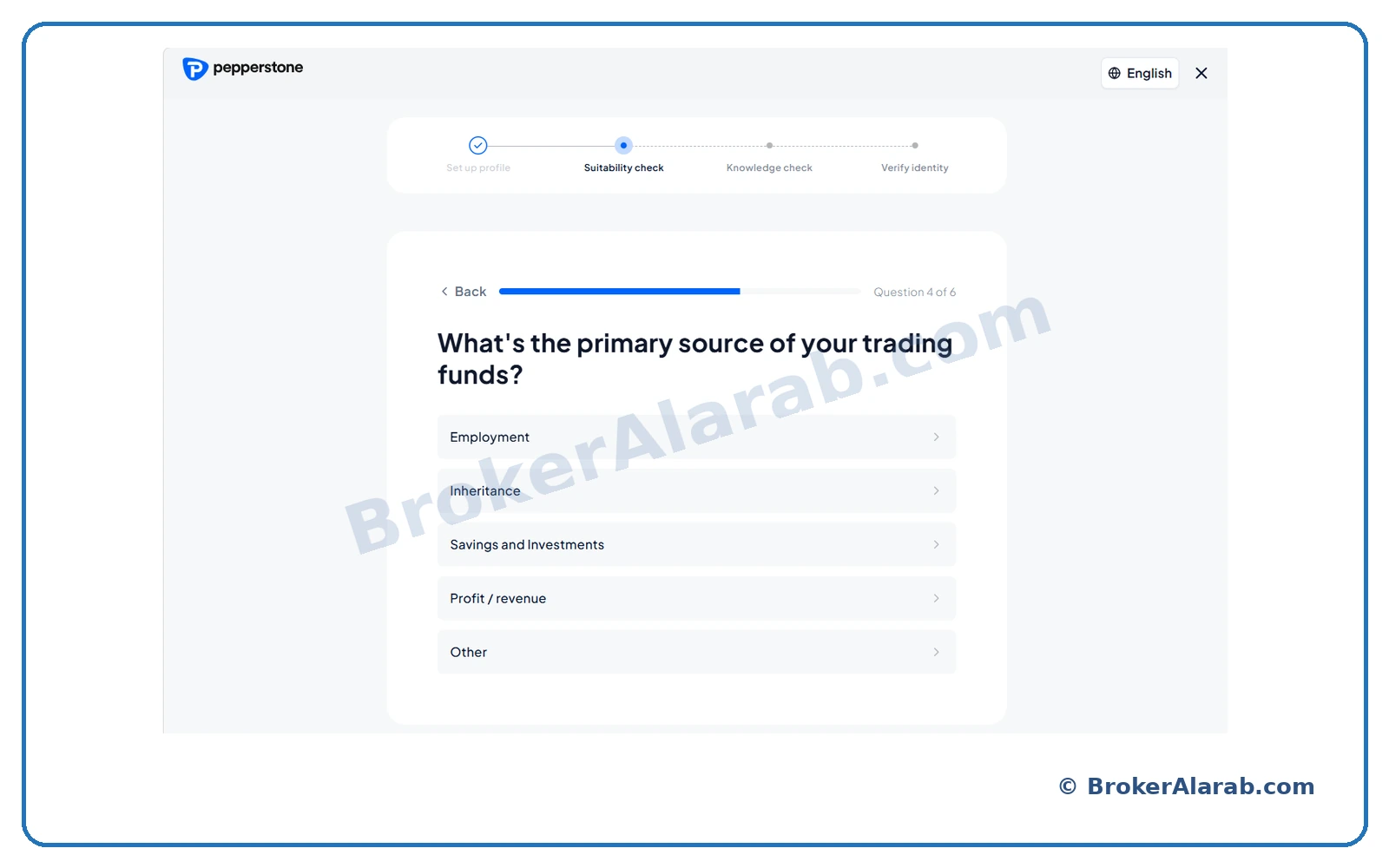
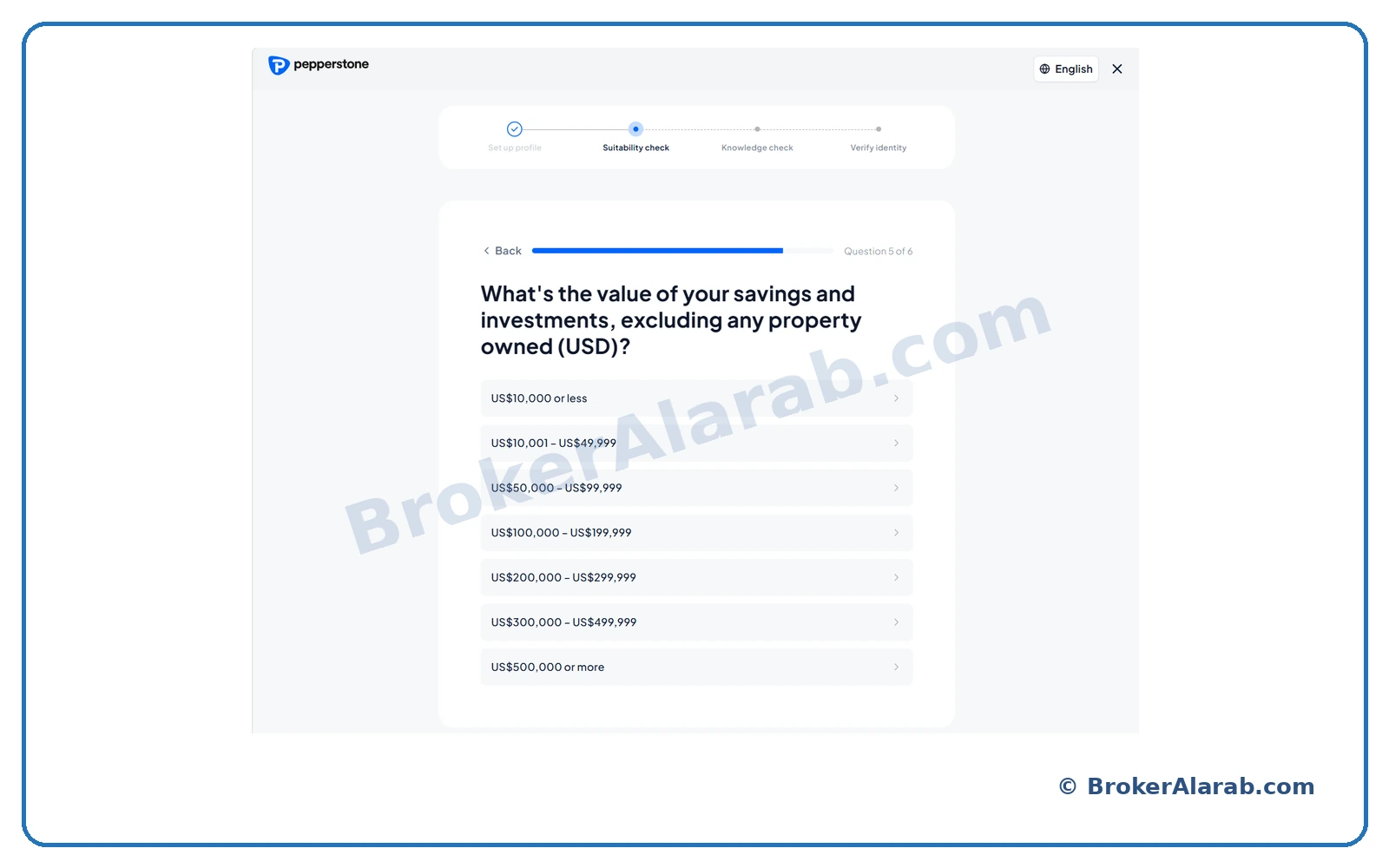
Select the range that accurately represents your savings and investments. The displayed USD ranges are part of the illustrated example.
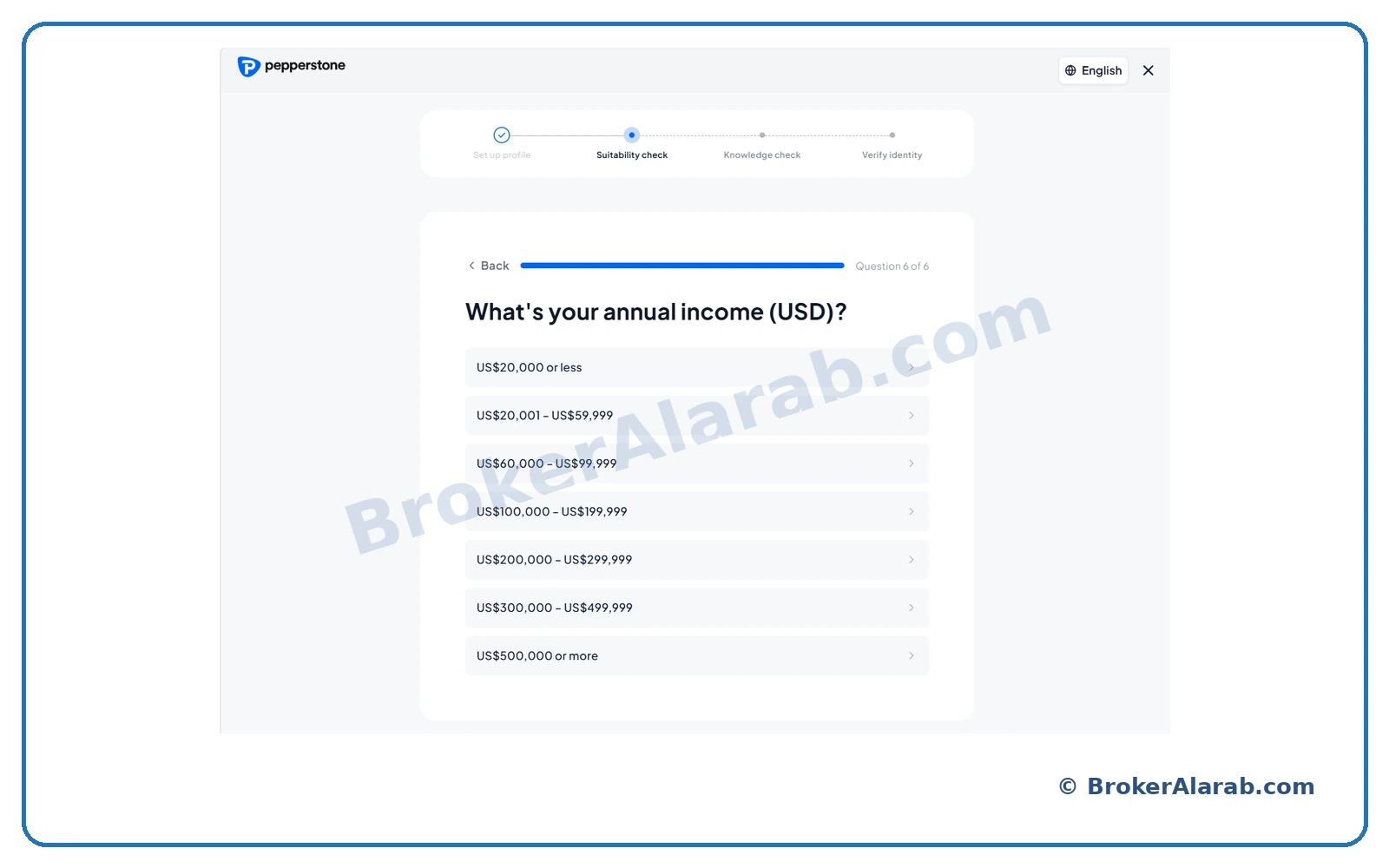
Choose the gross annual income range that reflects your actual financial circumstances using the options shown.
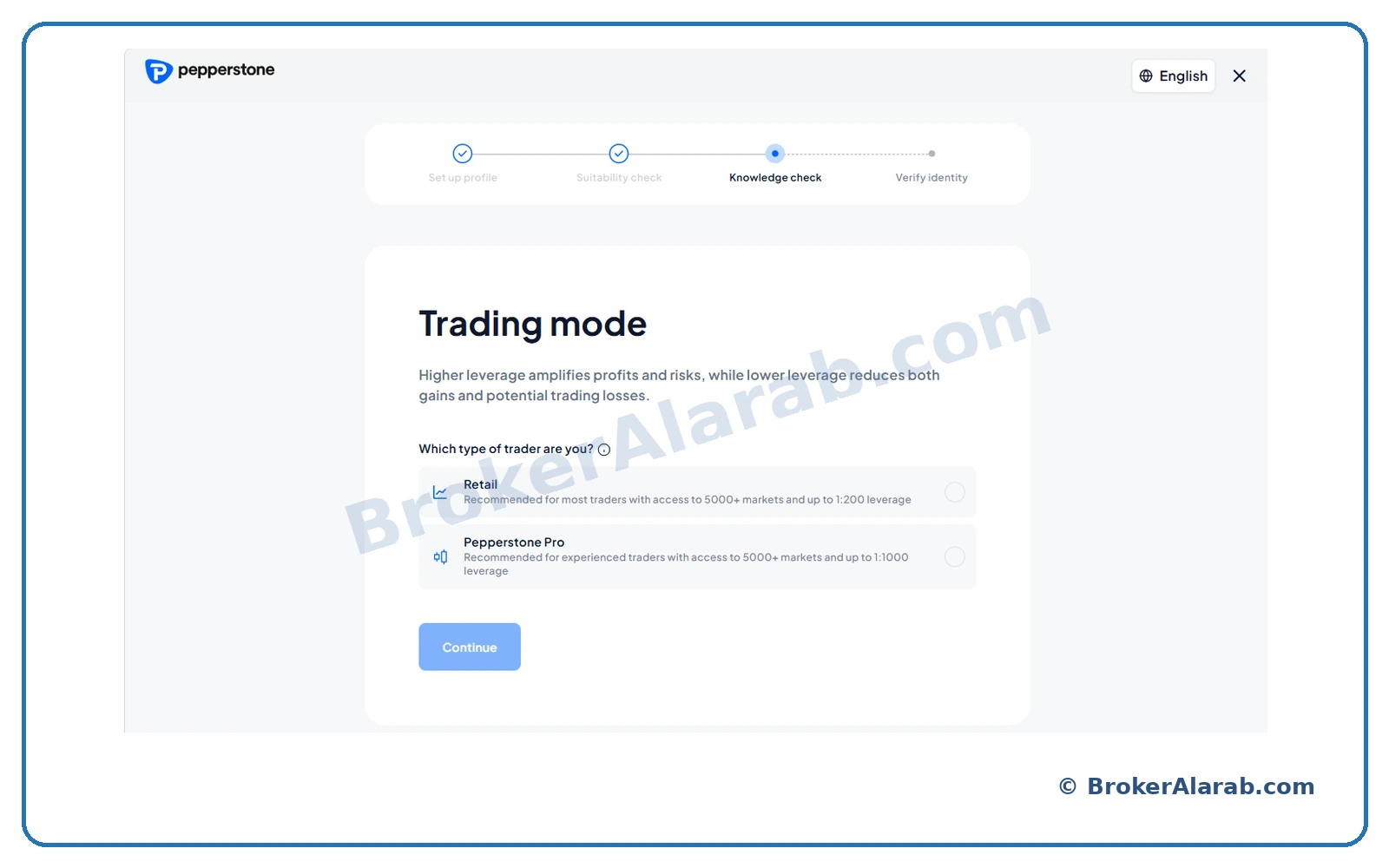
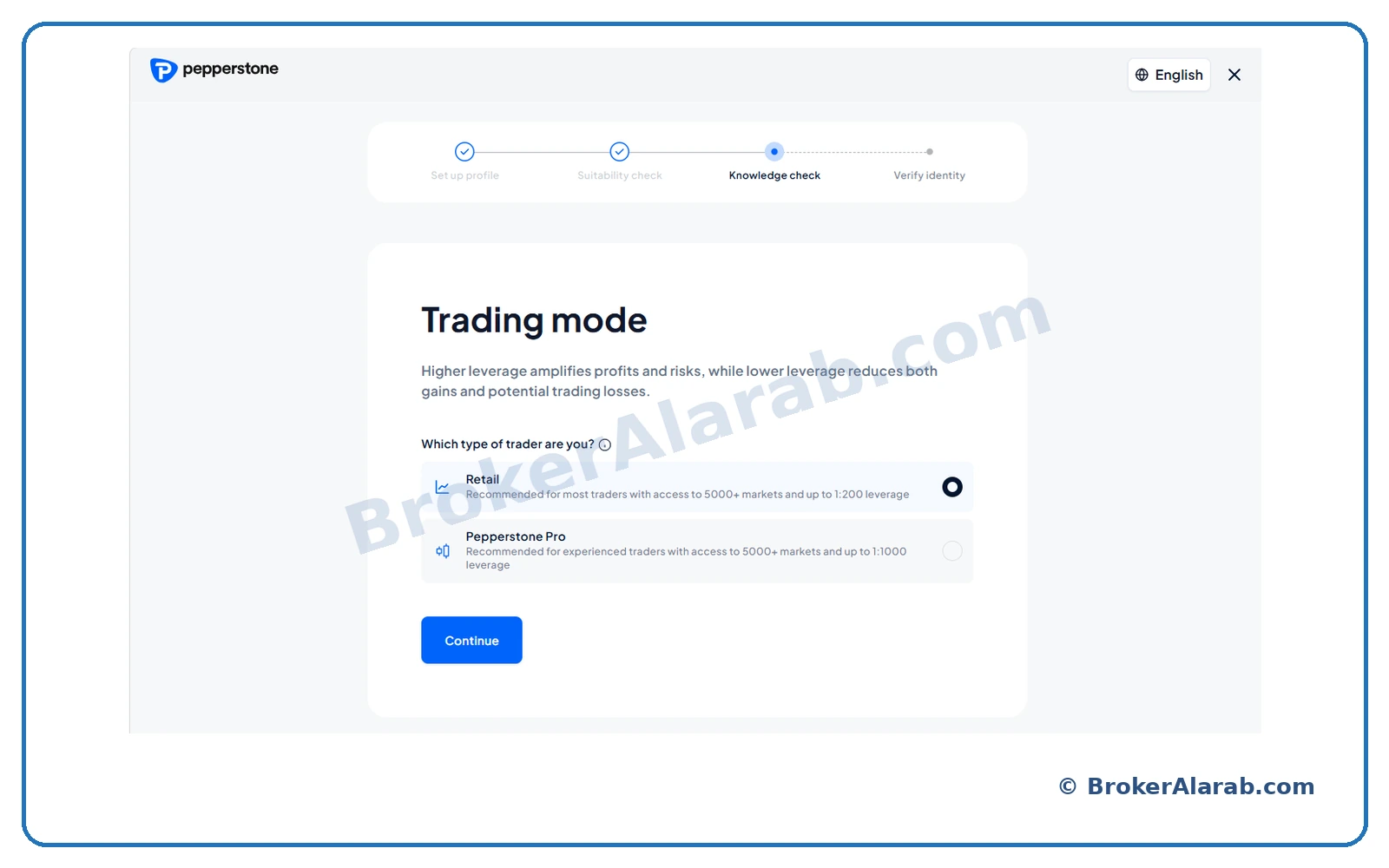
Review the available trading-mode information and the risks associated with leveraged products before making a selection.
Answer accurately and review all risks and legal declarations.
Answer accurately and review all risks and legal declarations.
Review the retail client classification displayed in the onboarding process and confirm that the information is consistent with your circumstances.
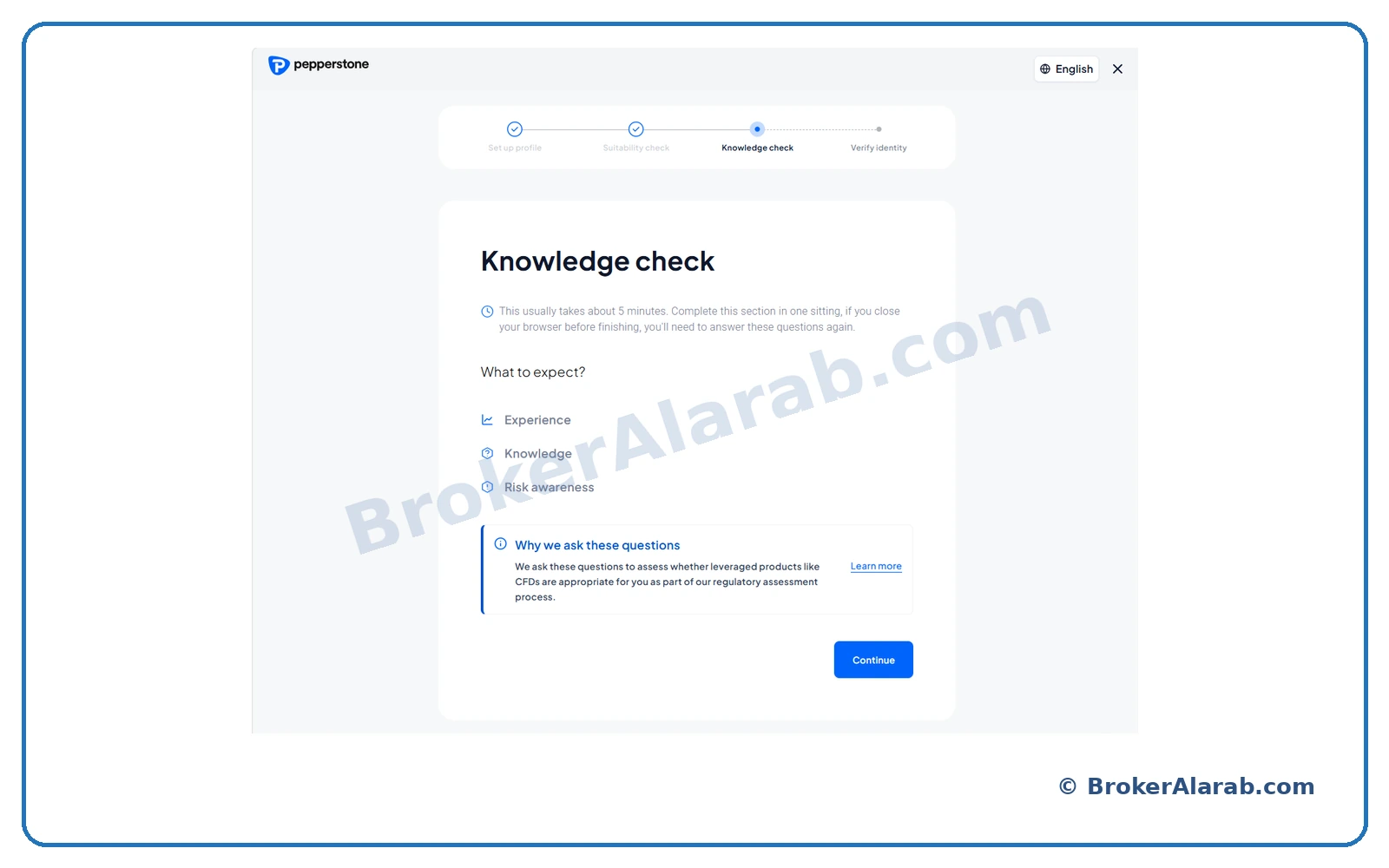
Start the financial knowledge assessment, which includes questions about trading experience, leveraged products, and associated risks.
Answer accurately and review all risks and legal declarations.
Answer accurately and review all risks and legal declarations.
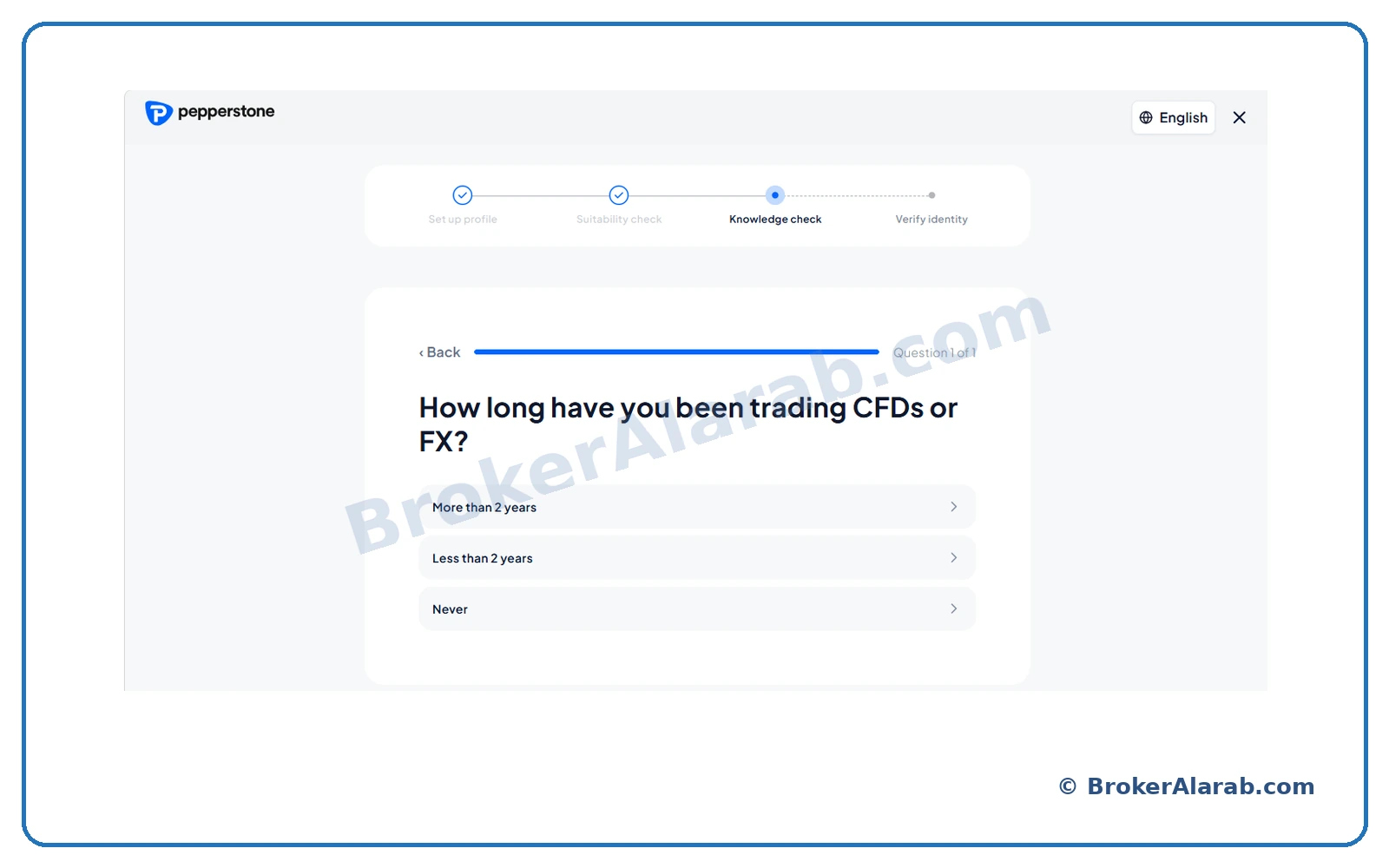
Select the period that accurately reflects your experience with forex and CFD trading. Do not overstate your knowledge or trading history.
Answer accurately and review all risks and legal declarations.
Answer accurately and review all risks and legal declarations.
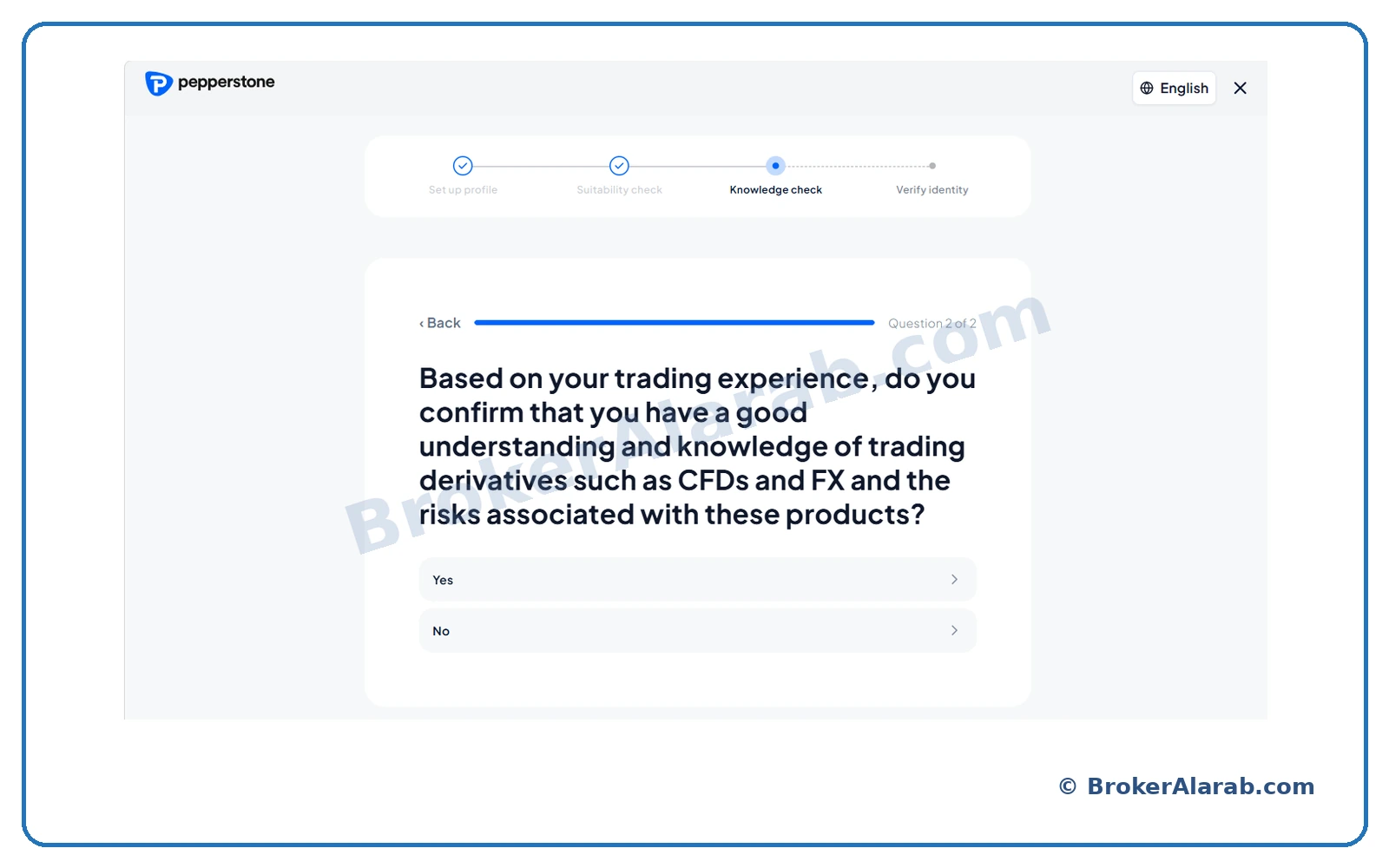
Read the question concerning derivatives and CFD risks carefully, then answer according to your actual understanding of the products.
Answer accurately and review all risks and legal declarations.
Answer accurately and review all risks and legal declarations.
Review the client agreements, disclosures, and regulatory declarations applicable to your account before accepting any terms.
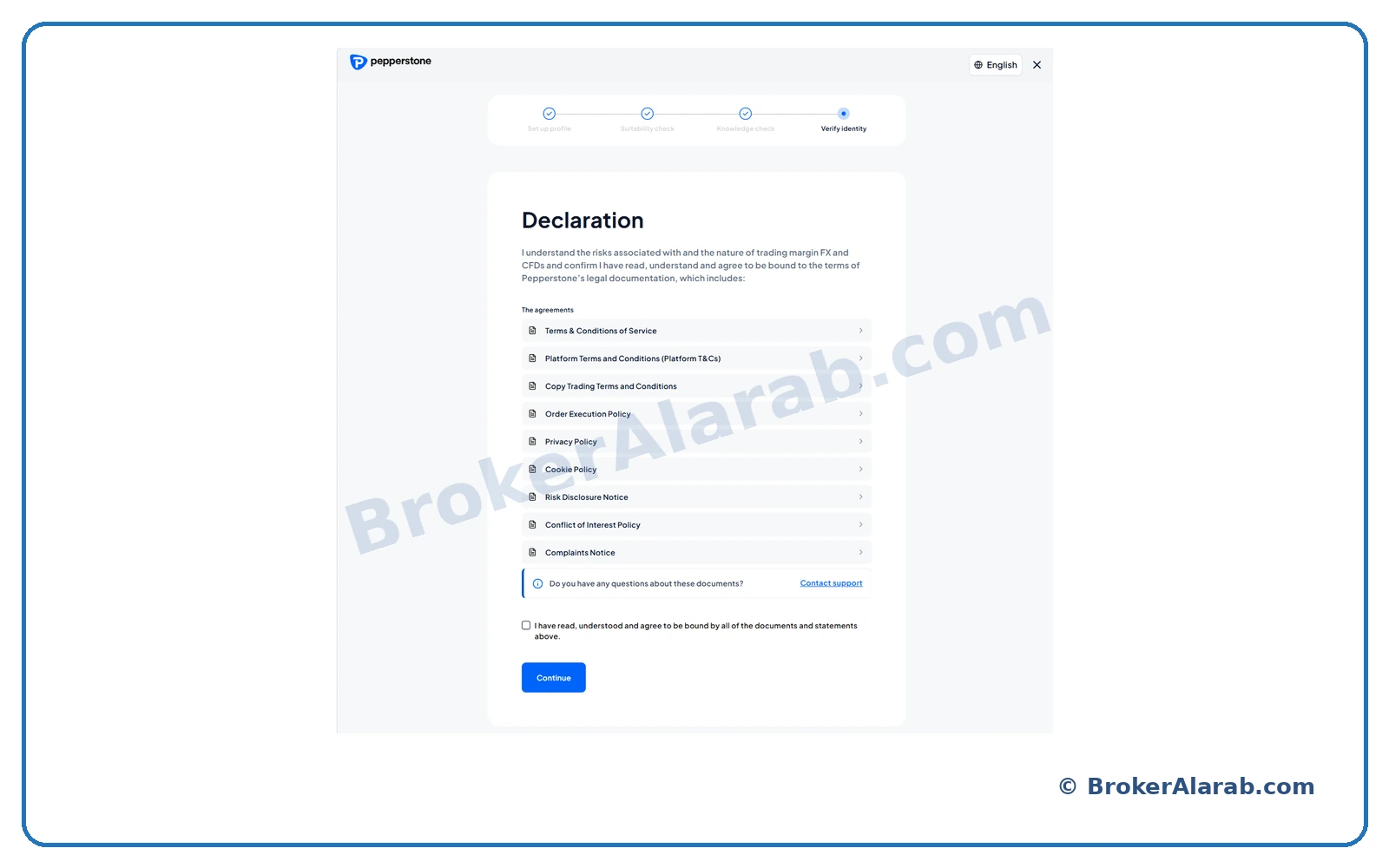
Answer accurately and review all risks and legal declarations.
Answer accurately and review all risks and legal declarations.
Complete the required declarations only after reviewing and understanding the applicable agreements and policies, then continue.
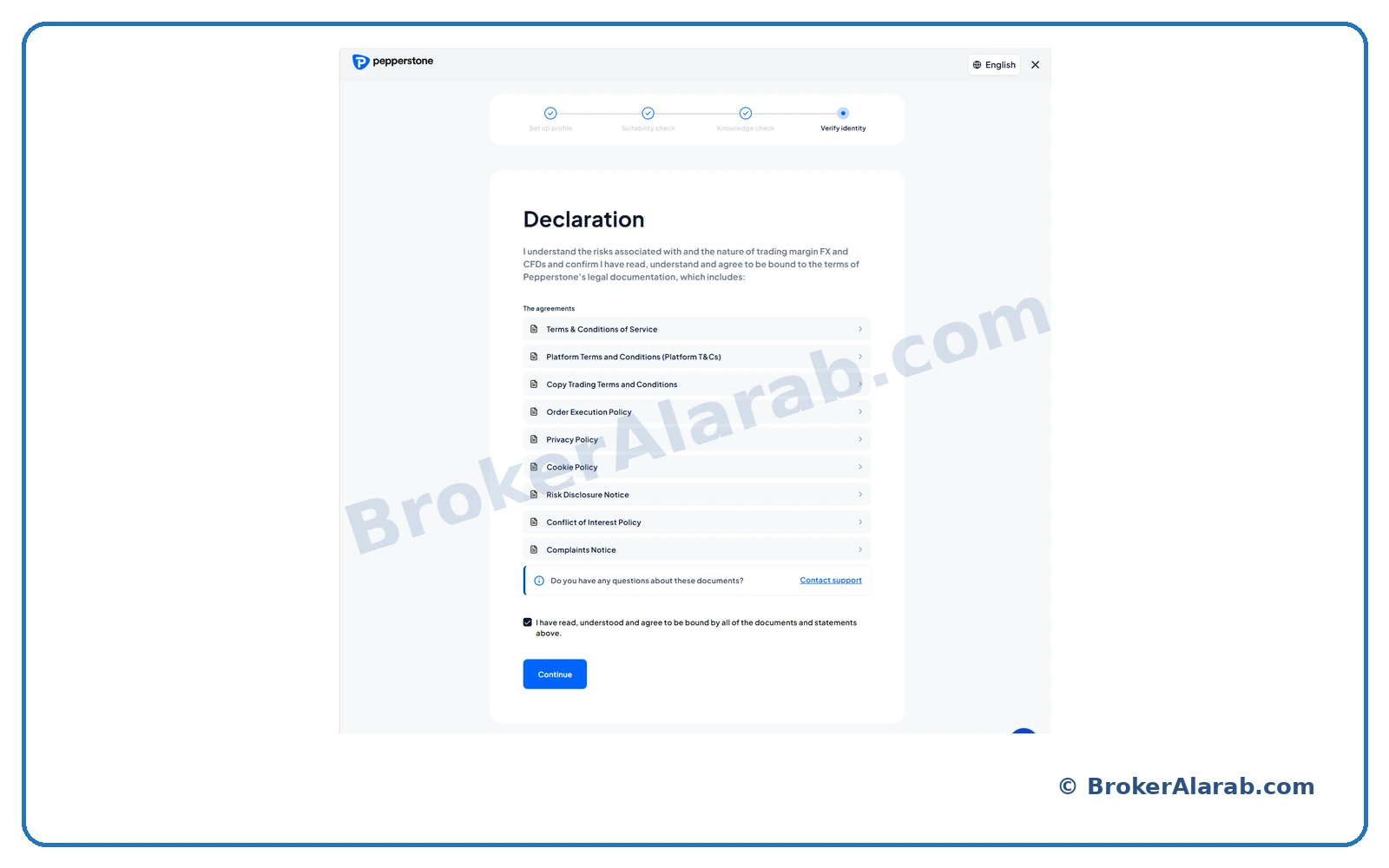
Answer accurately and review all risks and legal declarations.
Answer accurately and review all risks and legal declarations.
ACCOUNT OPENING STAGE
Your browser may request access to your location during onboarding. Review the permission request before deciding how to proceed.
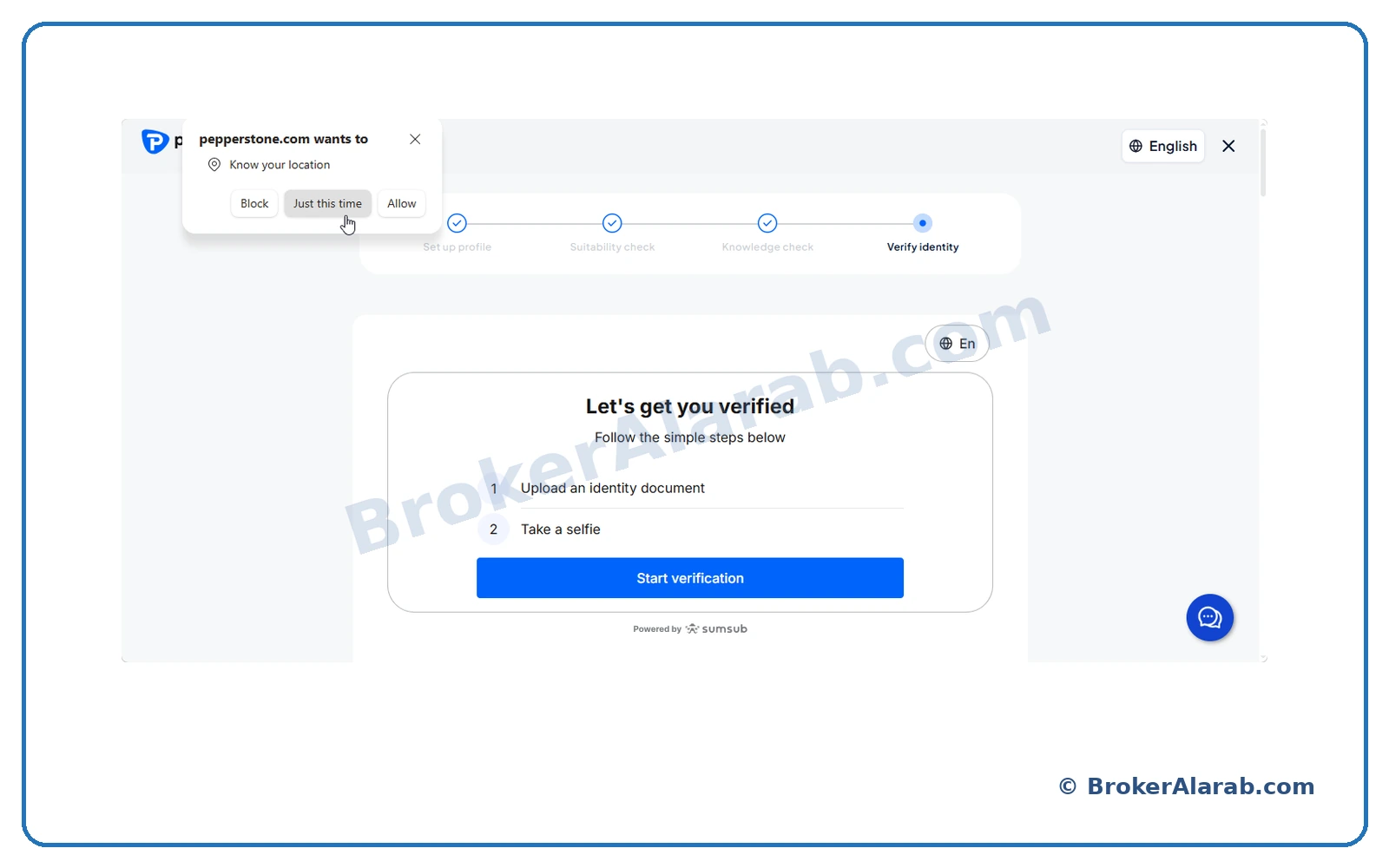
Open the Sumsub identity verification flow and follow the instructions for providing accepted identity documents through the official portal.
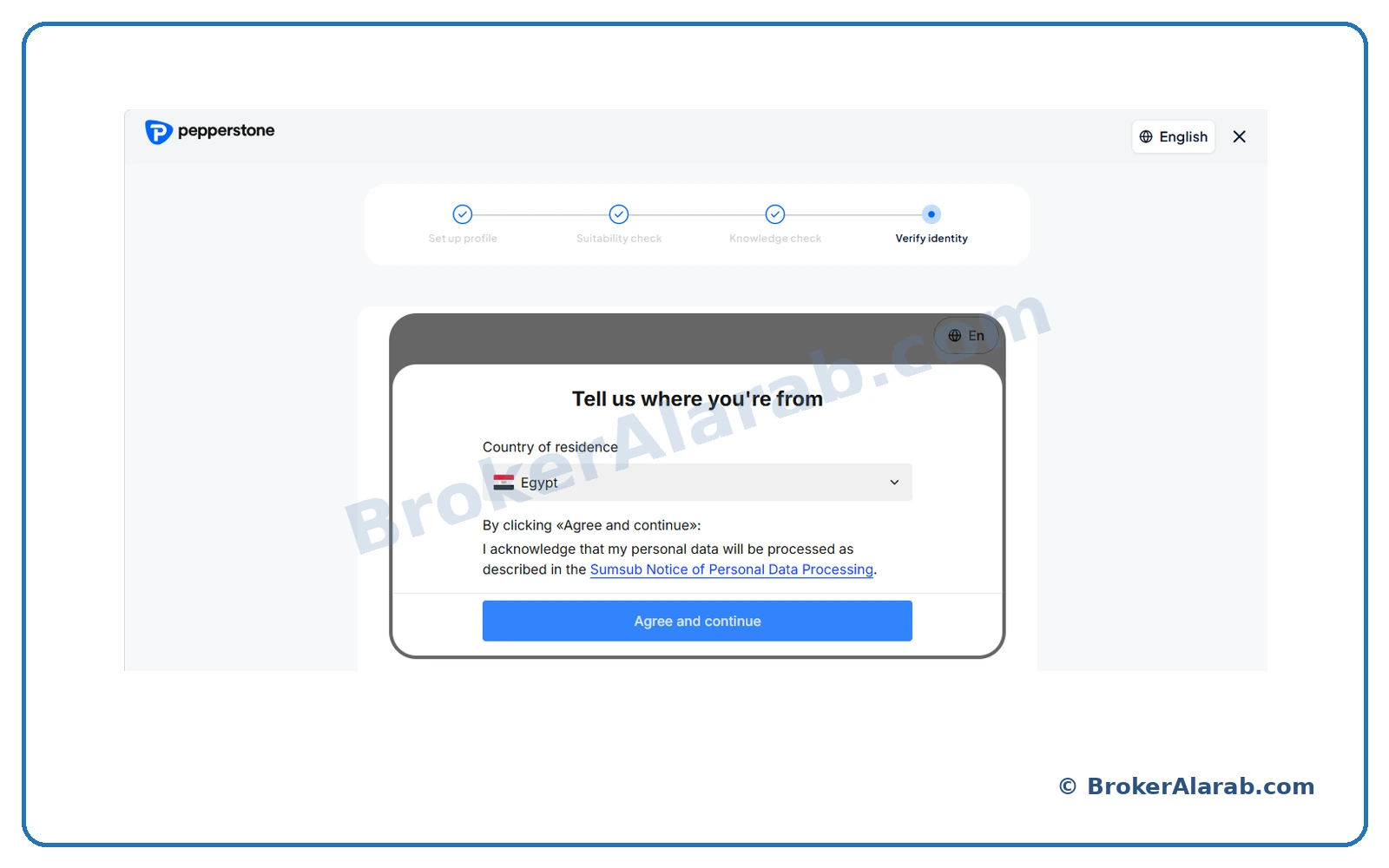
Submit sensitive identity information only through the official verification portal.
Submit sensitive identity information only through the official verification portal.
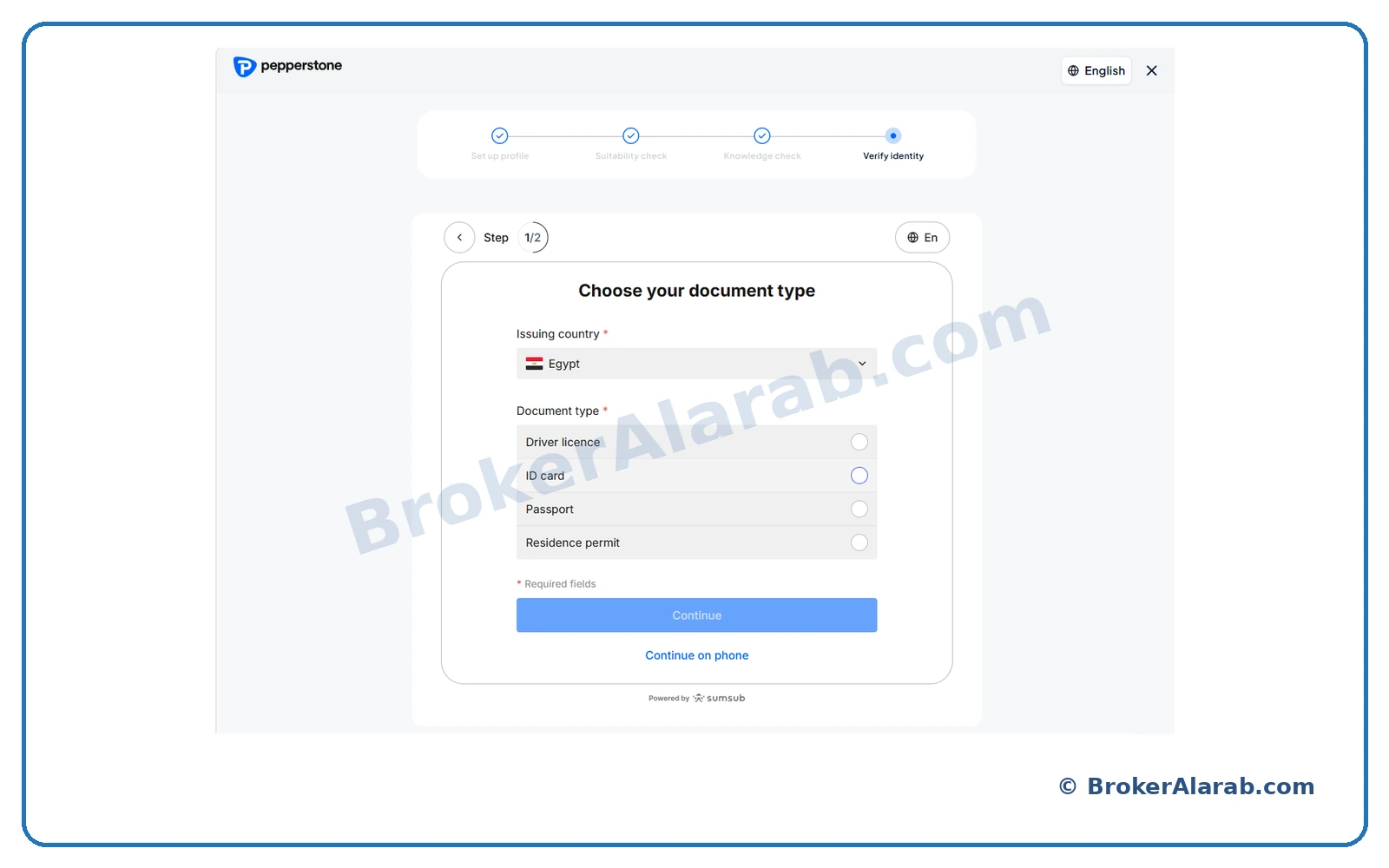
Choose an accepted identity document, such as a national ID card or passport, based on the options available in your verification session.
Submit sensitive identity information only through the official verification portal.
Submit sensitive identity information only through the official verification portal.
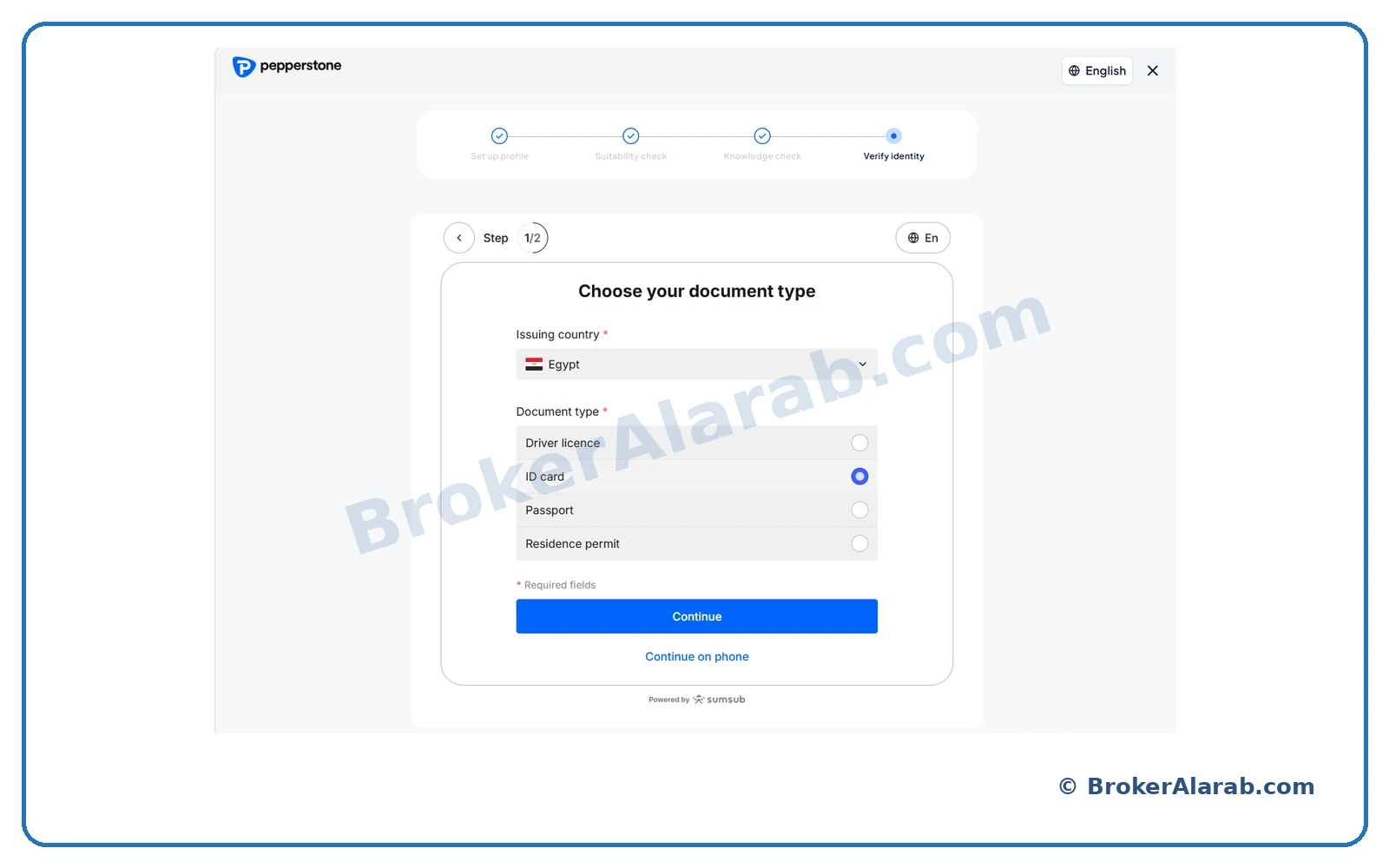
The illustrated example uses a national ID card. Confirm that your chosen document is valid and accepted for your verification process.
Submit sensitive identity information only through the official verification portal.
Submit sensitive identity information only through the official verification portal.
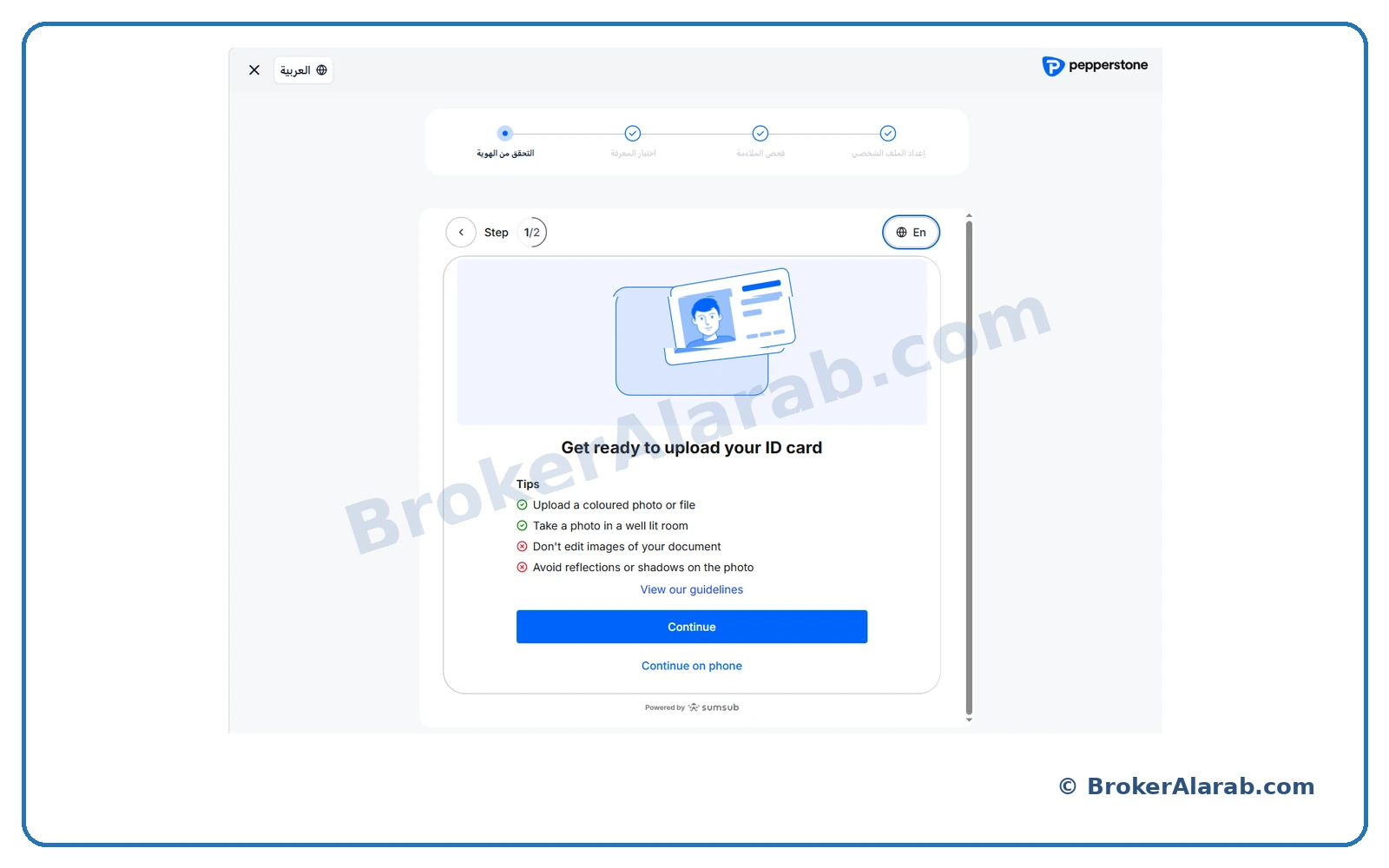
Read the document capture guidelines, including visibility, lighting, full document edges, and image clarity. Avoid altering the submitted document.
Submit sensitive identity information only through the official verification portal.
Submit sensitive identity information only through the official verification portal.
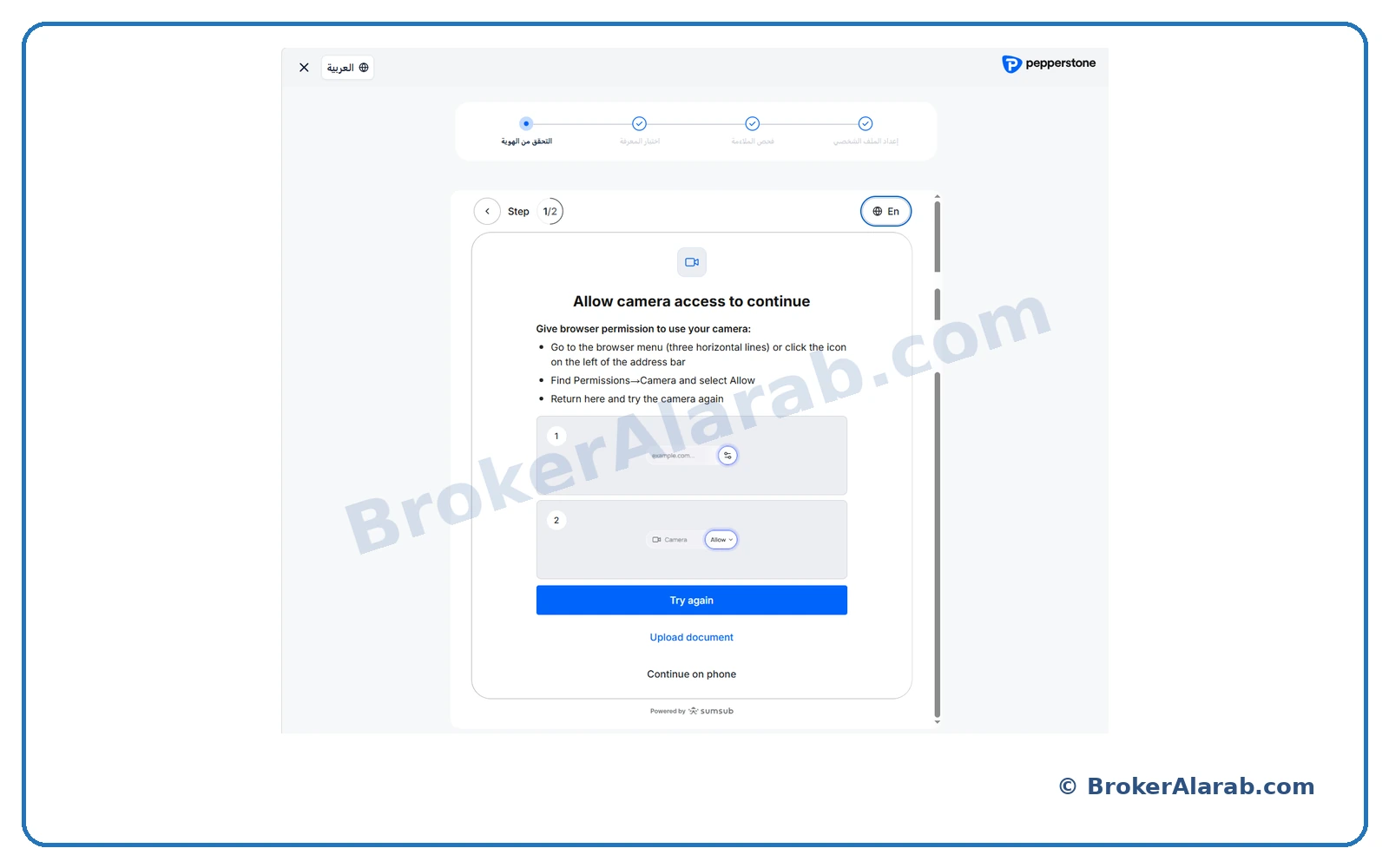
Choose camera capture or a supported file upload method when available. Verify that you are using the official verification service.
Submit sensitive identity information only through the official verification portal.
Submit sensitive identity information only through the official verification portal.
Submit clear images of the front and back of your national ID in the designated fields, following the displayed file and image requirements.
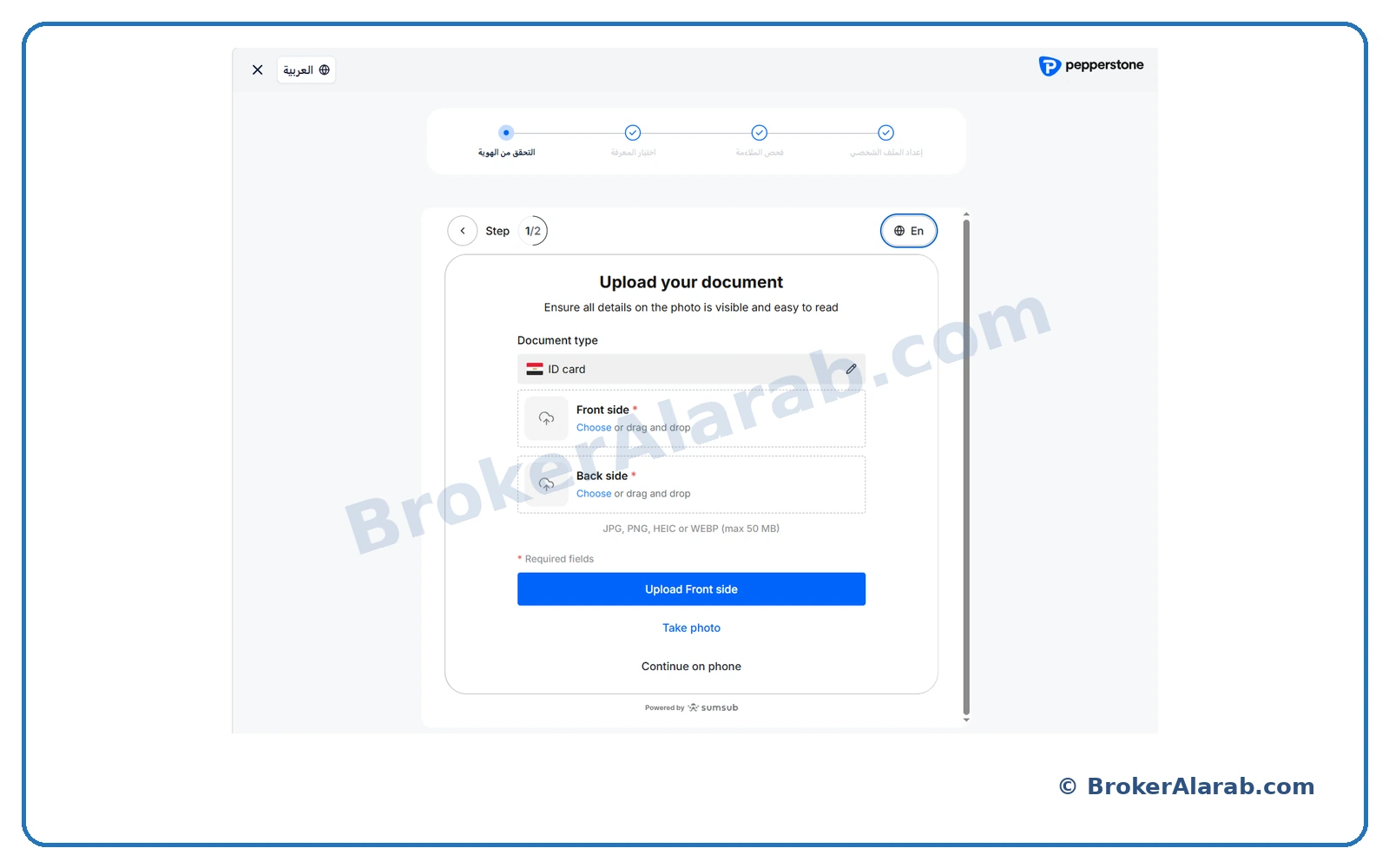
Submit sensitive identity information only through the official verification portal.
Submit sensitive identity information only through the official verification portal.
Check that both sides of your ID have uploaded successfully and that no image-quality or document errors are displayed.
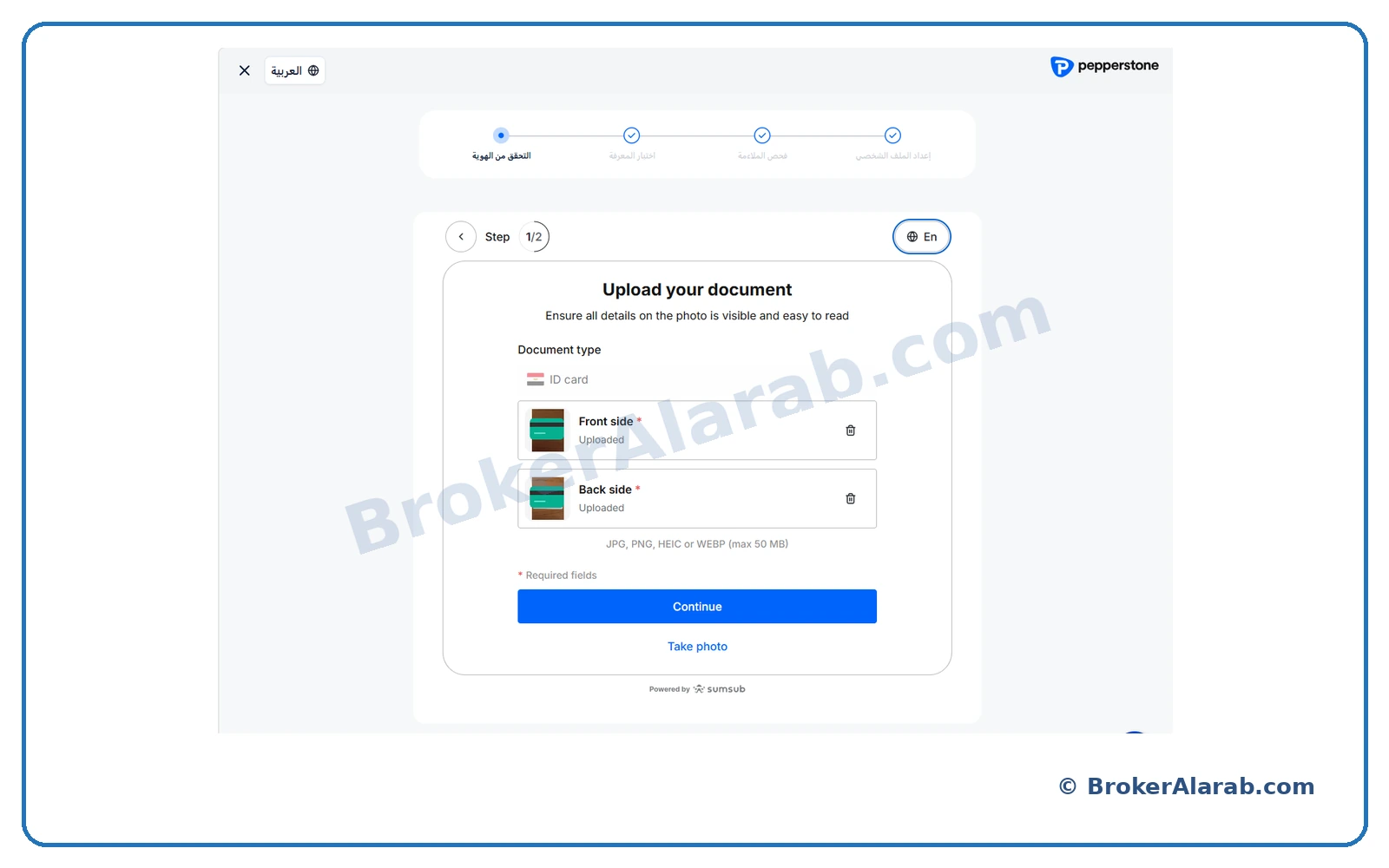
Submit sensitive identity information only through the official verification portal.
Submit sensitive identity information only through the official verification portal.
Prepare your camera for the live facial verification process and follow the on-screen guidance concerning lighting and positioning.
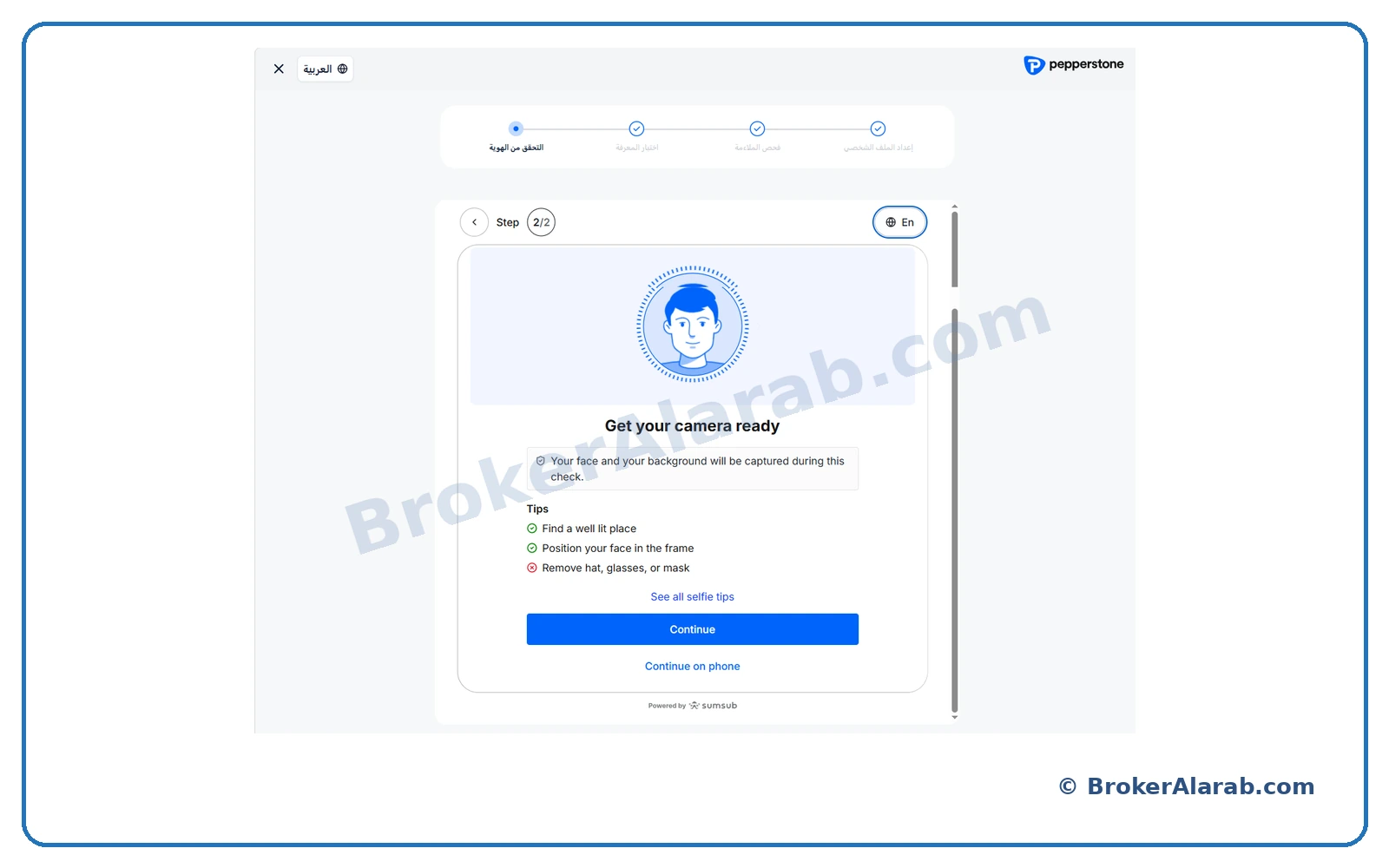
Submit sensitive identity information only through the official verification portal.
Submit sensitive identity information only through the official verification portal.
Grant camera access when prompted by the official biometric verification interface, after checking the website and permission request.
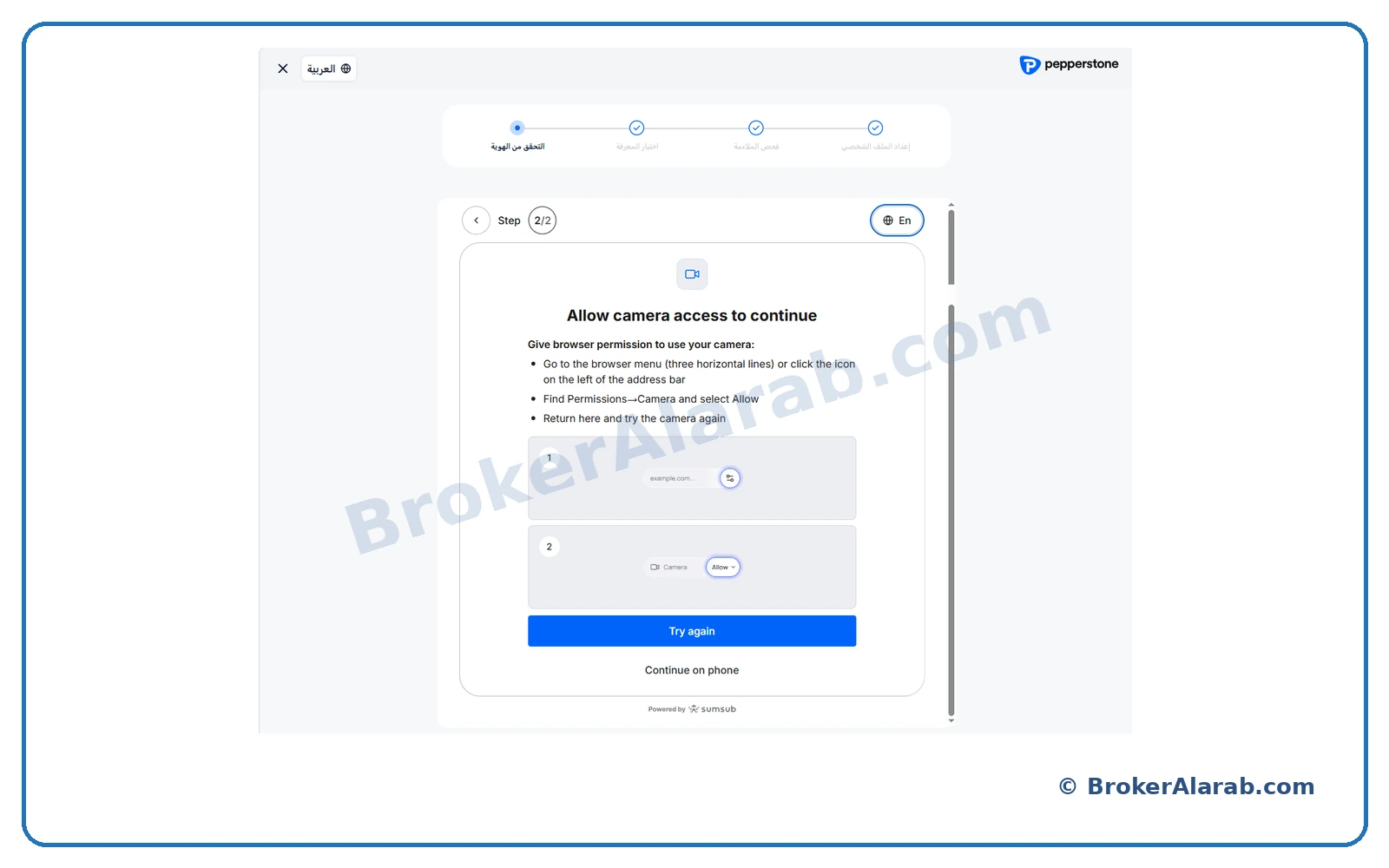
Submit sensitive identity information only through the official verification portal.
Submit sensitive identity information only through the official verification portal.
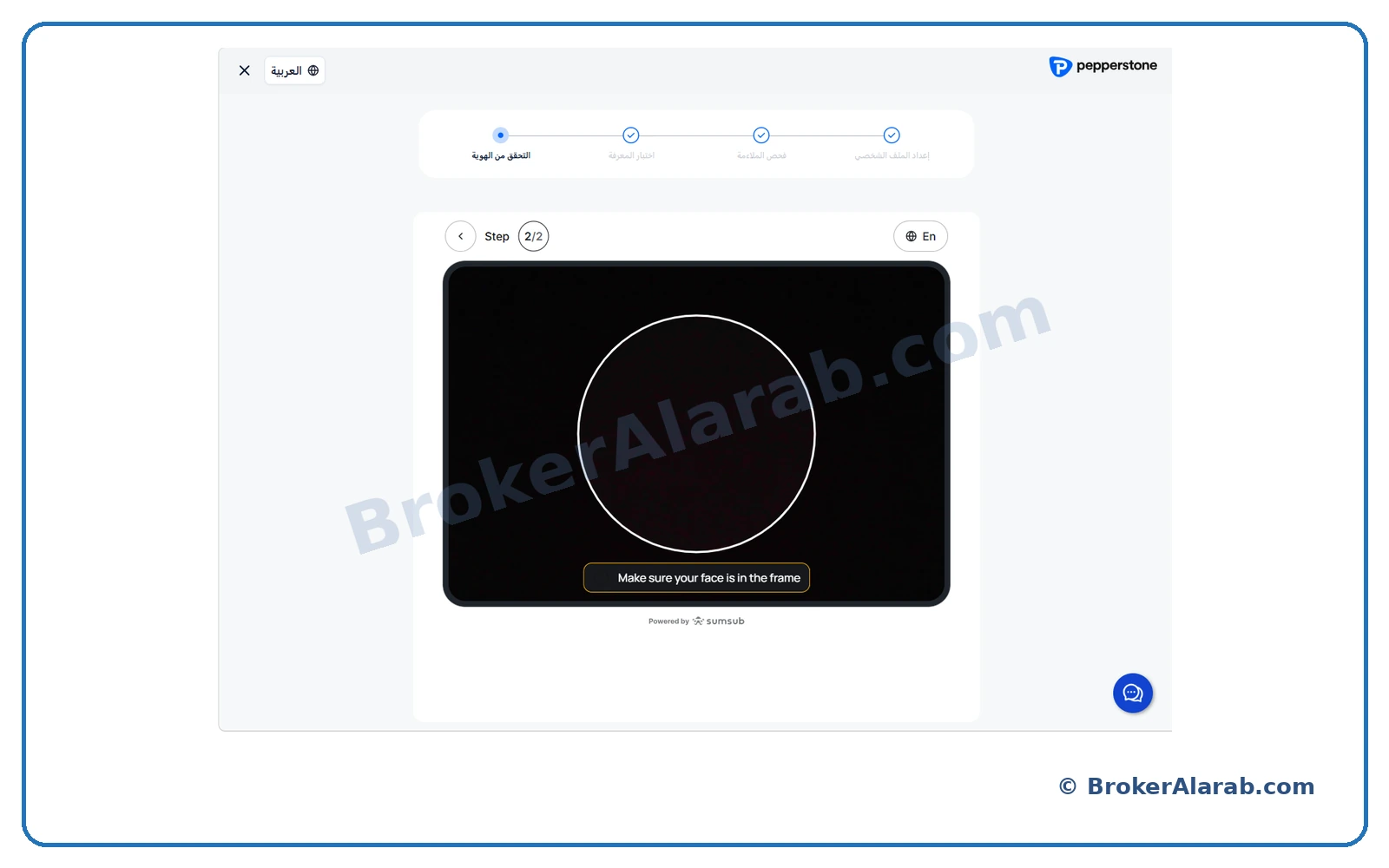
Position your face inside the designated frame and follow the movement or positioning instructions until the liveness check finishes.
Submit sensitive identity information only through the official verification portal.
Submit sensitive identity information only through the official verification portal.
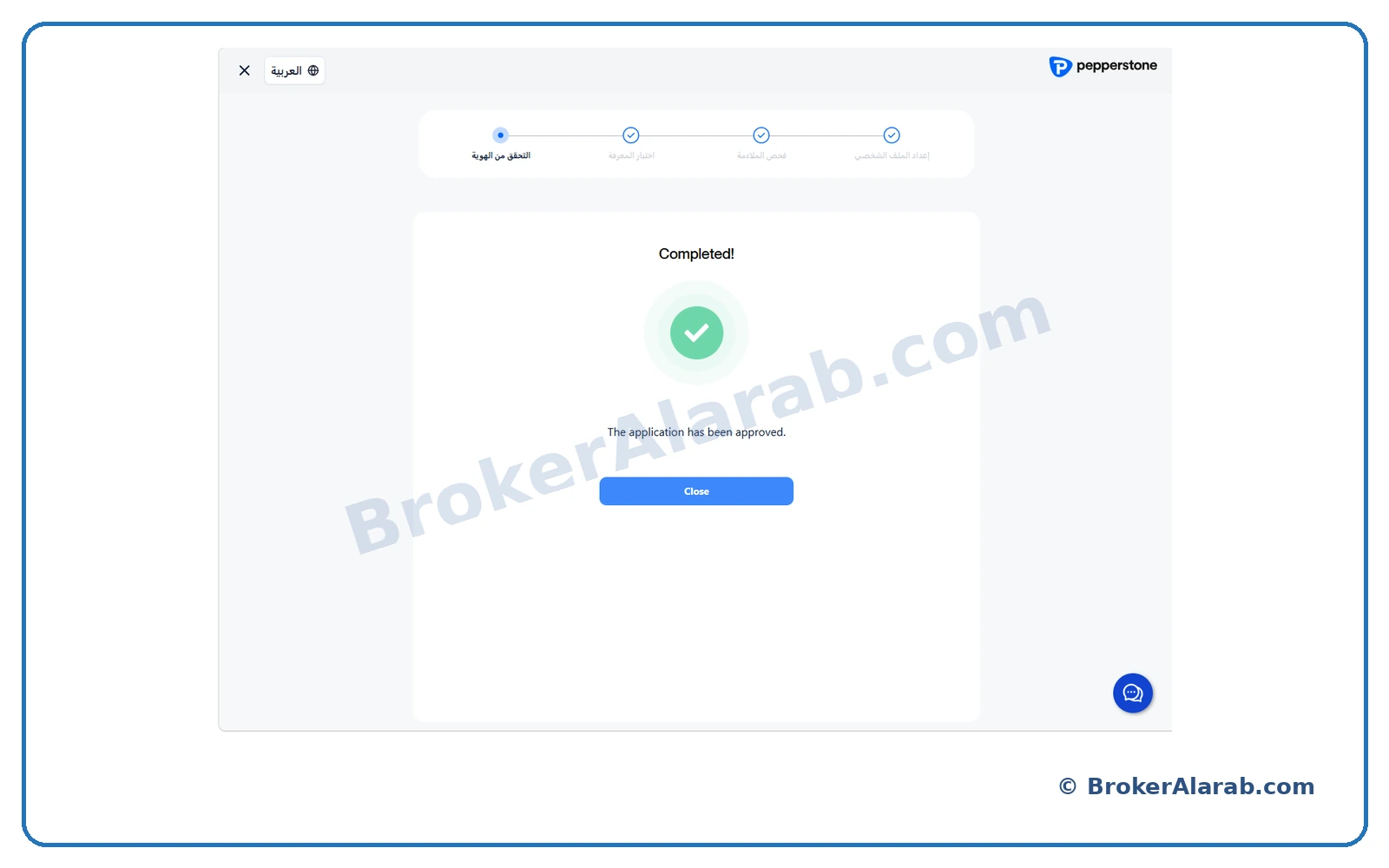
The illustrated example shows a completed verification message. Your own application may still require additional review before final account approval.
ACCOUNT OPENING STAGE
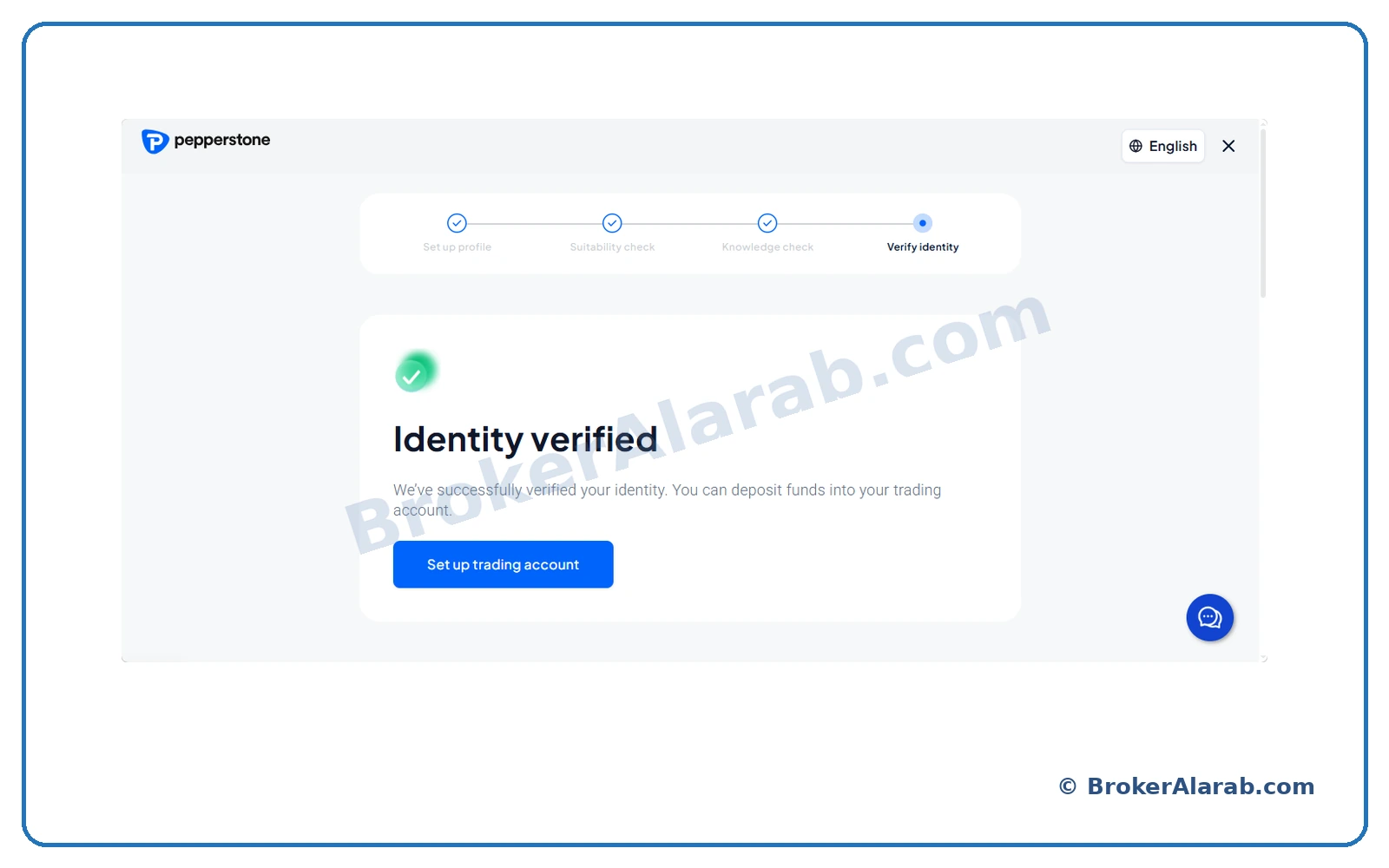
Review the identity verification status displayed in your account. Final trading account approval may involve additional checks.
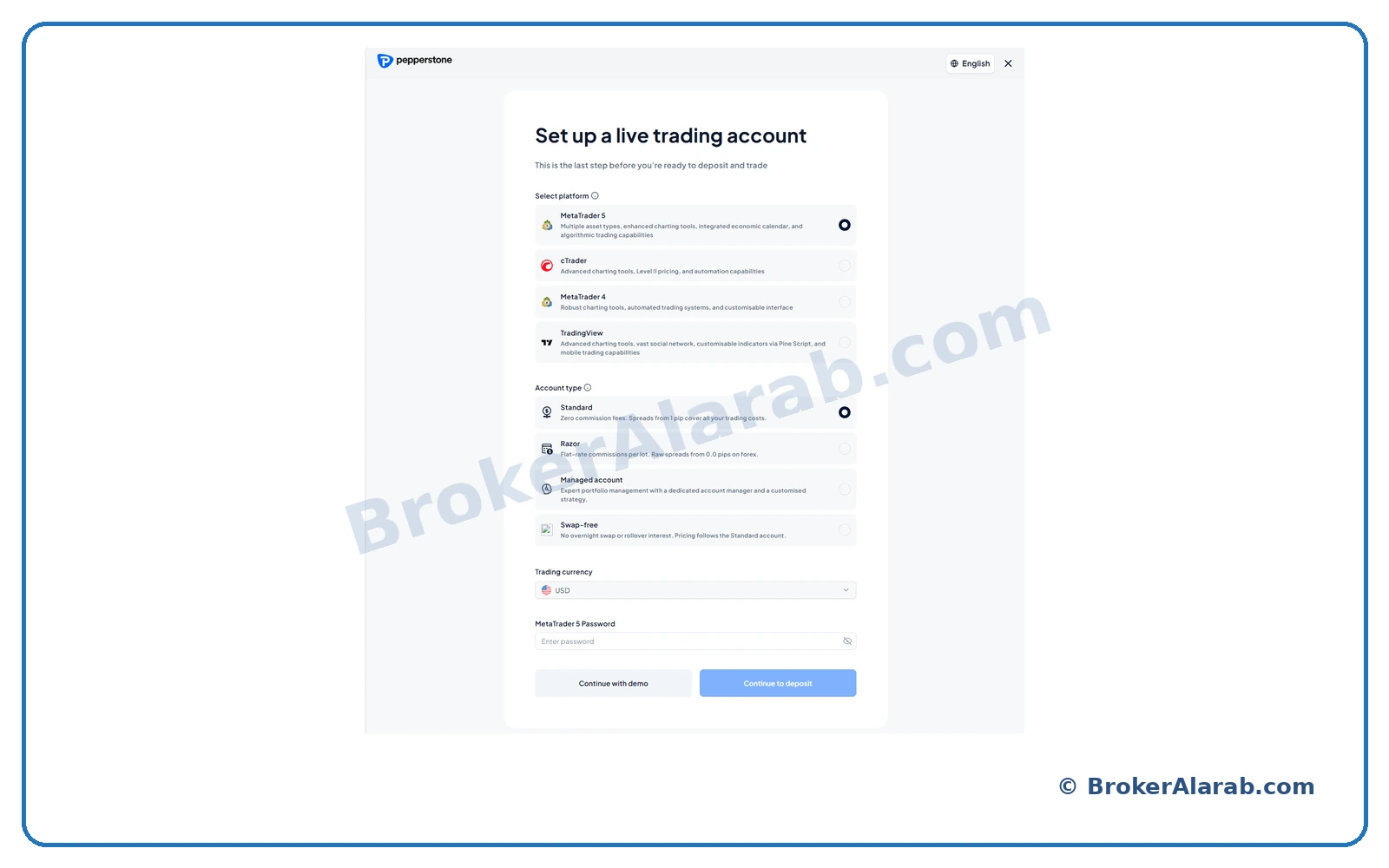
Review the available trading platforms, account types, and account currencies. Select the configuration appropriate to the options offered for your account.
Access the secure client area to review your accounts, trading platforms, and available funding methods. Check account approval and deposit conditions before adding funds.
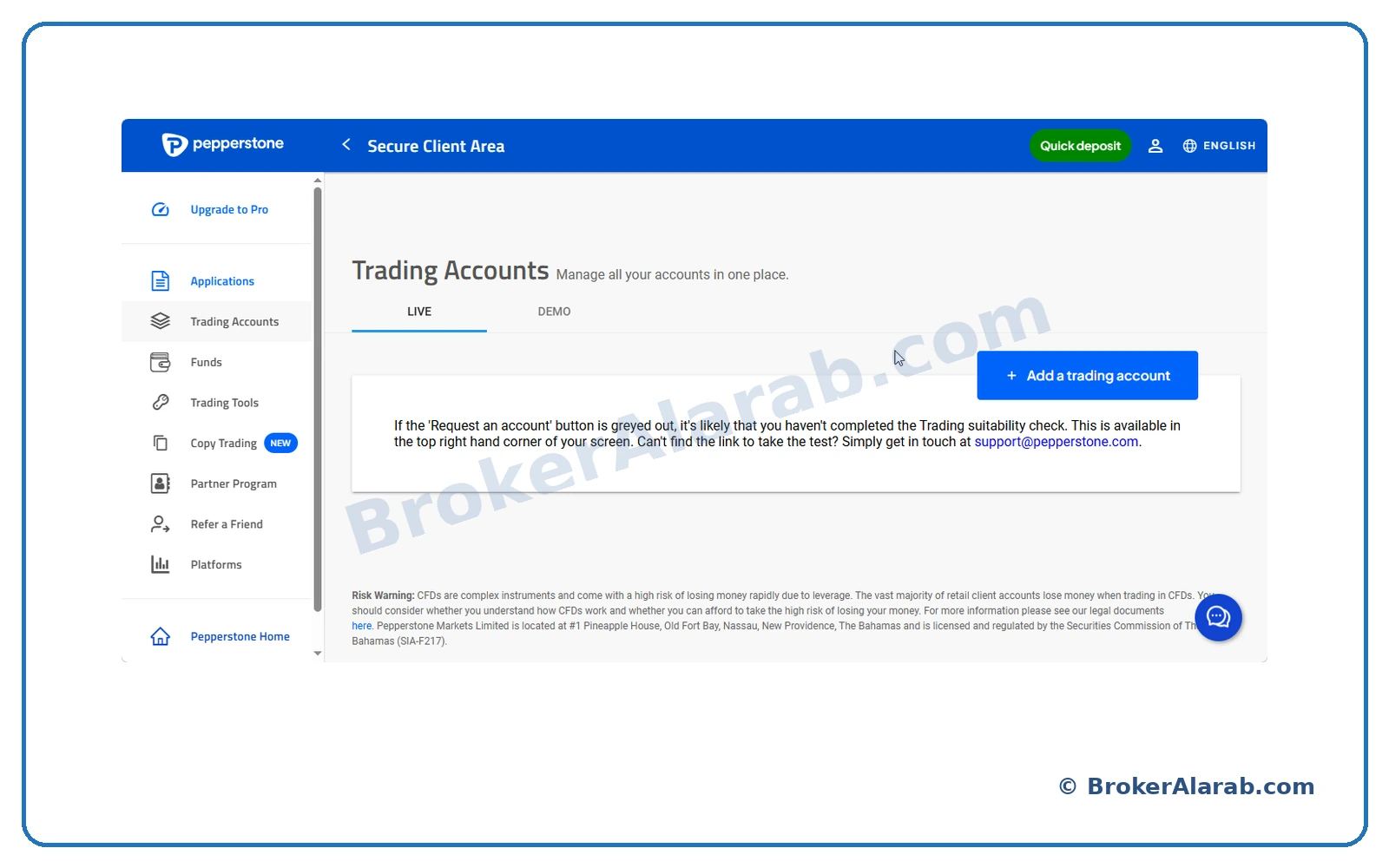
Once you understand registration, identity verification and trading account setup, you can visit the broker's registration page or review its trading conditions, costs and risks before deciding whether to proceed.
After registration, review your verification status, available Standard or Razor account options, platform settings, trading costs, and funding requirements. Registration does not guarantee approval, and leveraged trading carries significant risk.
Answers to common questions about registration, documents, verification and account setup.
Register on the official Pepperstone website, provide your personal and residential information, complete the trading assessments, and submit identity documents when required. Steps may vary by jurisdiction.
You may need a valid passport or national identity card, proof of address, or a facial verification check, depending on your account requirements.
The accounts differ in trading-cost structure. Standard generally incorporates costs into spreads, while Razor provides raw pricing with separate commissions on applicable products and platforms.
You may need to complete identity verification and receive final account approval before using all live account features.
Explore its licenses, fees, account types and trading conditions in our full review.
Trading leveraged financial products involves a high level of risk and may result in the loss of capital. This guide and its screenshots are provided for educational purposes only and do not constitute investment advice or guarantee account approval. Registration, verification and documentation requirements may vary by country and broker. Read the broker's terms and risk disclosures before registering or depositing funds.