
Broker Alarab
Account Opening GuideIllustrated28 Steps

How to Open an XS Account – Step-by-Step Guide

A step-by-step illustrated guide to registering, verifying and opening a trading account with XS.

Read more +

Follow the screenshots in sequence and always use accurate personal information during registration and verification.

XS

XS

English Illustrated Guide

★ 4.5228 Steps

Before You Start

Prepare your contact details and identification documents. Always provide accurate information.

✓Active email address
✓Valid phone number
✓Valid identity document
✓Proof of address, if required

XS Account Opening Stages

Select a stage or follow the illustrated steps in order.

28 Steps
View All 28 Steps⌄

ACCOUNT OPENING STAGE

Registration & Account Creation

Back to Contents ↑
Step 11 of 28Registration & Account Creation

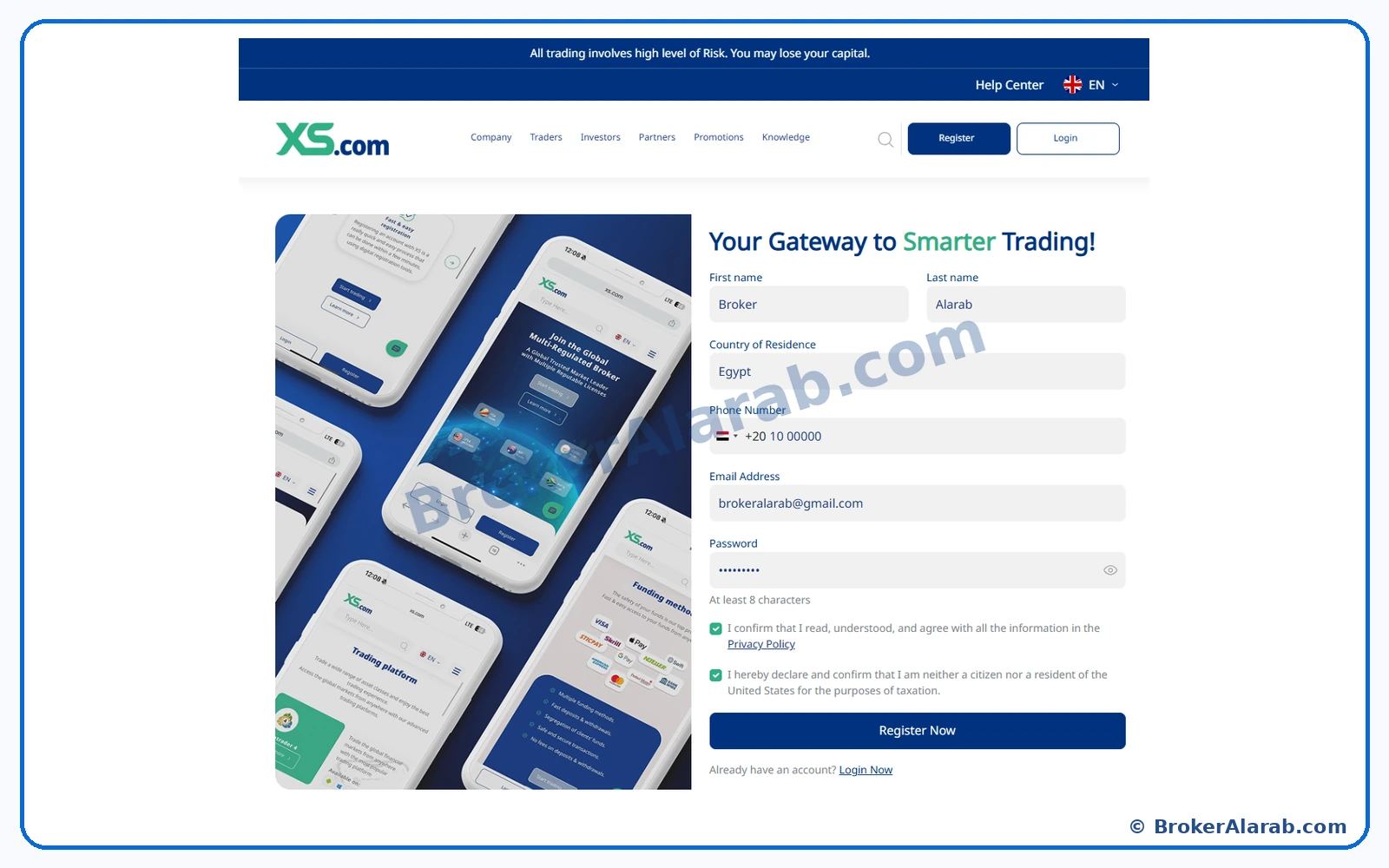
Open the XS registration form

Visit the official XS registration page. Enter your first and last names as shown on your identity document, select your country of residence, provide your phone number and email address, and set a strong password. Review the displayed declarations before selecting Register.
Open the XS registration form
Screenshot for Step 1Enlarge Image ↗
ⓘ Important Notes⌄

Use an email inbox you can access and double-check your country of residence.

! Important Warning⌄

Never disclose your password or register through an untrusted link.
Step 22 of 28Registration & Account Creation

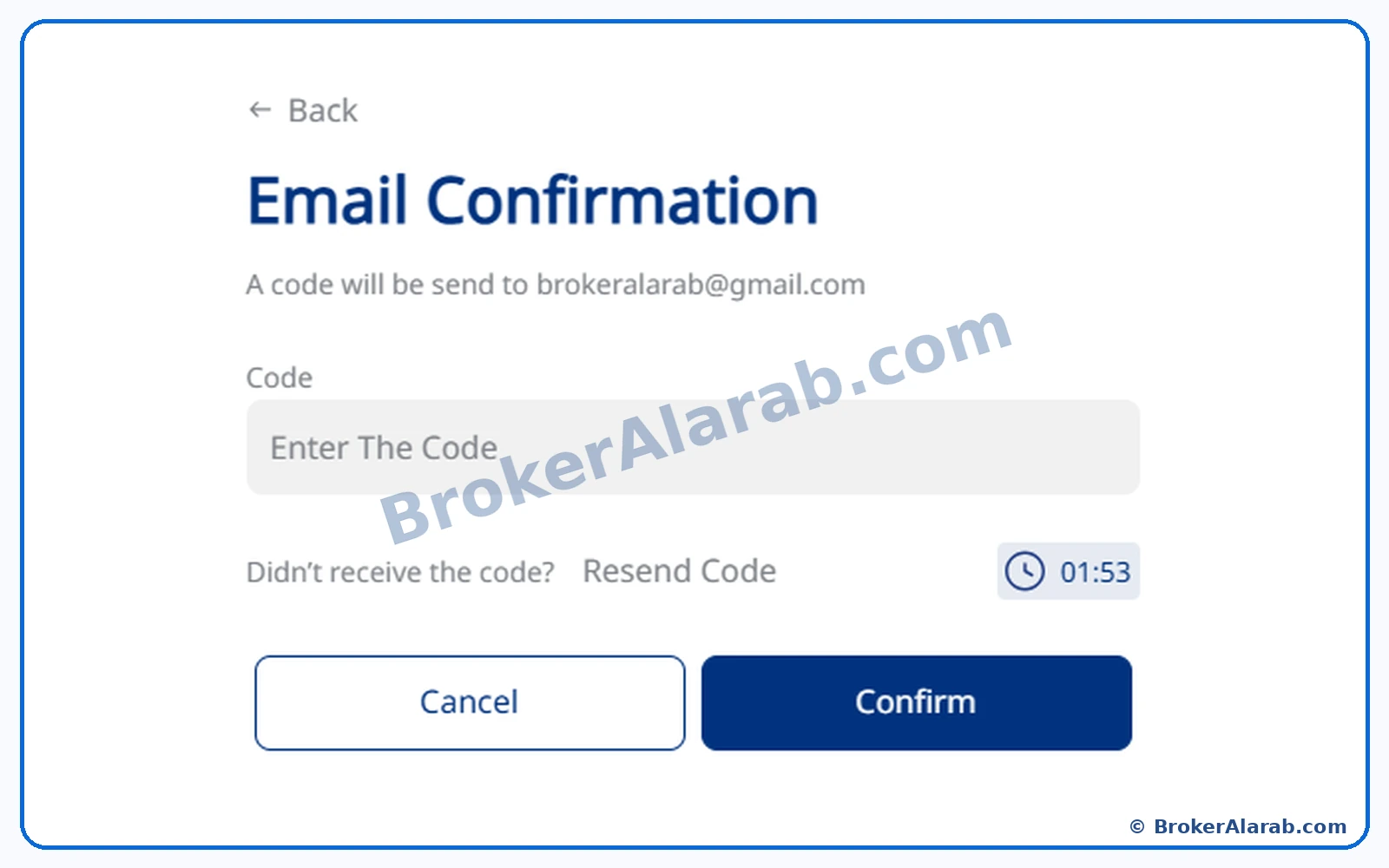
Verify your email with the one-time code

After submitting the form, open the verification email sent to your registered address. Enter the code shown in that message and select the confirmation button. Check spam or request another code if the option is available.

Verify your email with the one-time code
Screenshot for Step 2Enlarge Image ↗
ⓘ Important Notes⌄

Verification codes may expire; follow the on-screen timer.

! Important Warning⌄

Do not share a verification code with anyone.

ACCOUNT OPENING STAGE

Personal Details & Trading Experience

Back to Contents ↑
Step 33 of 28Personal Details & Trading Experience

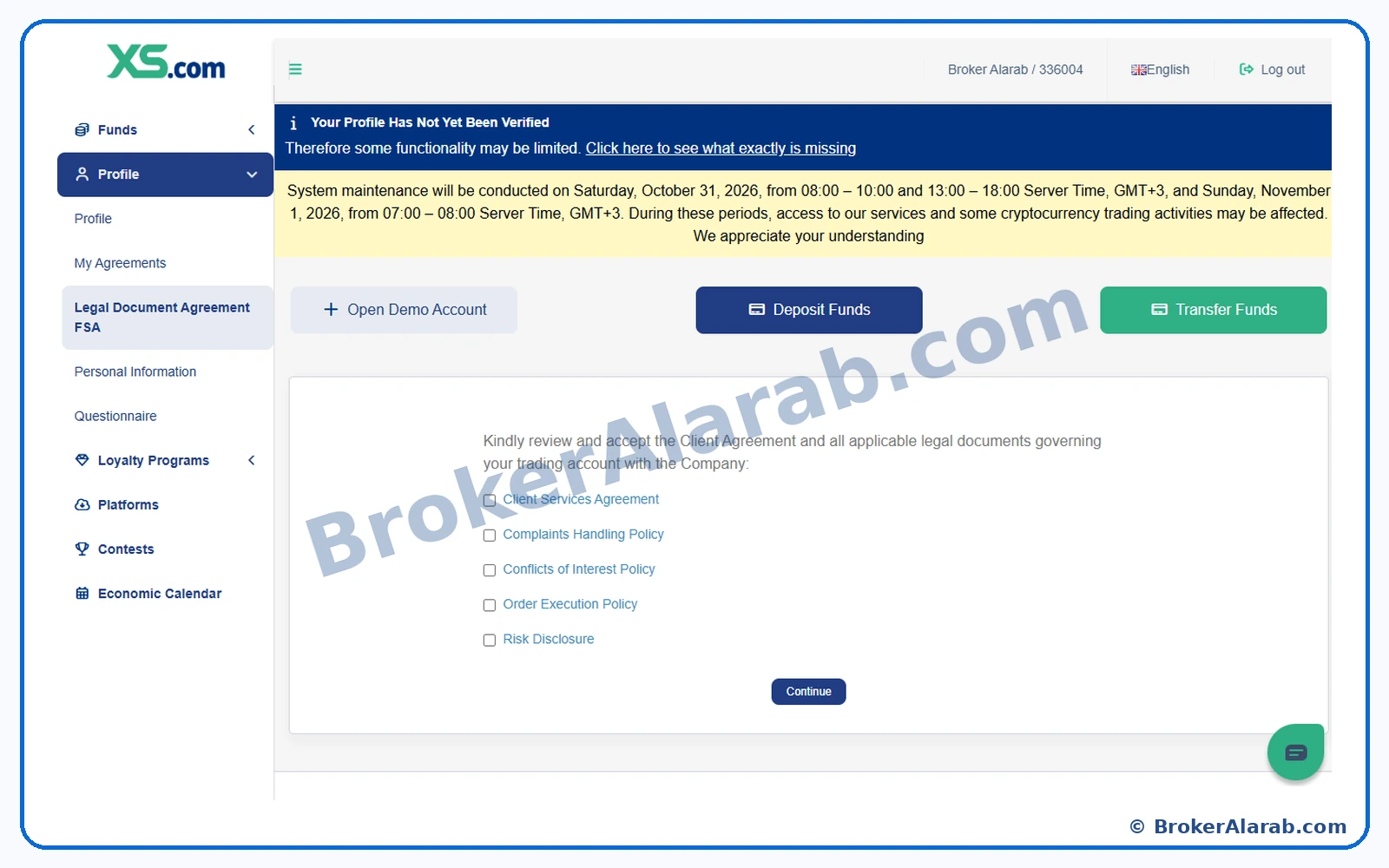
Review legal documents and agreements

The client portal displays legal agreements and policy documents relevant to your account. Open and read the available documents before proceeding.

Review legal documents and agreements
Screenshot for Step 3Enlarge Image ↗
ⓘ Important Notes⌄

The contracting entity and document names may vary by jurisdiction.

! Important Warning⌄

Do not accept terms you have not read or do not understand.

Step 44 of 28Personal Details & Trading Experience

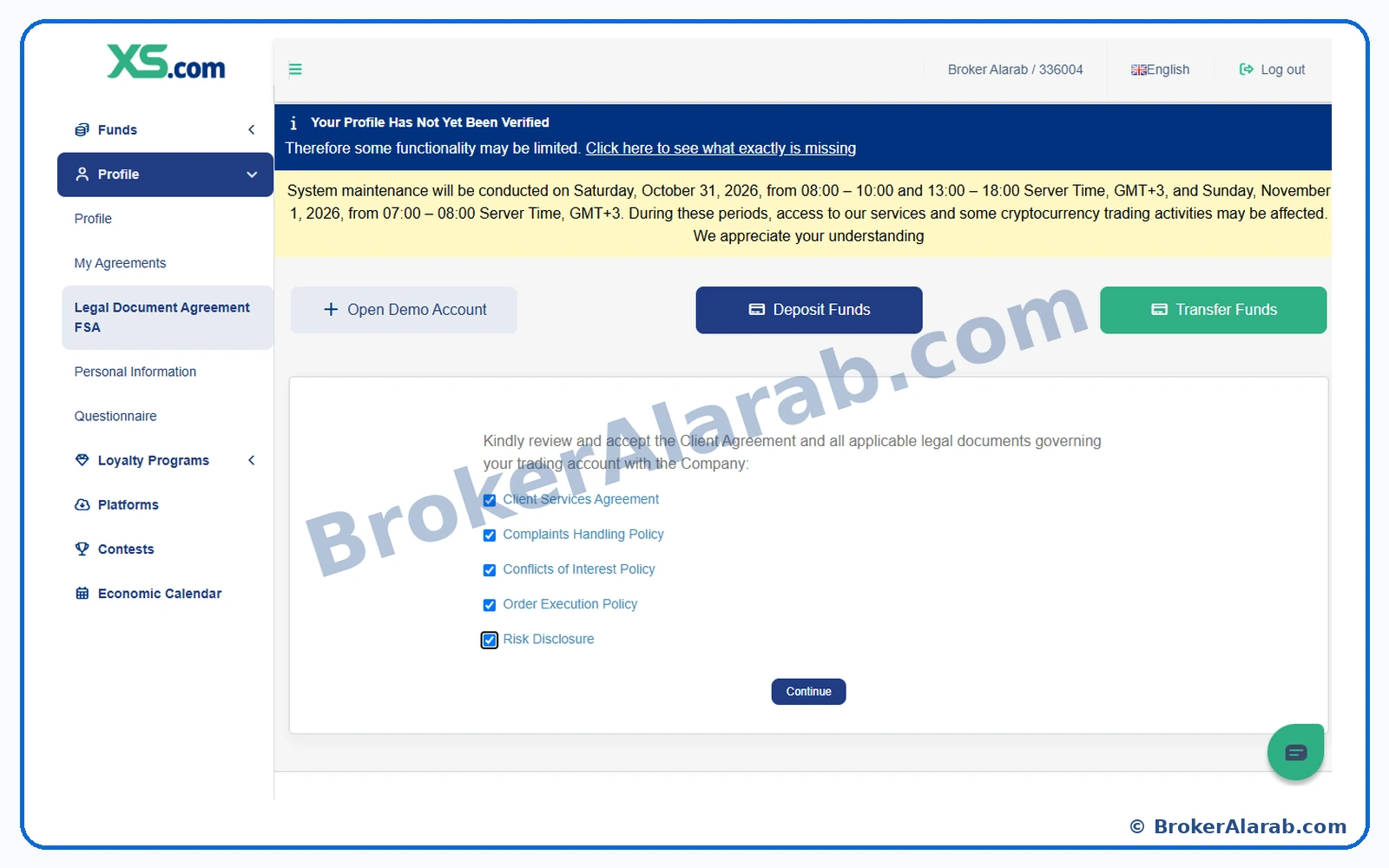
Accept the legal agreements

Once you have read and understood the documents, tick the corresponding agreement boxes and proceed when the Continue button becomes available.

Accept the legal agreements
Screenshot for Step 4Enlarge Image ↗
ⓘ Important Notes⌄

The screenshot shows five agreement checkboxes; the number may change.

! Important Warning⌄

CFDs and leveraged products carry substantial risk of loss.

Step 55 of 28Personal Details & Trading Experience

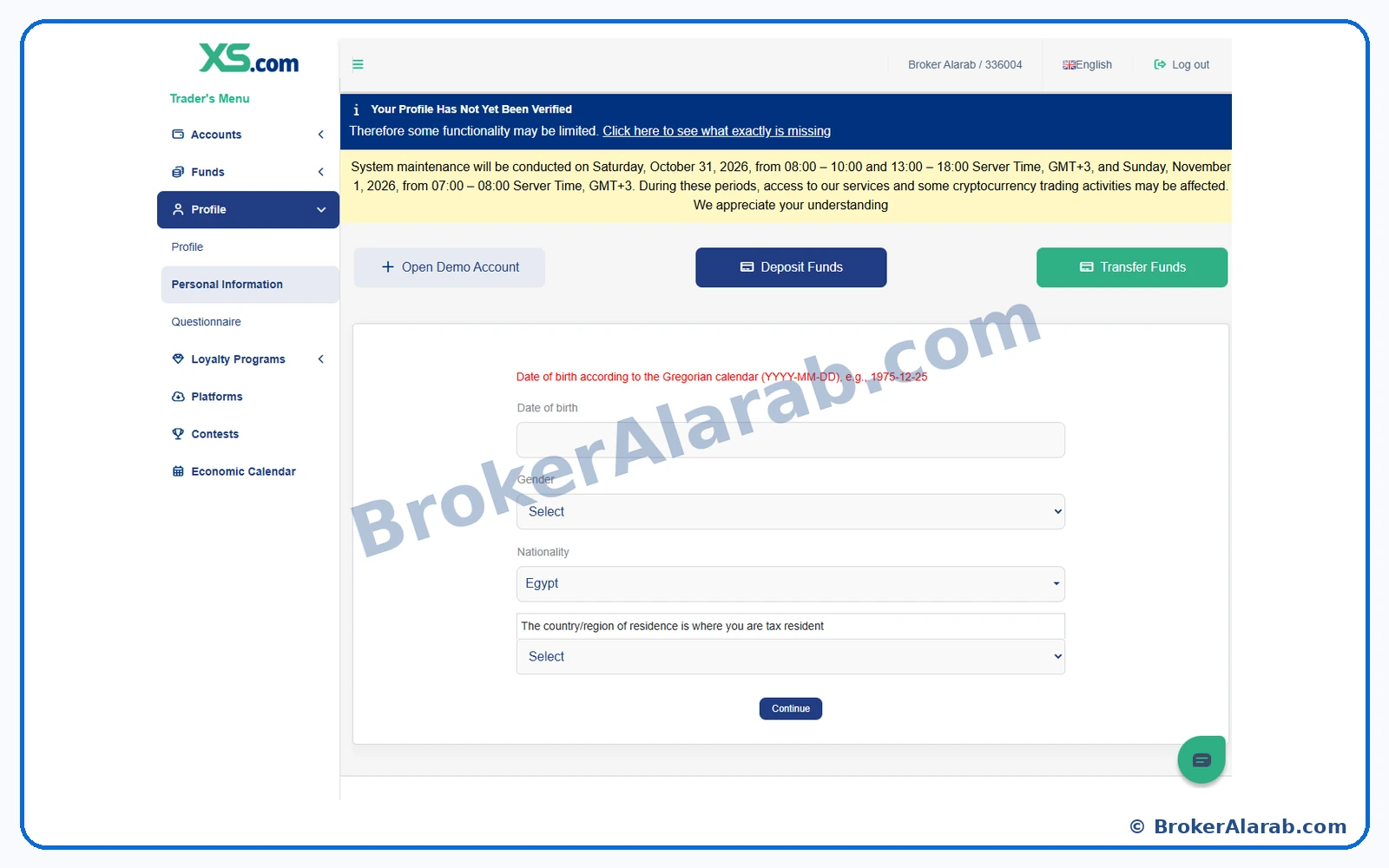
Start the personal information form

The personal-information screen requests details such as date of birth, gender, nationality, and tax residence. Prepare accurate details before completing the form.

Start the personal information form
Screenshot for Step 5Enlarge Image ↗
ⓘ Important Notes⌄

Follow the date format requested by the interface.

! Important Warning⌄

Make sure your identifying details match your official documents.

Step 66 of 28Personal Details & Trading Experience

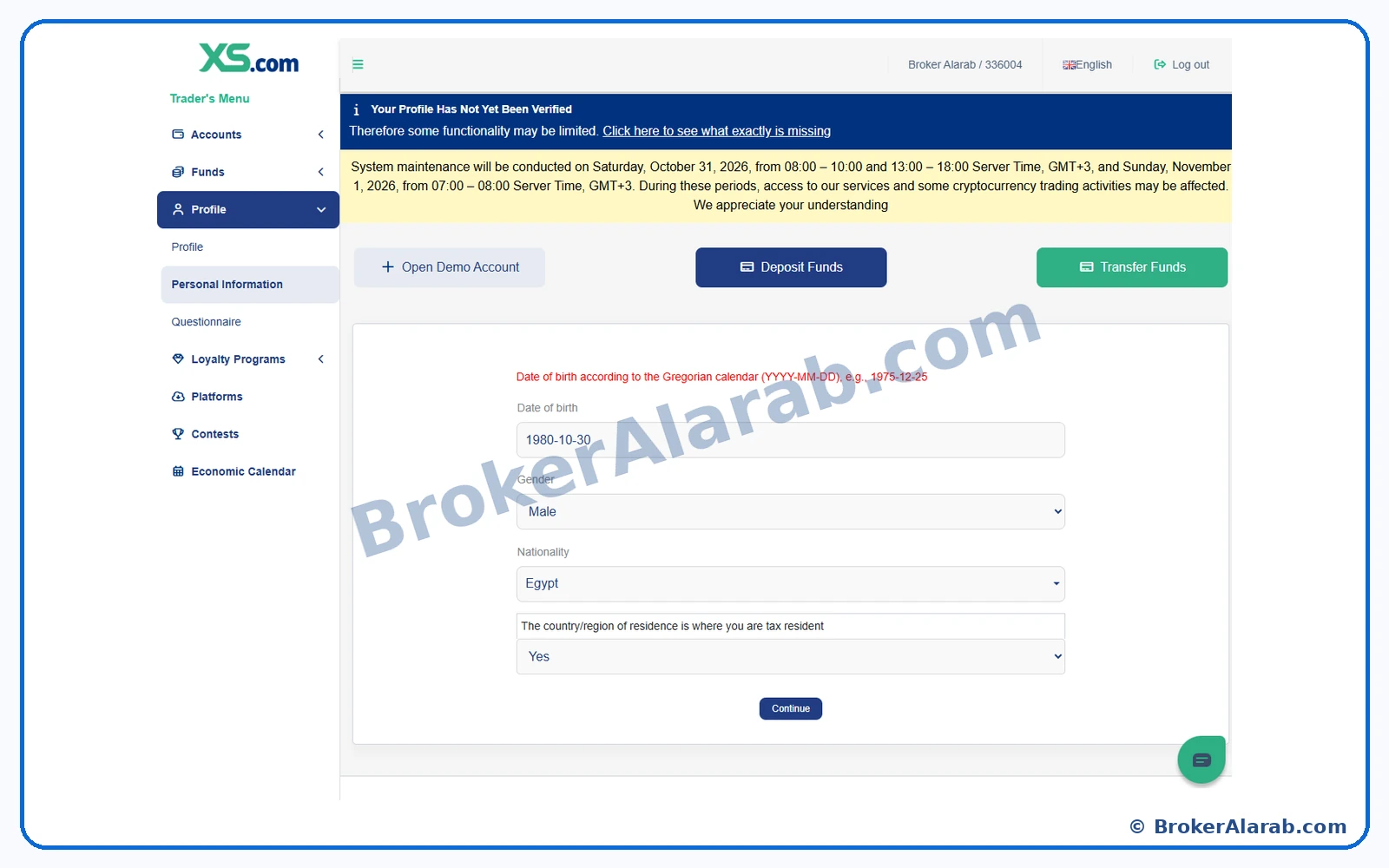
Complete personal and tax-residency details

Enter your actual date of birth, gender, nationality, and tax-residency country, then review the entries and select Continue.

Complete personal and tax-residency details
Screenshot for Step 6Enlarge Image ↗
ⓘ Important Notes⌄

Tax residence and citizenship are not always the same.

! Important Warning⌄

Incorrect information may delay verification.

Step 77 of 28Personal Details & Trading Experience

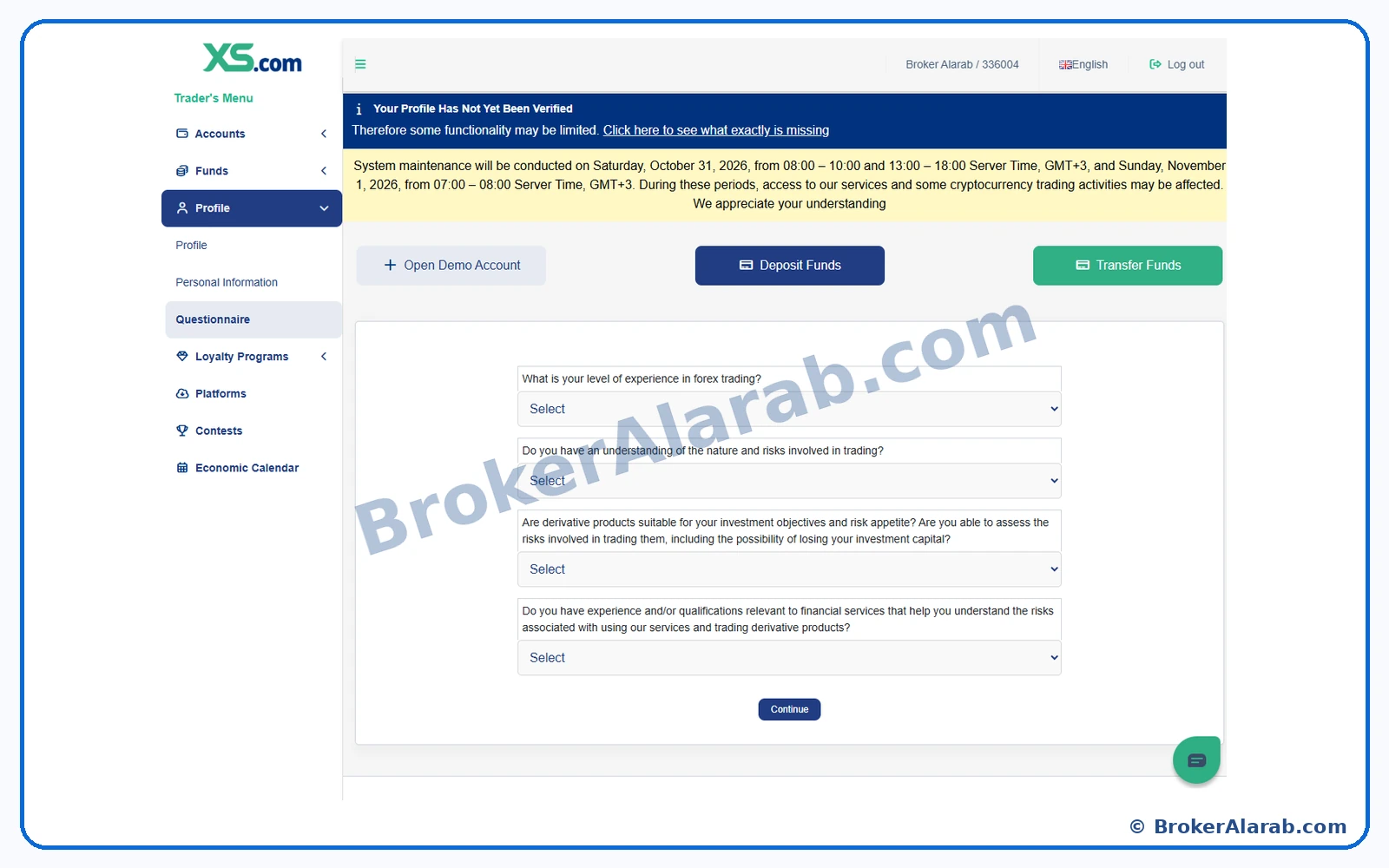
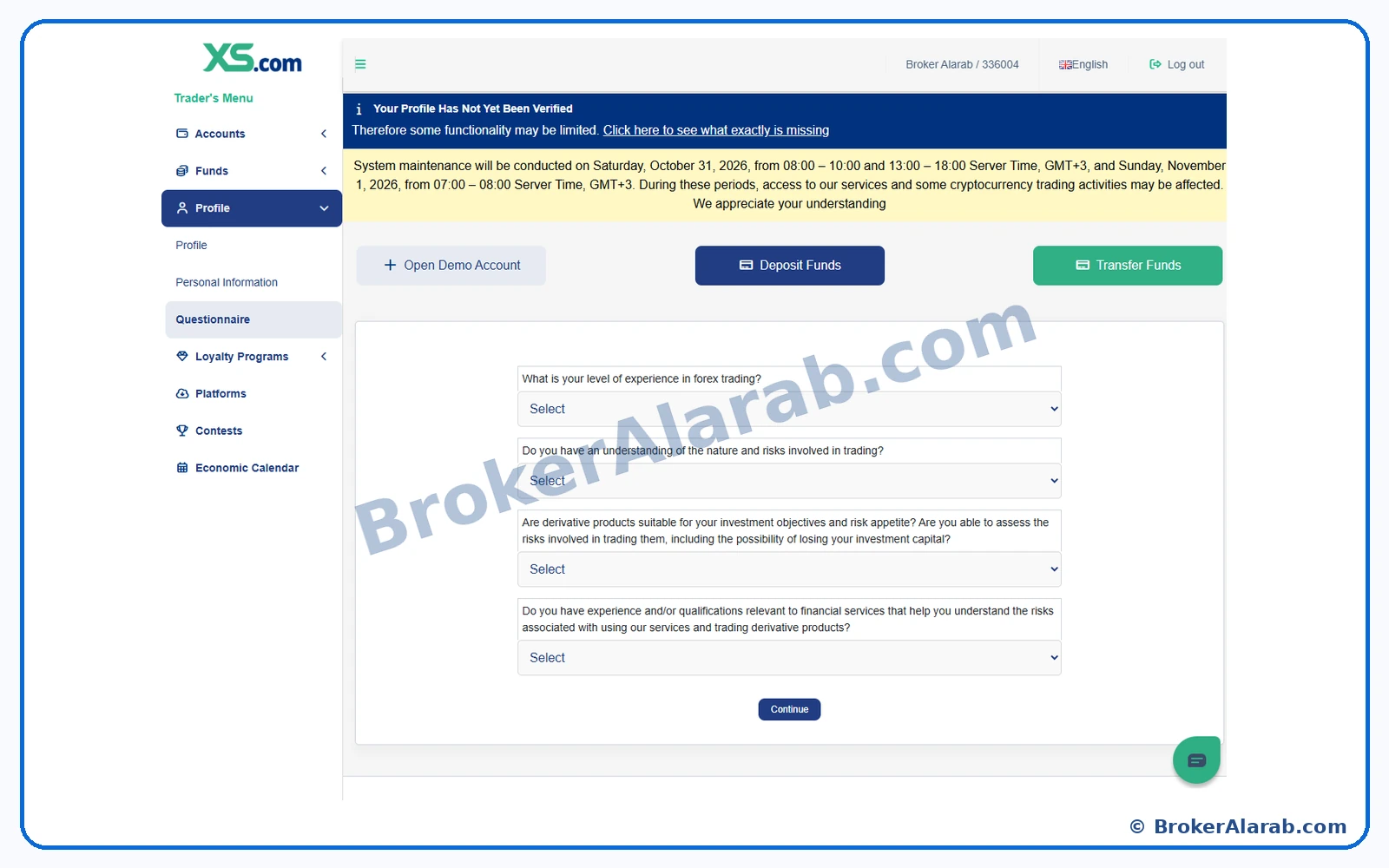
Review the trading-experience questionnaire

XS asks questions about your trading experience and understanding of financial markets, derivatives, and their risks. Read each question carefully.

Review the trading-experience questionnaire
Screenshot for Step 7Enlarge Image ↗
ⓘ Important Notes⌄

The questionnaire helps assess your knowledge and suitability.

! Important Warning⌄

Never overstate your experience to gain access to particular trading conditions.

Step 88 of 28Personal Details & Trading Experience

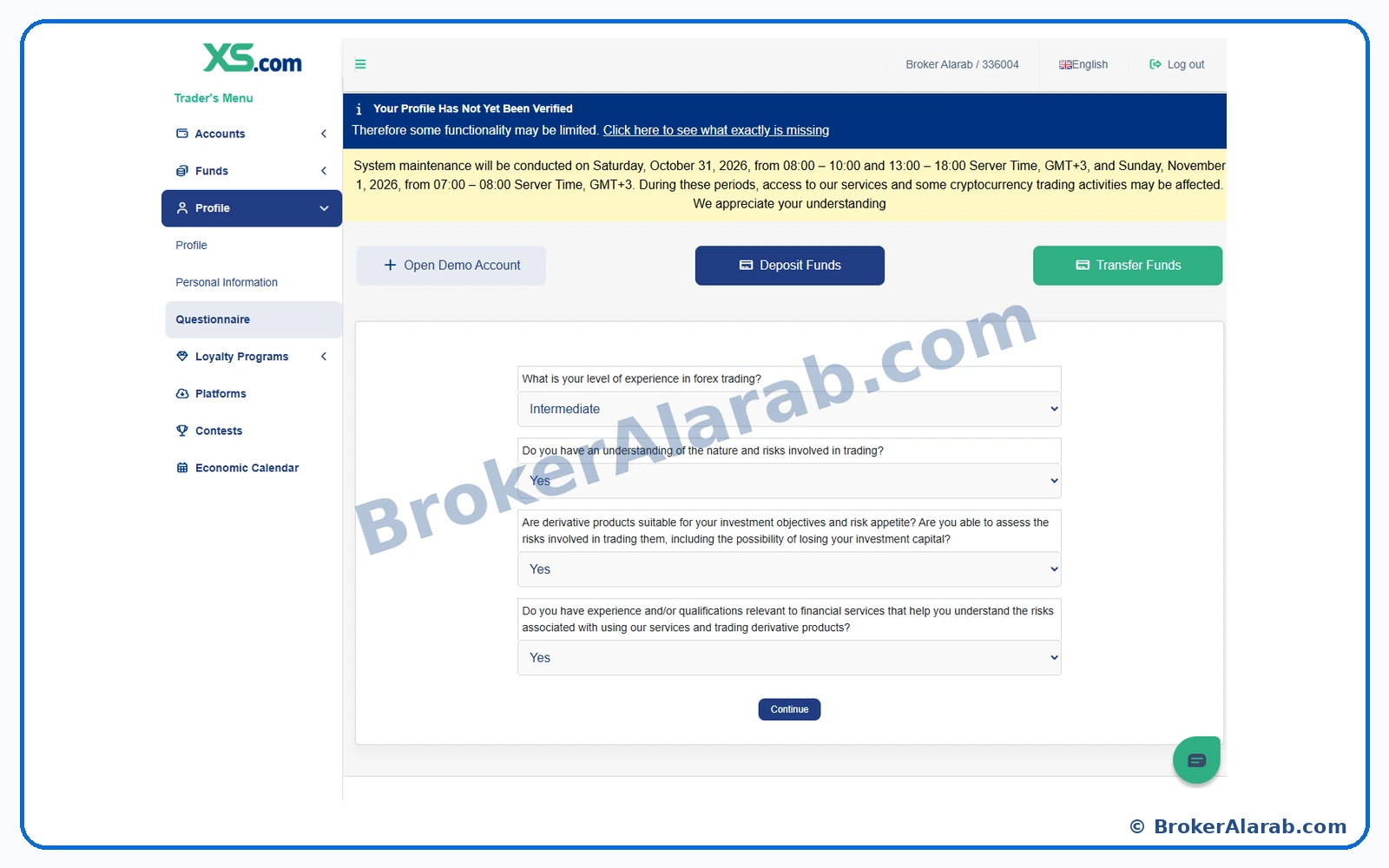
Answer the experience and risk questions

Choose answers that accurately reflect your own experience and understanding of trading and leveraged instruments. Review them before continuing.

Answer the experience and risk questions
Screenshot for Step 8Enlarge Image ↗
ⓘ Important Notes⌄

Selections visible in the screenshot are examples, not recommended answers.

! Important Warning⌄

Do not select Yes or a higher experience level merely to pass the questionnaire.

Step 99 of 28Personal Details & Trading Experience

Review the financial-profile questions

The financial questionnaire asks about employment, source of funds, approximate annual income, net worth, and liquid assets. Prepare realistic estimates before answering.

Review the financial-profile questions
Screenshot for Step 9Enlarge Image ↗
ⓘ Important Notes⌄

Available ranges and choices can vary by account and jurisdiction.

! Important Warning⌄

Do not submit false or misleading financial information.

Step 1010 of 28Personal Details & Trading Experience

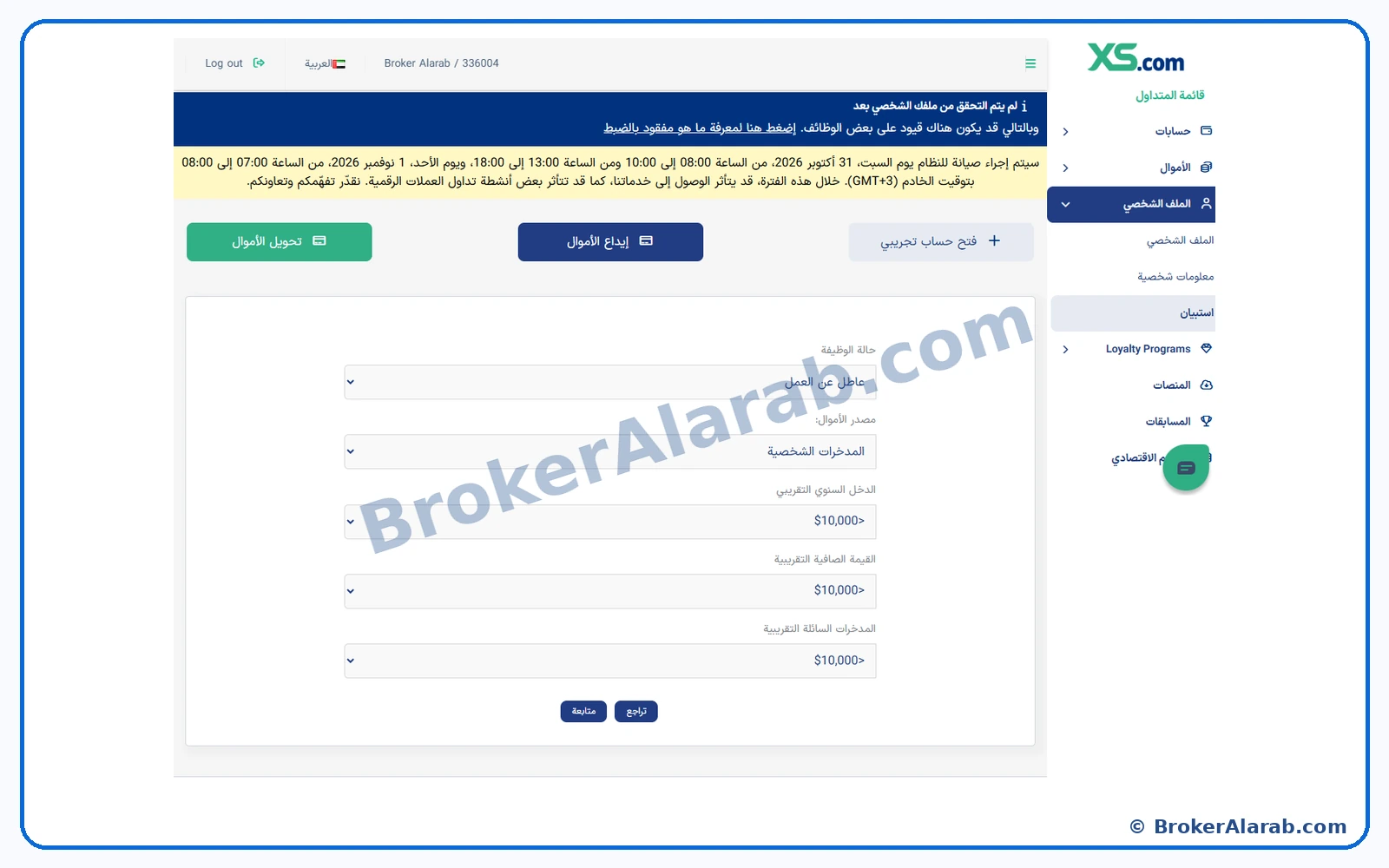
Complete the financial questionnaire

Select the answers that honestly match your employment and financial circumstances, including the source of funds and approximate asset ranges, then continue.

Complete the financial questionnaire
Screenshot for Step 10Enlarge Image ↗
ⓘ Important Notes⌄

This screenshot uses Arabic interface labels in the English guide; follow the actual field meanings.

! Important Warning⌄

Avoid using borrowed money or funds needed for essential expenses for speculative trading.

ACCOUNT OPENING STAGE

Identity & Address Verification

Back to Contents ↑
Step 1111 of 28Identity & Address Verification

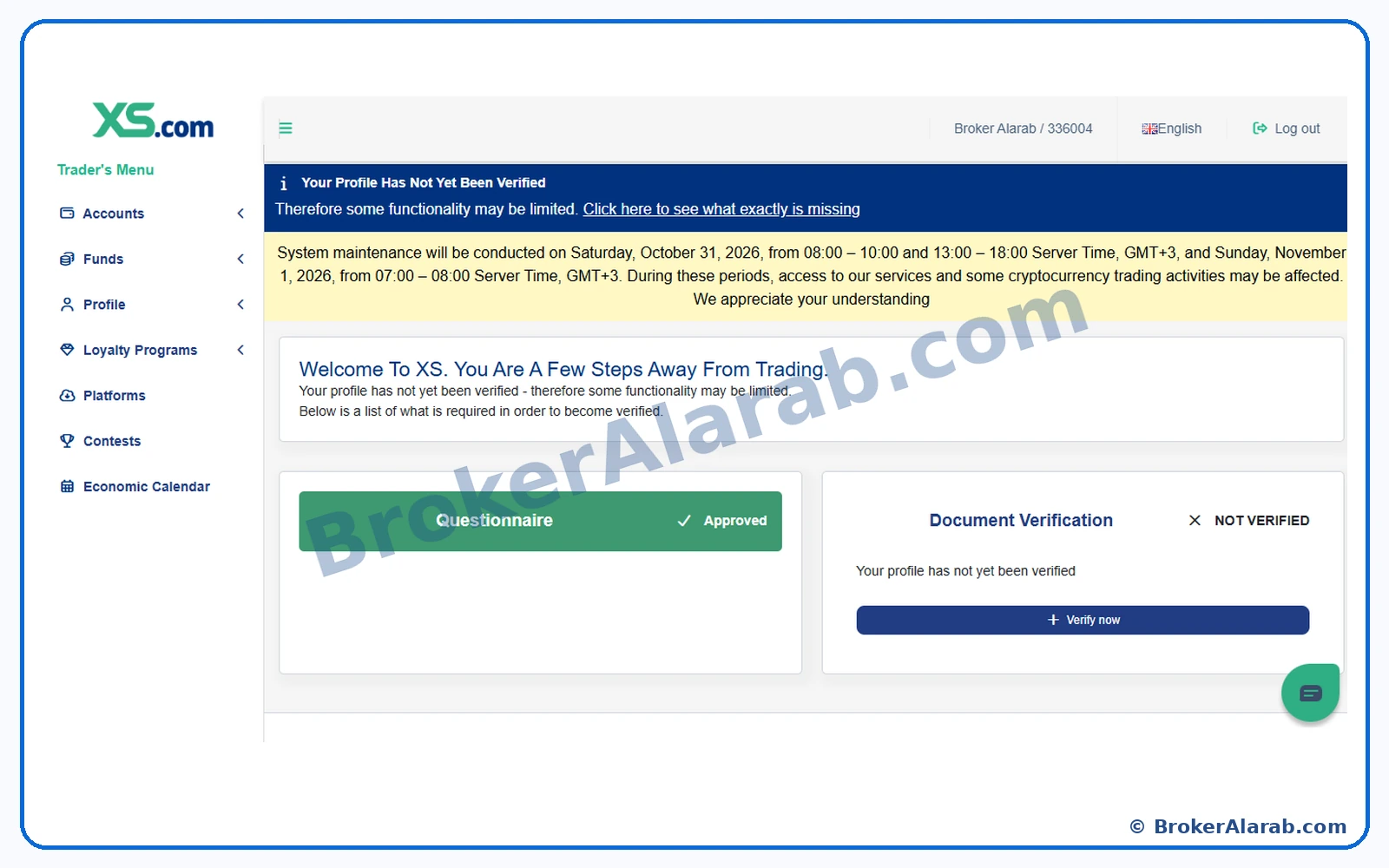
Go to the client dashboard and begin verification

The client dashboard shows your questionnaire status and may indicate that identity verification is still pending. Choose the verification action to start uploading documents.

Go to the client dashboard and begin verification
Screenshot for Step 11Enlarge Image ↗
ⓘ Important Notes⌄

A completed questionnaire is not the same as an approved identity check.

! Important Warning⌄

Upload identity documents only through the official XS client portal.

Step 1212 of 28Identity & Address Verification

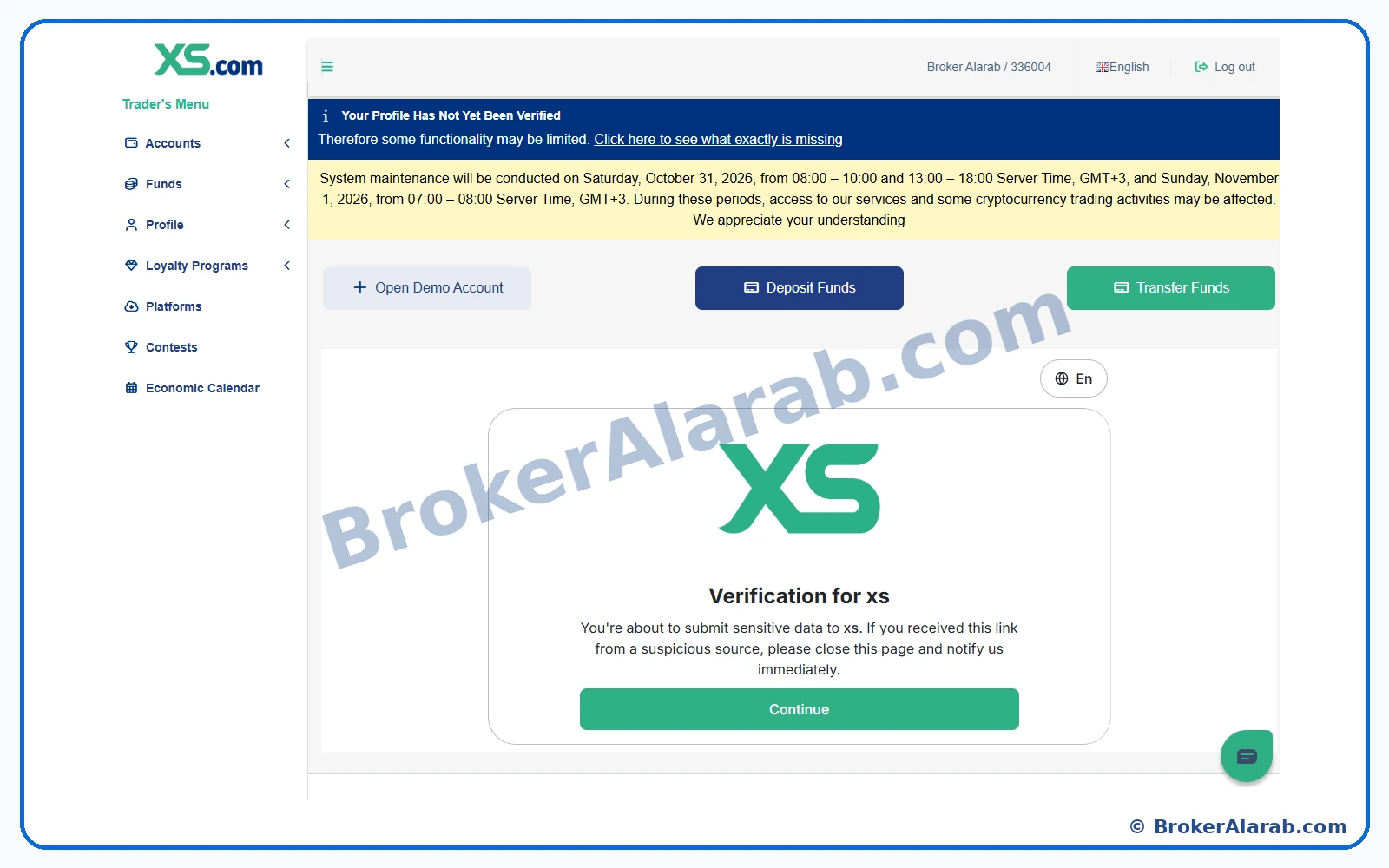
Start the identity-verification flow

A verification window explains the upcoming identity process and related data handling. Read the notice and select Continue to move forward.

Start the identity-verification flow
Screenshot for Step 12Enlarge Image ↗
ⓘ Important Notes⌄

Verification may be handled by an integrated external provider.

! Important Warning⌄

Make sure you are still using the official onboarding flow.

Step 1313 of 28Identity & Address Verification

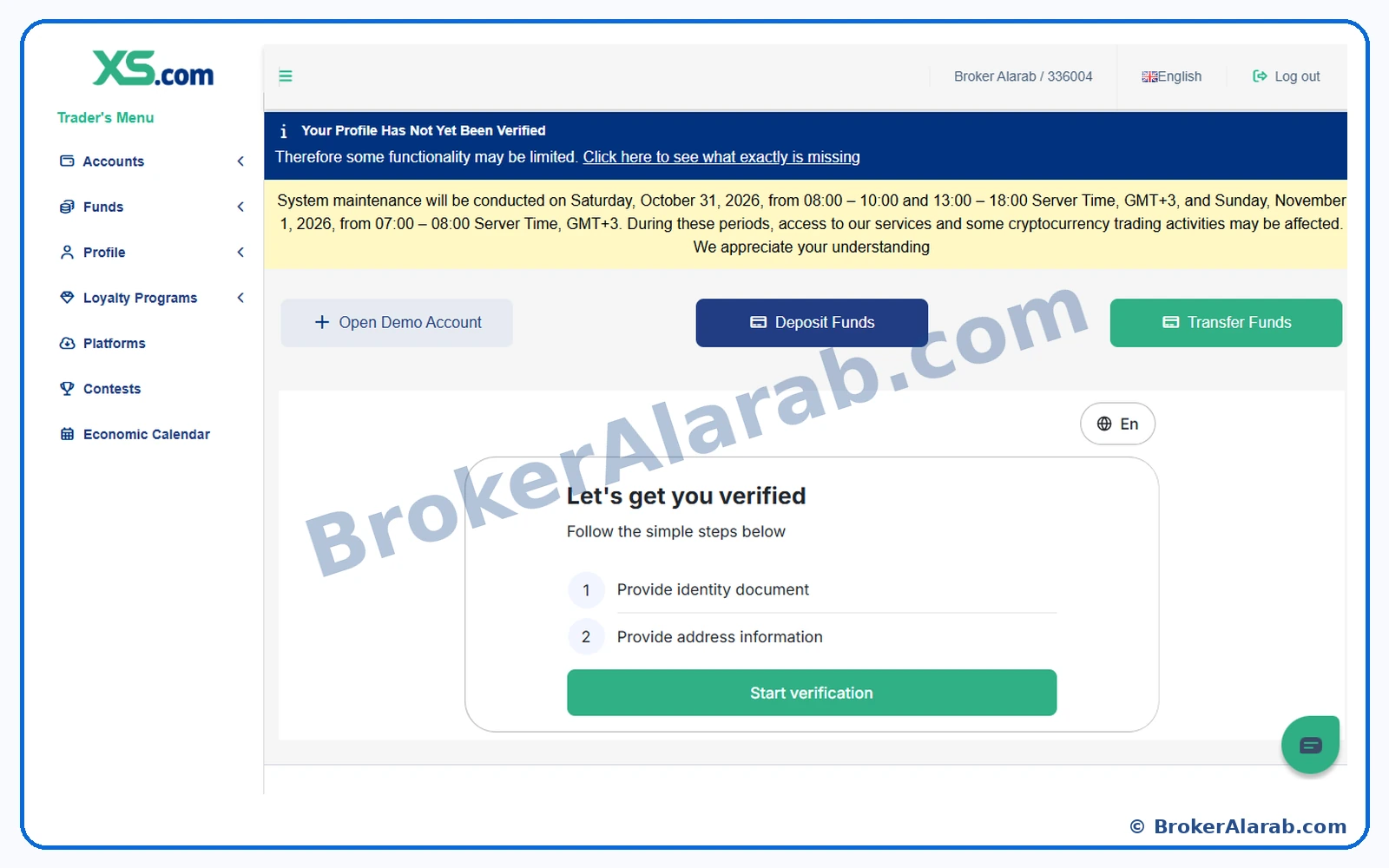
Review the identity and address verification stages

The screen introduces the two main verification stages: proof of identity and proof of address. Select the option to start.

Review the identity and address verification stages
Screenshot for Step 13Enlarge Image ↗
ⓘ Important Notes⌄

Have clear, valid documents ready before you begin.

! Important Warning⌄

Expired or unreadable documents may be rejected.

Step 1414 of 28Identity & Address Verification

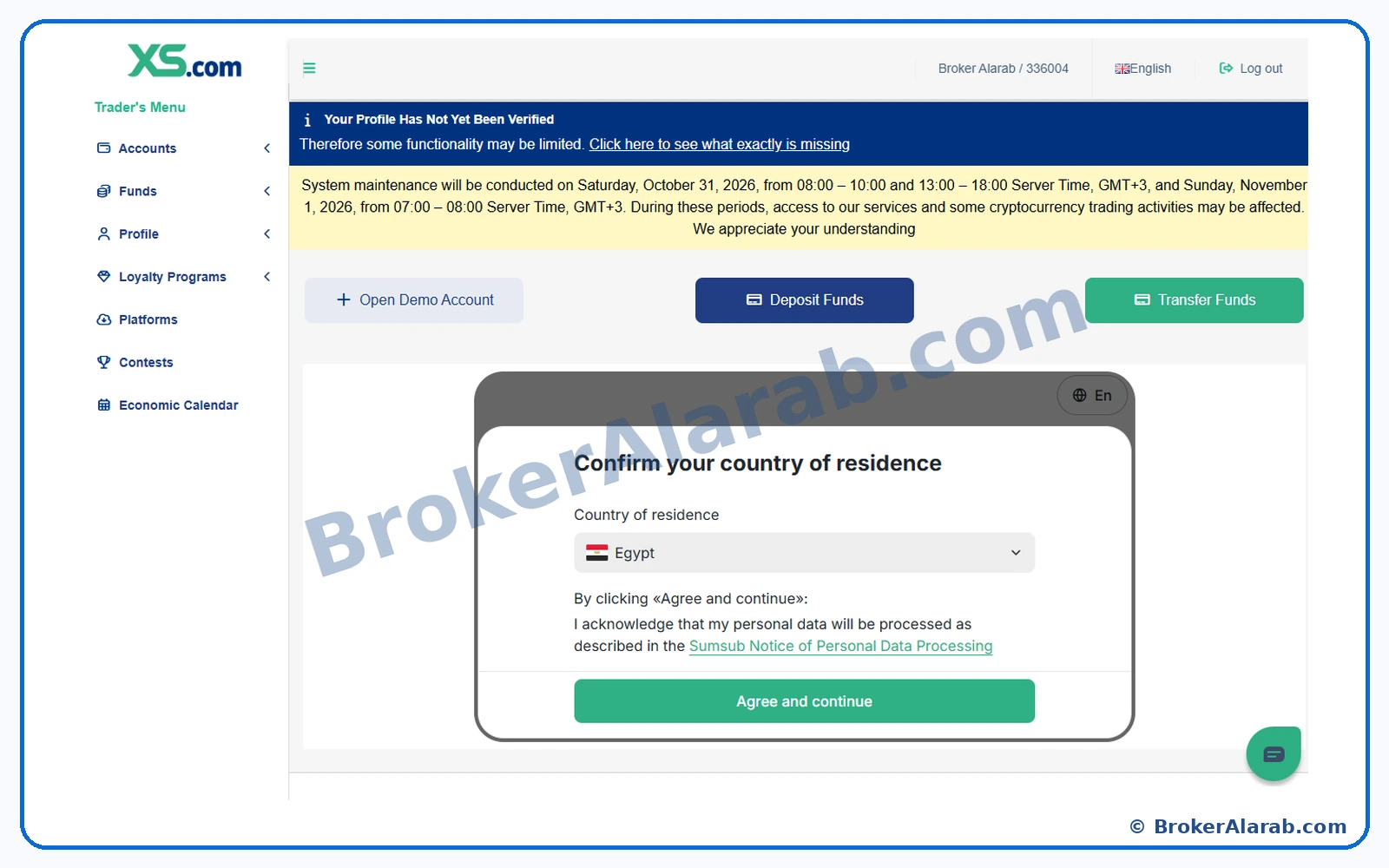
Confirm your residence and data-processing consent

Select your actual country of residence and review the privacy notice. Continue only after understanding and accepting the stated terms.

Confirm your residence and data-processing consent
Screenshot for Step 14Enlarge Image ↗
ⓘ Important Notes⌄

Residence and document-issuing countries are not necessarily identical.

! Important Warning⌄

Do not choose an inaccurate country merely to match another document.

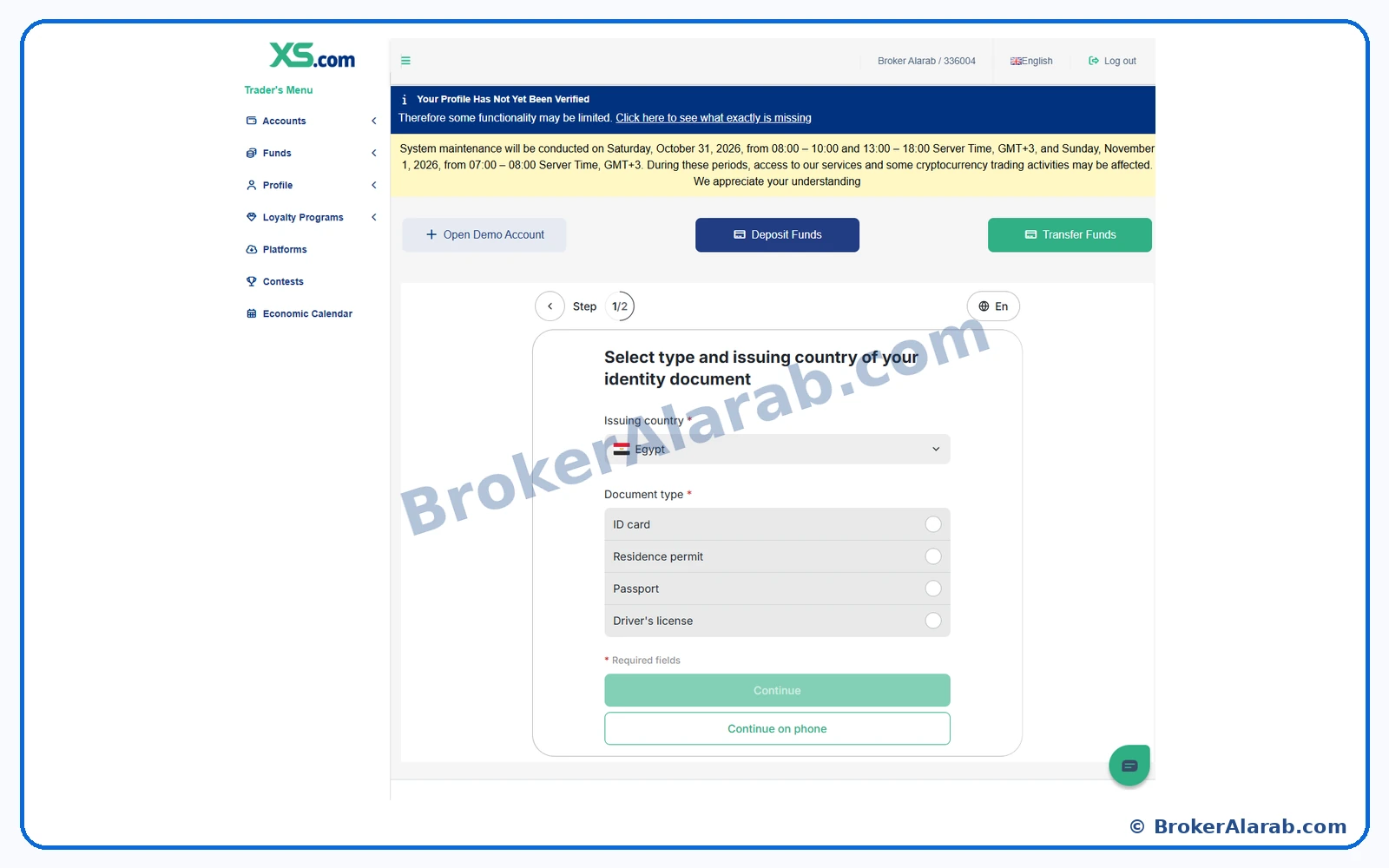
Step 1515 of 28Identity & Address Verification

Choose an identity document type

Select an eligible proof-of-identity document from the available choices, such as national ID, passport, residence permit, or driving licence, where accepted.

Choose an identity document type
Screenshot for Step 15Enlarge Image ↗
ⓘ Important Notes⌄

Accepted document types depend on your account and location.

! Important Warning⌄

Use a genuine, valid document belonging to you.

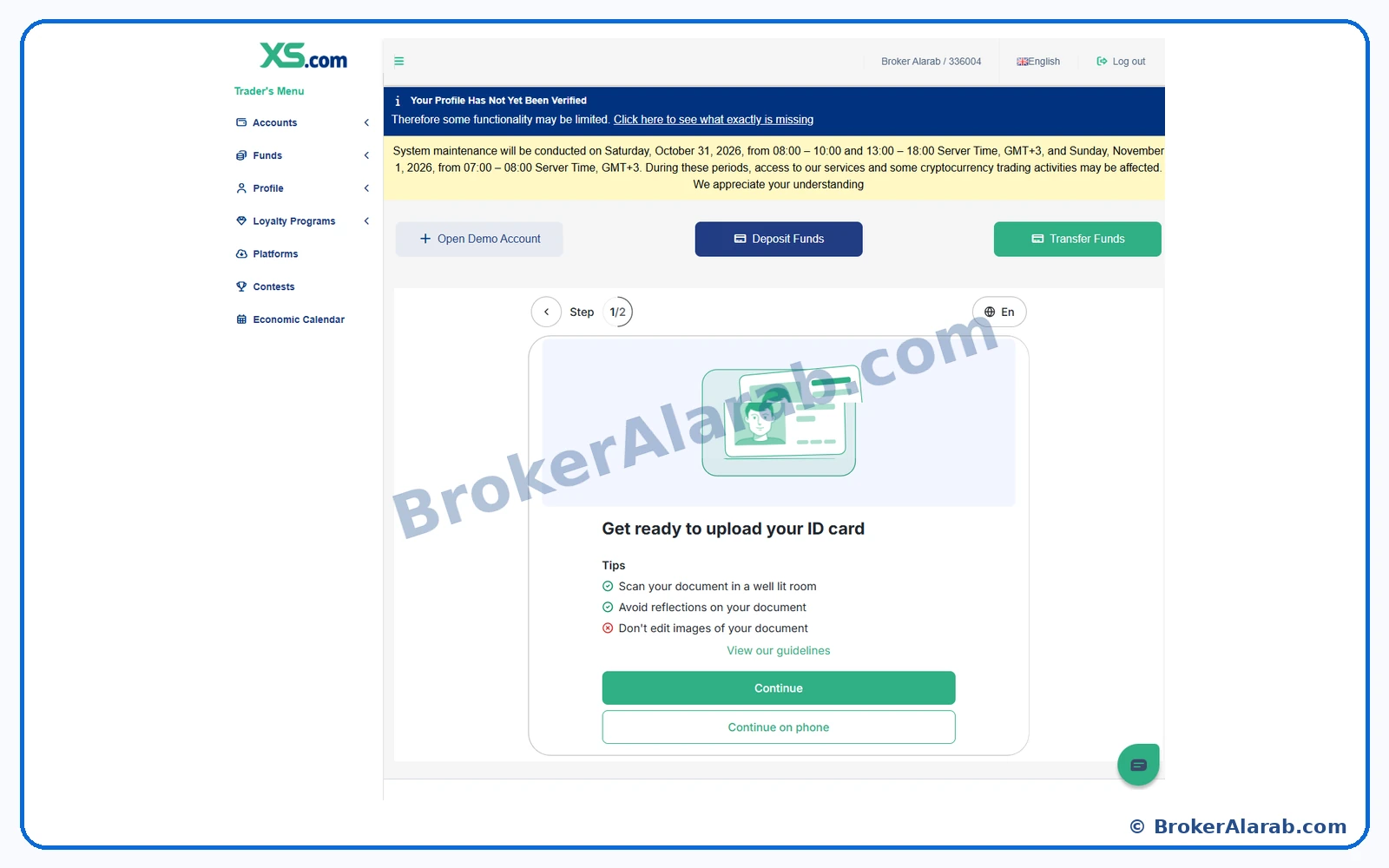
Step 1616 of 28Identity & Address Verification

Read the ID photo instructions

The screen explains how to capture a legible ID image: show all corners, use good lighting, and avoid glare or reflections. Review the guidance before moving on.

Read the ID photo instructions
Screenshot for Step 16Enlarge Image ↗
ⓘ Important Notes⌄

Clear original images reduce the chance of another upload being requested.

! Important Warning⌄

Do not alter document information or security features.

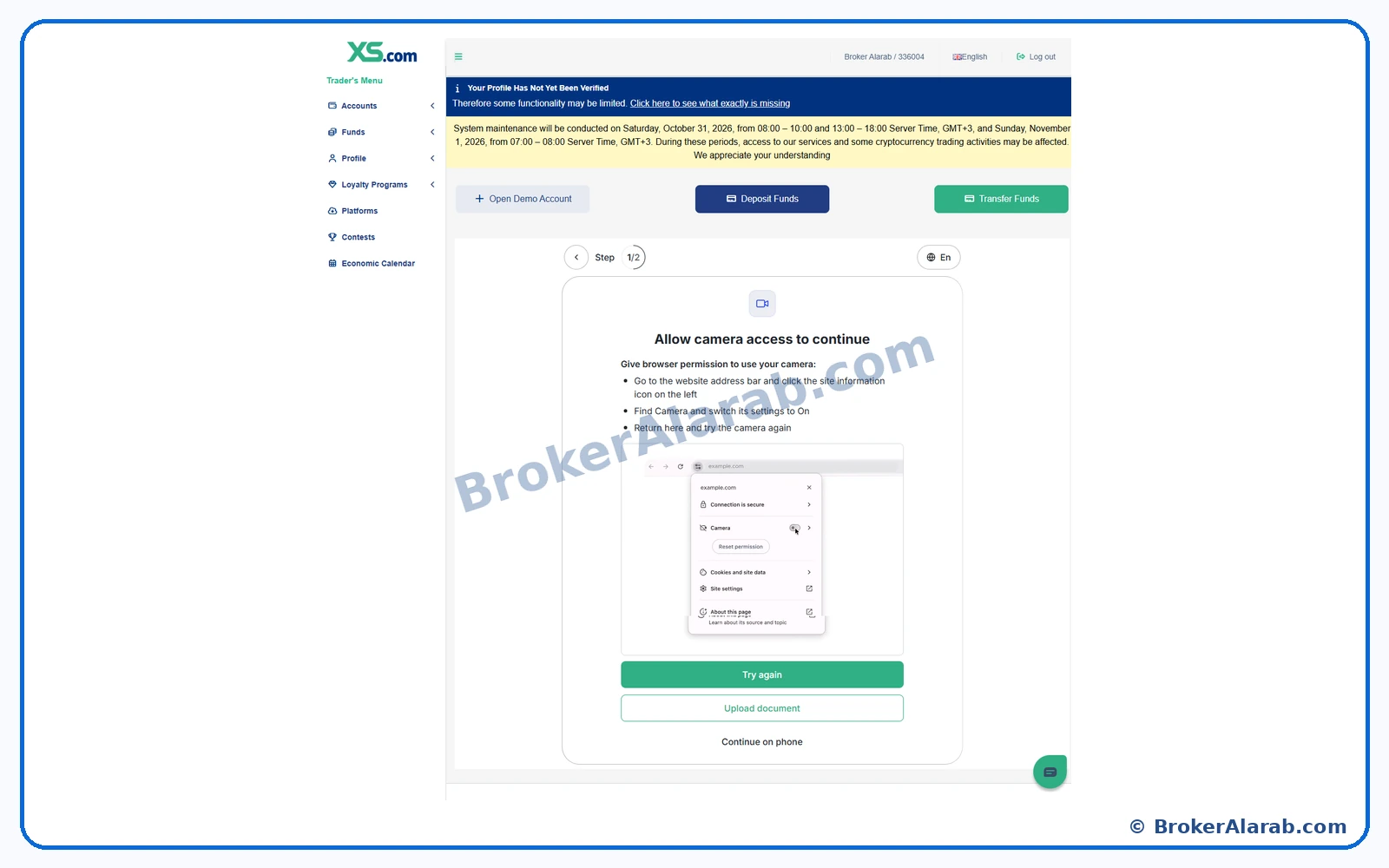
Step 1717 of 28Identity & Address Verification

Allow camera access or upload a saved file

You can grant browser camera access to take a photo or, if offered, upload an existing clear document image from your device.

Allow camera access or upload a saved file
Screenshot for Step 17Enlarge Image ↗
ⓘ Important Notes⌄

Available capture and upload methods depend on your device.

! Important Warning⌄

Avoid uploading sensitive IDs from shared or public computers.

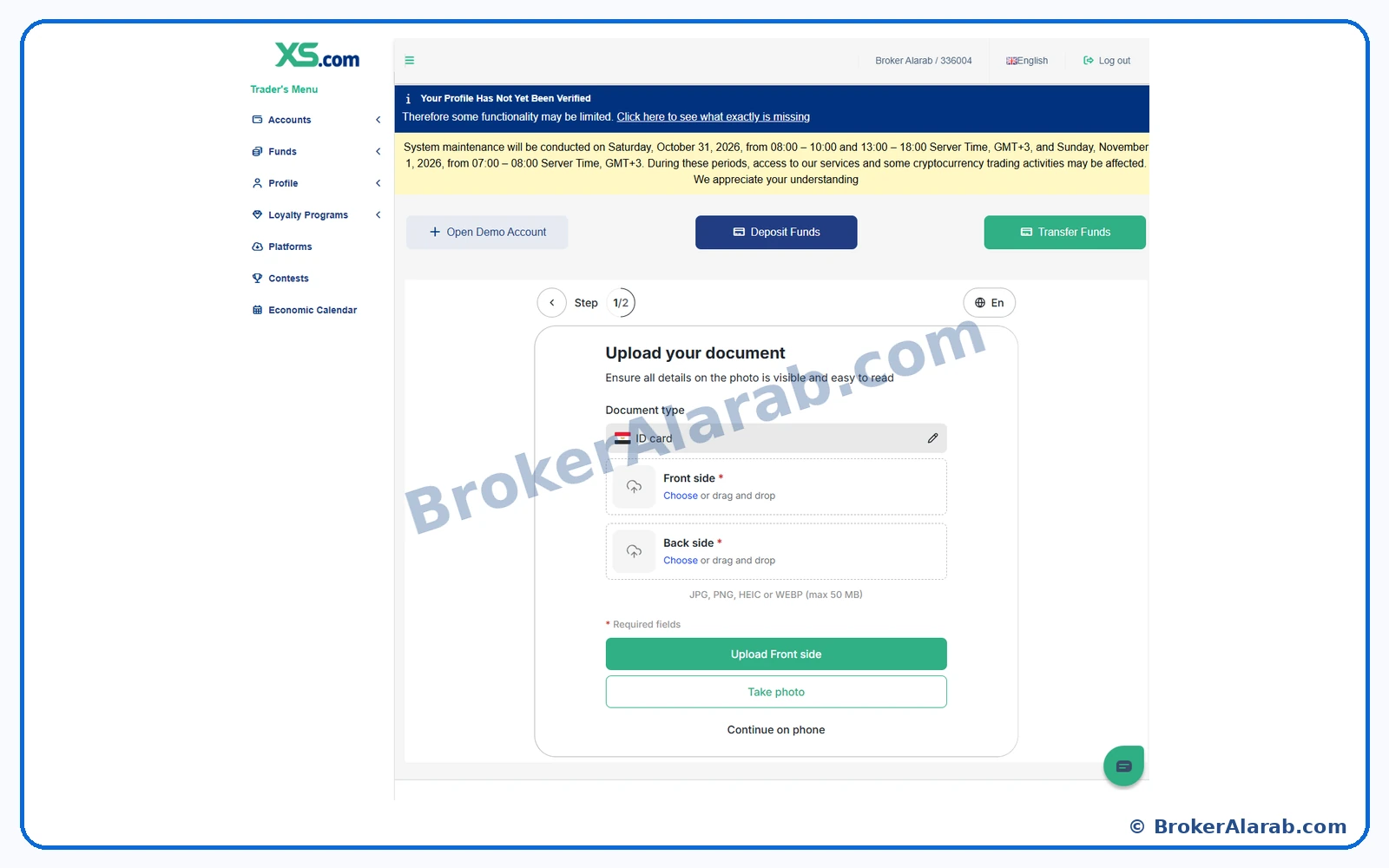
Step 1818 of 28Identity & Address Verification

Upload the front and back of your ID

If the selected ID has two sides, upload the front image in the Front field and the reverse in the Back field. Check legibility before continuing.

Upload the front and back of your ID
Screenshot for Step 18Enlarge Image ↗
ⓘ Important Notes⌄

Follow the file type and size limits displayed by the uploader.

! Important Warning⌄

Do not submit the same side in both fields.

Step 1919 of 28Identity & Address Verification

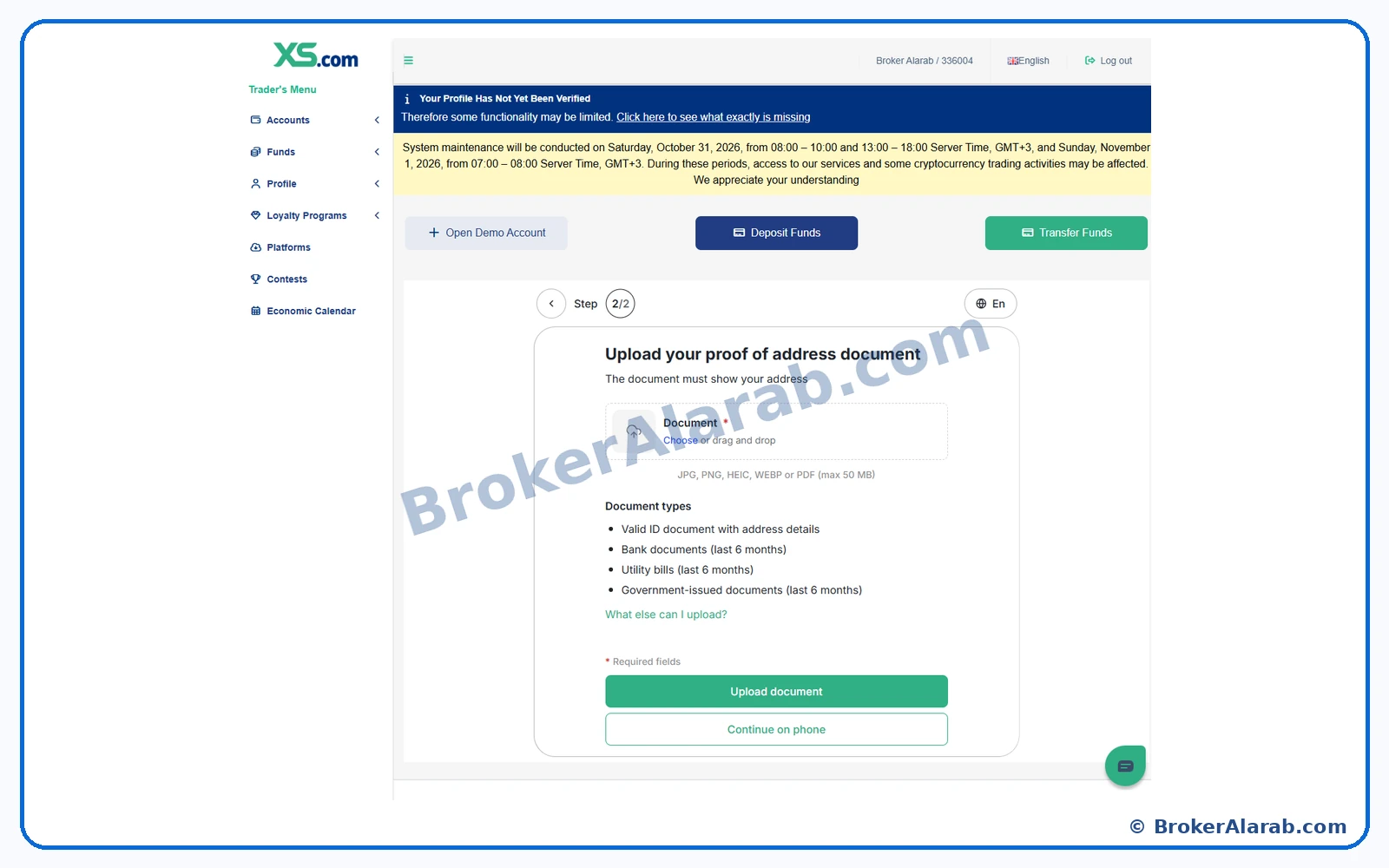
Upload a proof-of-address document

The next stage asks for a proof-of-address document. Select an accepted statement, utility bill, or official document showing your address, then upload it in the designated area.

Upload a proof-of-address document
Screenshot for Step 19Enlarge Image ↗
ⓘ Important Notes⌄

Check the required issue date and document details for your account.

! Important Warning⌄

Your name and address must be visible and accurate.

Step 2020 of 28Identity & Address Verification

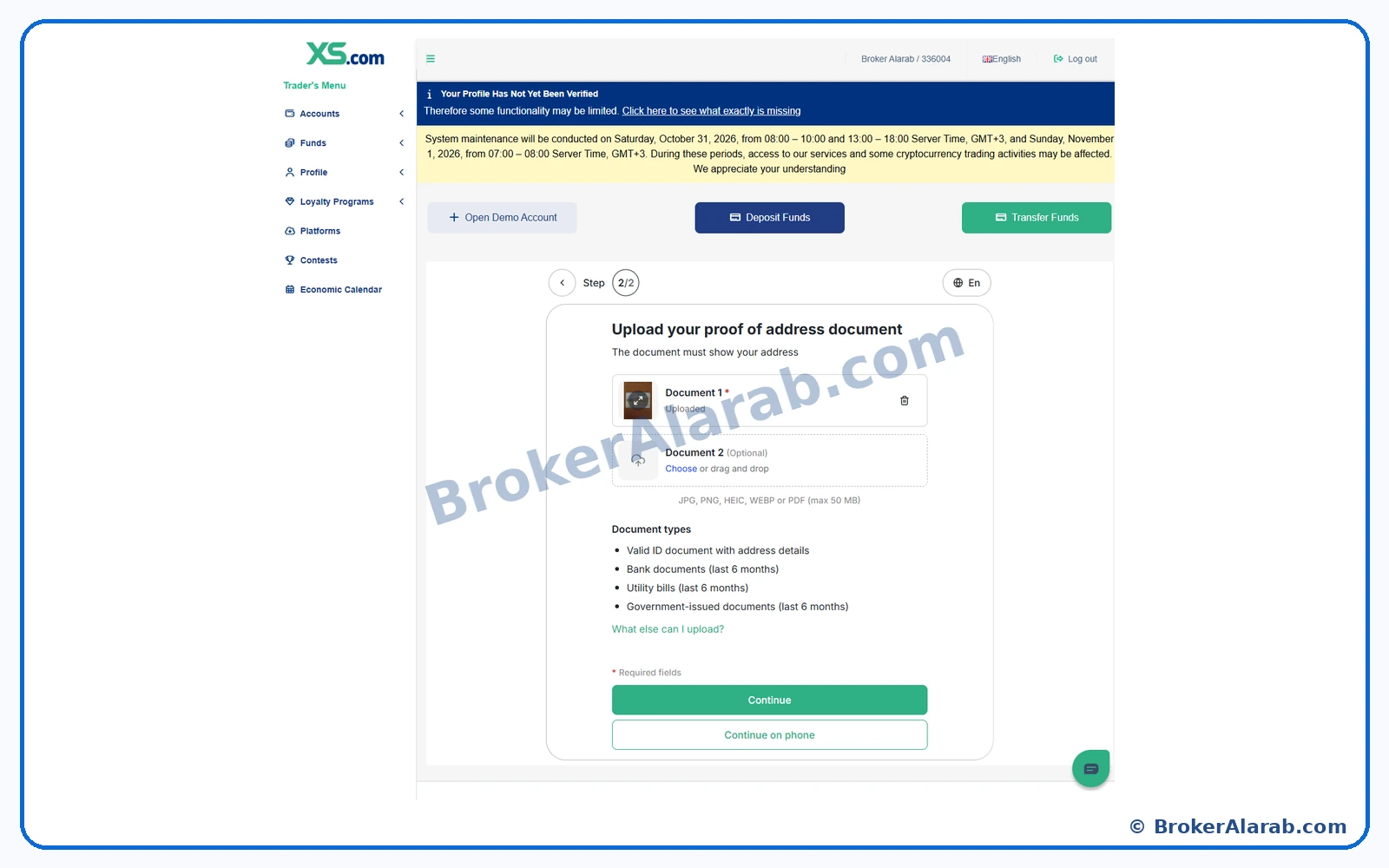
Confirm the proof-of-address upload

The portal previews the uploaded address document. Review it and add supporting pages if prompted, then select Continue.

Confirm the proof-of-address upload
Screenshot for Step 20Enlarge Image ↗
ⓘ Important Notes⌄

Include any page needed to establish your name and address.

! Important Warning⌄

Replace unclear or incomplete files before submission.

Step 2121 of 28Identity & Address Verification

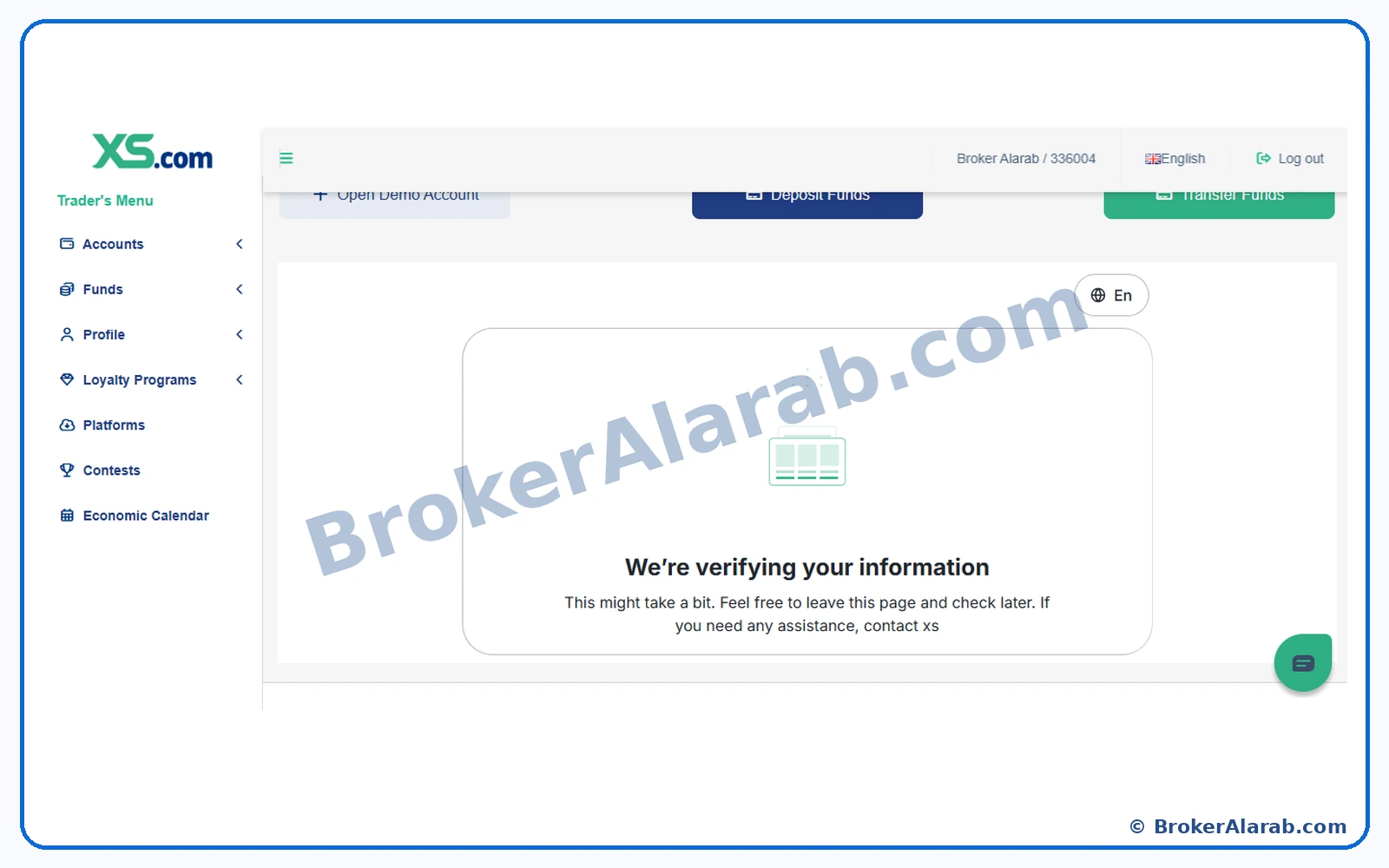
Wait while address verification is reviewed

The verification screen indicates that the address documentation is under review. Follow the status in the portal and any subsequent email updates.

Wait while address verification is reviewed
Screenshot for Step 21Enlarge Image ↗
ⓘ Important Notes⌄

Approval times vary; no specific processing time is guaranteed.

! Important Warning⌄

Do not repeatedly resubmit documents unless instructed.

ACCOUNT OPENING STAGE

Trading Account Setup

Back to Contents ↑
Step 2222 of 28Trading Account Setup

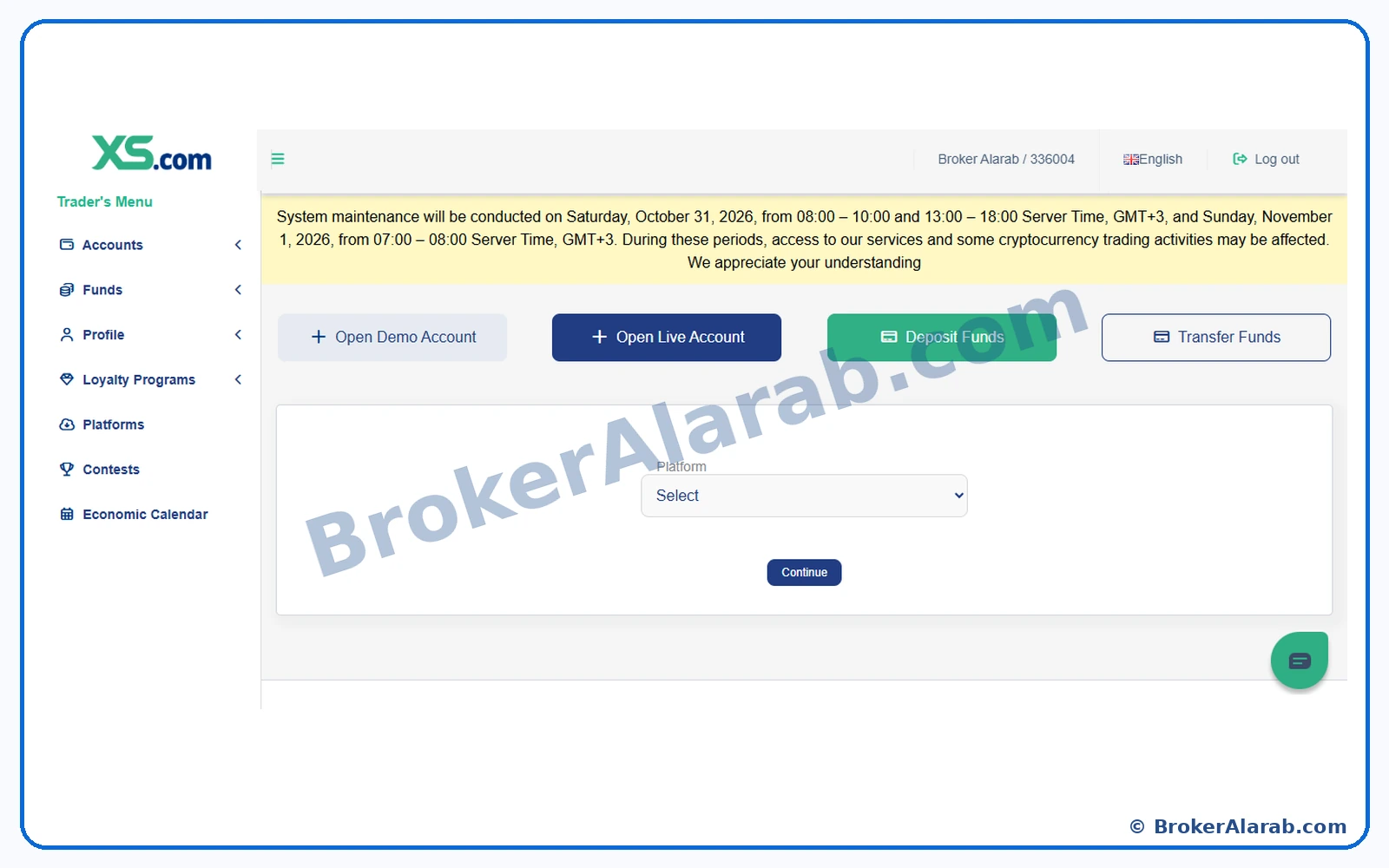
Open the accounts overview

In the client portal, navigate to Accounts or Accounts Overview and select Open Live Account if the option is available.

Open the accounts overview
Screenshot for Step 22Enlarge Image ↗
ⓘ Important Notes⌄

A separate demo account may also be available for practice with virtual funds.

! Important Warning⌄

Live accounts involve trading with real funds and risk of loss.

Step 2323 of 28Trading Account Setup

Select a trading platform

The account-opening prompt asks you to choose a trading platform. Open the Platform dropdown to inspect the available choices.

Select a trading platform
Screenshot for Step 23Enlarge Image ↗
ⓘ Important Notes⌄

Platform selection affects tools and account compatibility.

! Important Warning⌄

Check that your preferred trading tools are supported.

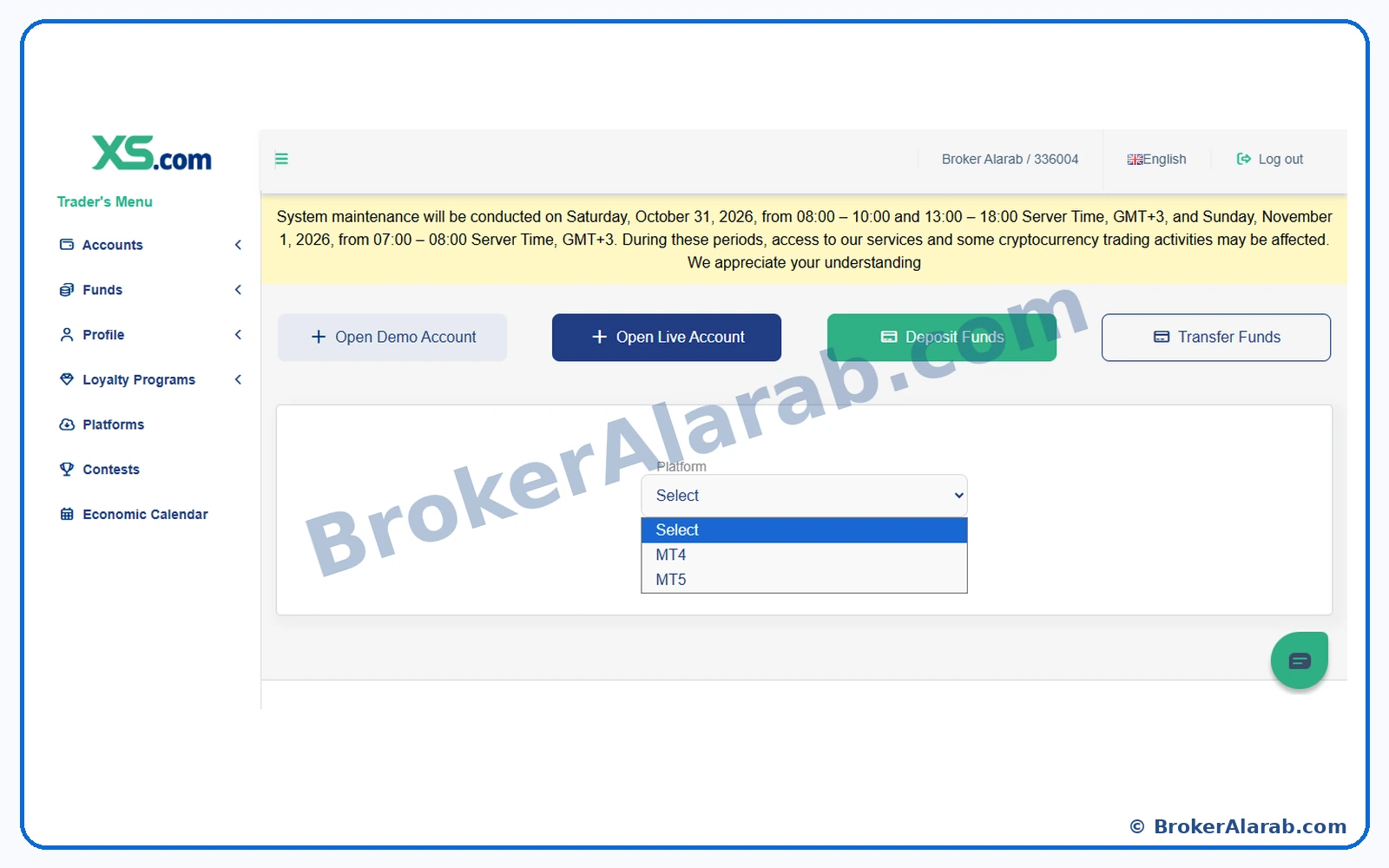
Step 2424 of 28Trading Account Setup

Choose MT4 or MT5

Choose MetaTrader 4 or MetaTrader 5 from the available platform options and continue. They differ in functionality and supported trading tools.

Choose MT4 or MT5
Screenshot for Step 24Enlarge Image ↗
ⓘ Important Notes⌄

Changing the platform of an existing account may require another account.

! Important Warning⌄

An indicator or automated strategy designed for one platform may not work on the other.

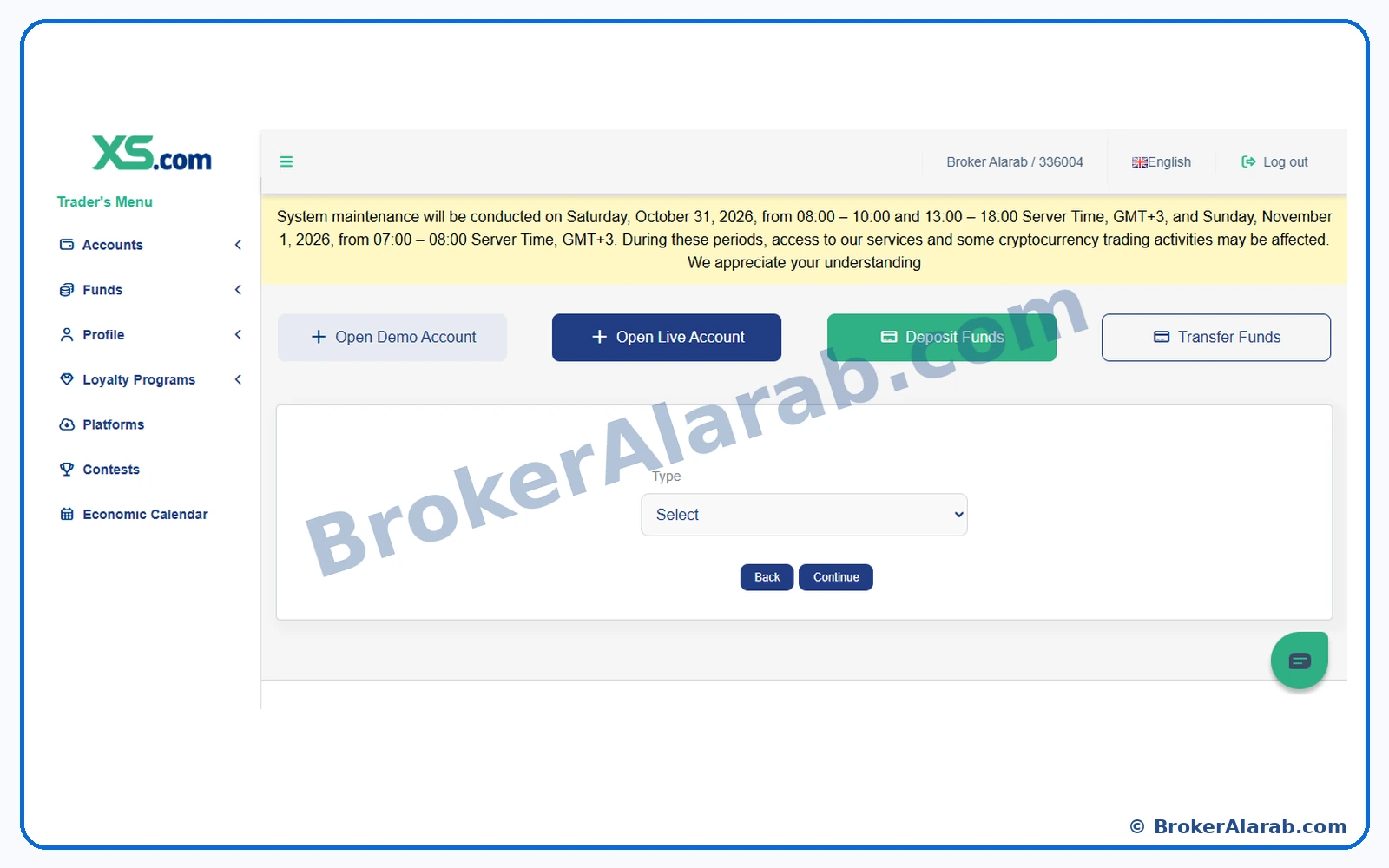
Step 2525 of 28Trading Account Setup

Open the trading account type menu

After platform selection, open Account Type to review the account categories available for your profile.

Open the trading account type menu
Screenshot for Step 25Enlarge Image ↗
ⓘ Important Notes⌄

Account options can vary by entity, jurisdiction, and platform.

! Important Warning⌄

Review spreads, commissions, and funding requirements before selecting.

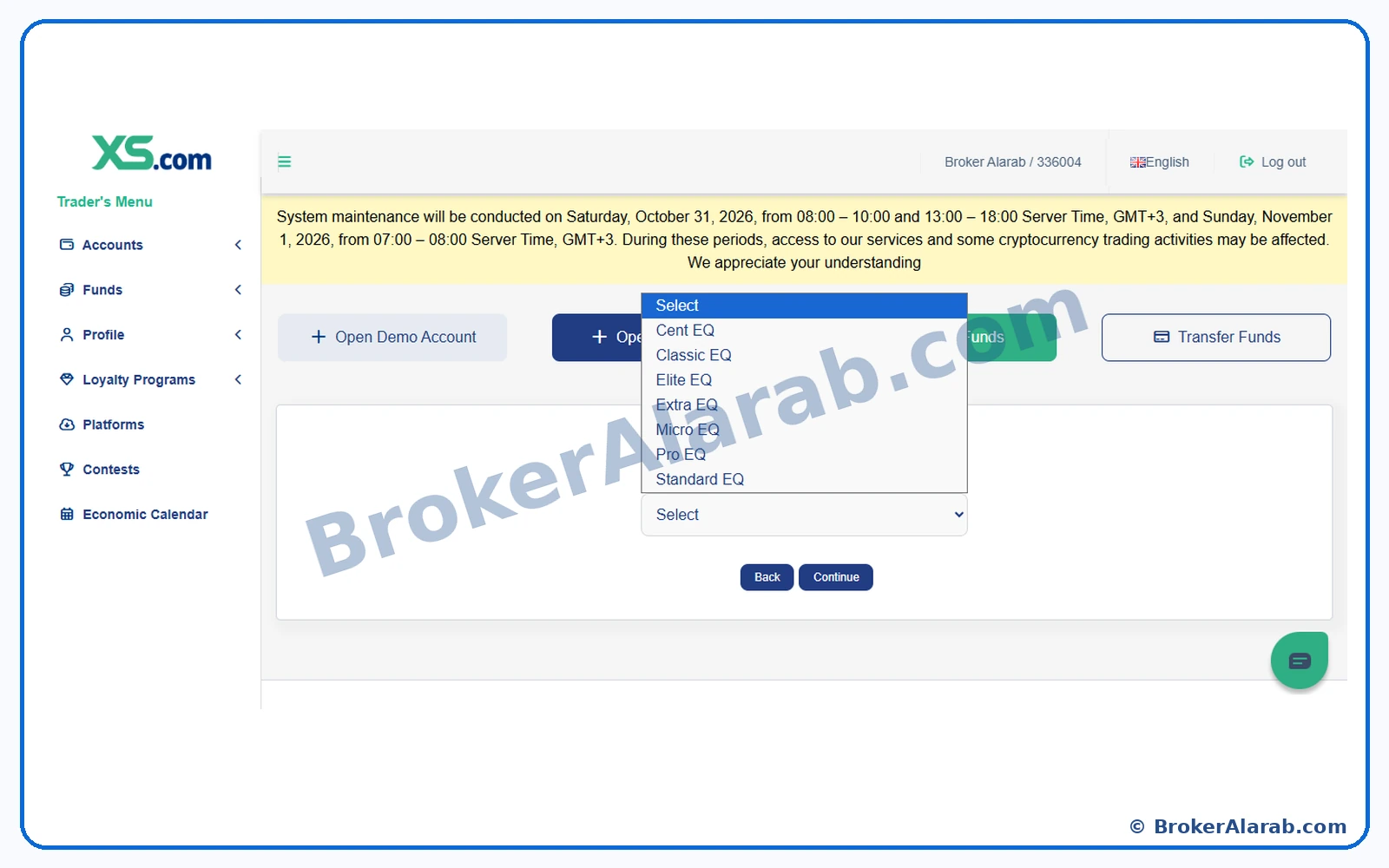
Step 2626 of 28Trading Account Setup

Review the available account types

The dropdown lists account choices such as Standard EQ, Classic EQ, Pro EQ, and other categories. Compare the applicable terms before choosing one.

Review the available account types
Screenshot for Step 26Enlarge Image ↗
ⓘ Important Notes⌄

The screenshot documents available options at the time it was taken, not universal availability.

! Important Warning⌄

Do not choose an account solely by its name.

Step 2727 of 28Trading Account Setup

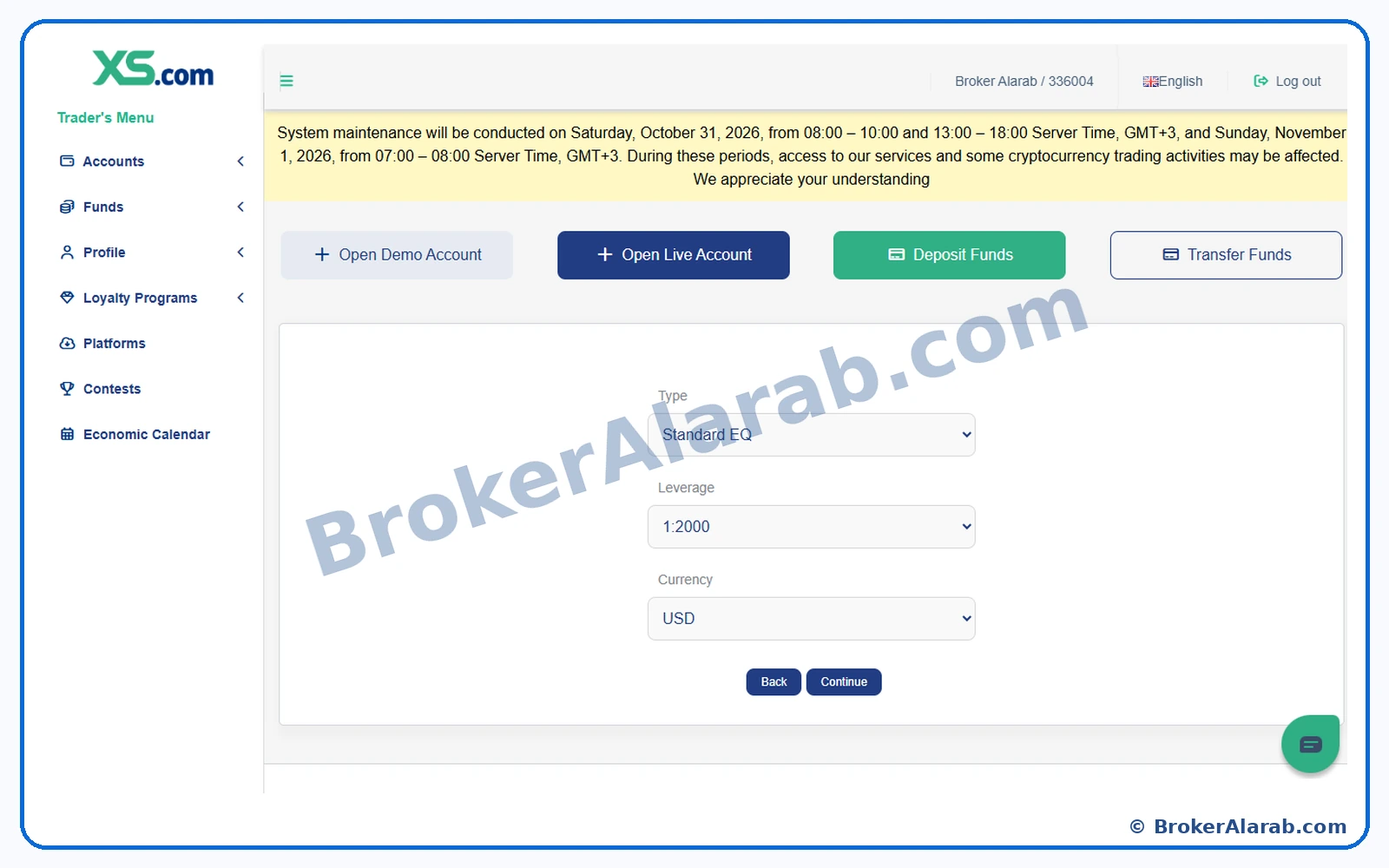
Set leverage and account base currency

Select the account type, choose an available leverage level, and set the account base currency. Check the parameters before continuing.

Set leverage and account base currency
Screenshot for Step 27Enlarge Image ↗
ⓘ Important Notes⌄

Available leverage varies by entity, client classification, and instrument.

! Important Warning⌄

Higher leverage increases potential losses as well as exposure.

Step 2828 of 28Trading Account Setup

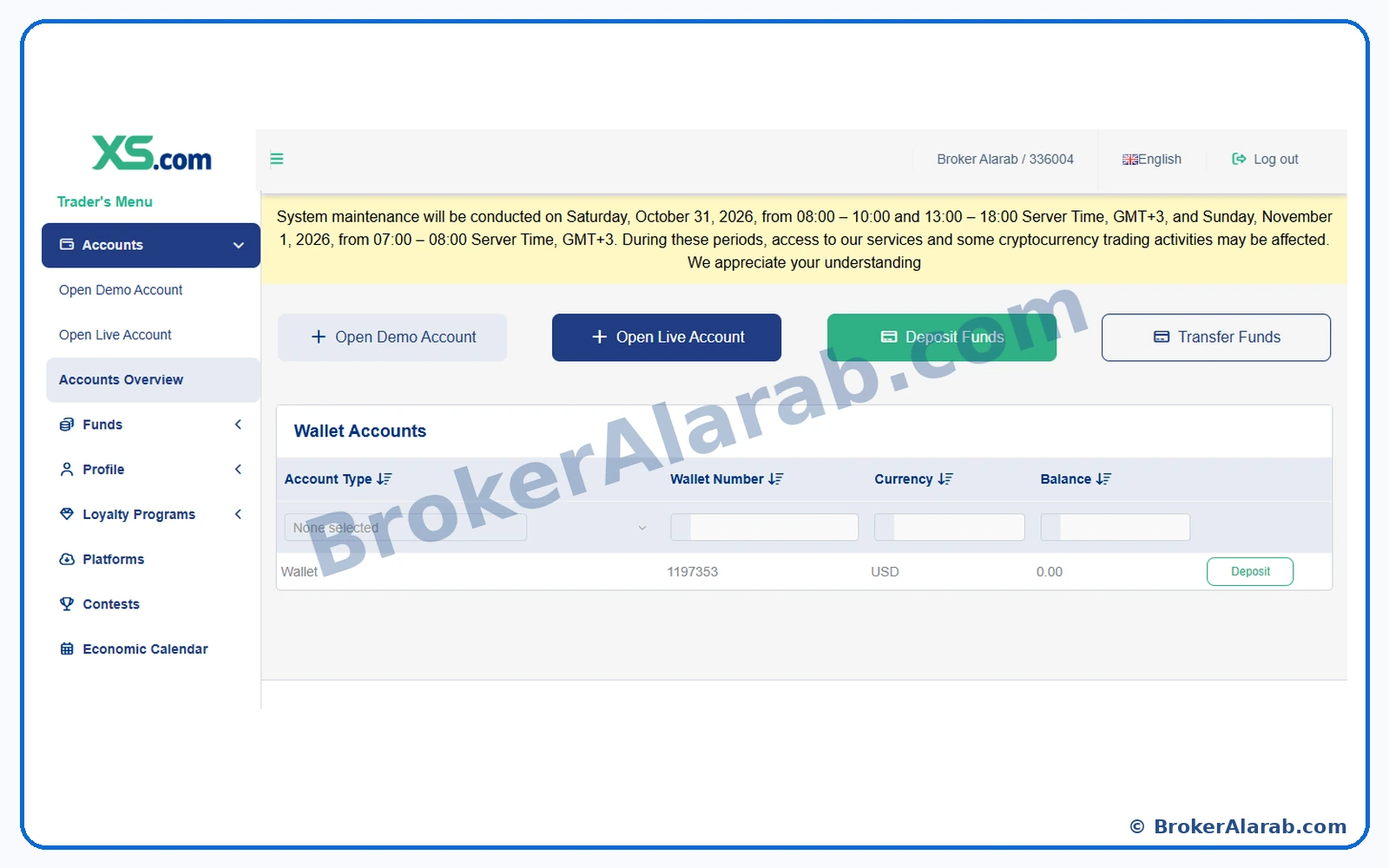
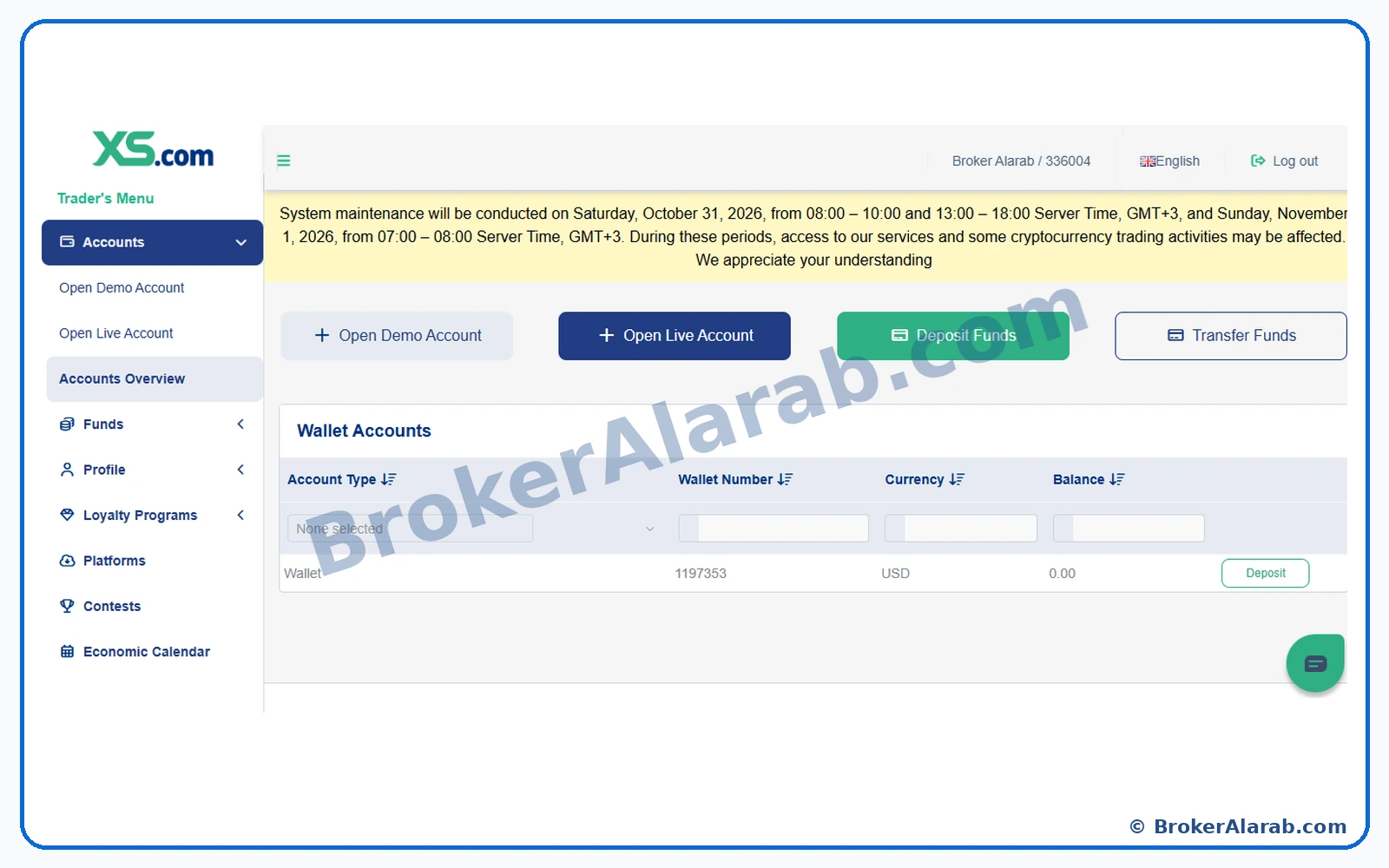
Review the wallet overview after setup

The screenshot shows the Wallet Accounts area with a wallet number, currency, and balance. It demonstrates that the wallet appears, but does not by itself prove a live trading account has been created. Confirm trading-account status separately.

Review the wallet overview after setup
Screenshot for Step 28Enlarge Image ↗
ⓘ Important Notes⌄

The displayed balance is an example from the guide preparation session.

! Important Warning⌄

Verify your account status and trading risks before depositing.

✓ All Guide Steps Covered

Finished the XS Guide? What Comes Next?

Once you understand registration, identity verification and trading account setup, you can visit the broker's registration page or review its trading conditions, costs and risks before deciding whether to proceed.

!

Risk Warning & Disclaimer

Trading leveraged financial products involves a high level of risk and may result in the loss of capital. This guide and its screenshots are provided for educational purposes only and do not constitute investment advice or guarantee account approval. Registration, verification and documentation requirements may vary by country and broker. Read the broker's terms and risk disclosures before registering or depositing funds.